
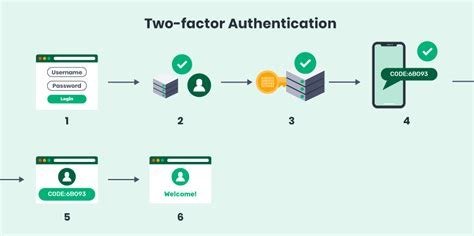
Picture the day someone, somewhere, gets your email password — from a data breach, a phishing page, a password you reused one time too many. What happens next depends almost entirely on one setting. Without two-factor authentication, the stranger is simply in: your mail, your resets, your life. With it, the password alone is a key that opens nothing, because the door asks for a second proof they do not have. Everything below is the questions people actually ask about that second proof, answered in plain terms.
What exactly is two-factor authentication?
It is a second check at sign-in, on top of your password. The check proves you have something physical — usually your phone — by asking for a short code sent to it or generated by an app on it, or by asking you to tap a prompt or use a security key. The password is something you know; the factor is something you have. A thief needs both, and the second one is not in any breached database.
You may also see it called 2FA, two-step verification, or multi-factor authentication. Different labels, same idea: no single stolen secret is enough.
Which kind should I use — text codes, an app, or a key?
From weakest to strongest, honestly ranked. Text-message codes are the floor: far better than nothing, but the code travels through the phone network, and determined attackers can sometimes redirect a number. An authenticator app — Google Authenticator, Microsoft Authenticator, Authy, or the ones built into password managers — generates codes on the device itself, offline, and is the right default for most people. Prompts that ask “was this you?” with a tap are in the same strong tier.
At the top sit hardware security keys — small USB or wireless devices like a YubiKey, roughly $25 to $55 — which are essentially unphishable and worth it for your most important accounts or if you are a likely target. The practical advice: app-based codes for everything, a hardware key if you want the best, text codes only where nothing better is offered — and anything at all rather than nothing anywhere.
Which accounts do I set up first?
Start with email, because email resets everything else; an attacker inside your inbox owns the “forgot password” keys to your whole online life. Next, banking and anything that moves money. Then your Apple or Google account — the master key to your phone — followed by social media and shopping accounts that store your card.
The order matters less than the start. Email plus banking this weekend already puts you ahead of the overwhelming majority of internet users, and each account after that takes about two minutes once you know where the setting hides.
Where do I find the setting, and what does setup look like?
Nearly every service buries it in the same neighborhood: Settings, then Security or Privacy, then an option named two-step verification, two-factor authentication, or login verification. The flow is then almost always the same — choose the app method, scan a QR code with your authenticator app, type back the code it shows to prove it worked, and save the backup codes it gives you (next question). Google’s own walkthrough for its accounts, in Google’s guide to turning on 2-Step Verification, shows the pattern clearly, and other services copy it closely.
Do it from a computer where you are already signed in, with your phone in hand, and do not rush the backup-code step at the end. That step is the whole insurance policy.
What are backup codes, and where should they live?
When you turn on two-factor, most services give you a set of one-time backup codes — your way back in if the phone is lost, broken, or replaced without preparation. Treat them like a spare house key. Save them in your password manager if you use one, or print them and keep them somewhere physical and private — a drawer at home, not a photo on the same phone, and not a note stuck to the monitor. Each code works once; using one is a signal to sign in and generate a fresh set.
What if I lose my phone?
This is the fear that stops people setting it up, and it has a boring, safe answer: the backup codes from the previous section. Sign in with a backup code, then move the authenticator to your new phone — most services let you re-enroll the second factor from account security settings once you are in. If your codes are lost too, every major service has an account recovery process; it is slower and asks more questions, deliberately, but it exists. Losing your phone without two-factor and with a weak password is the far worse scenario — that is the one where the finder owns your accounts, not you locked out of them.
Can two-factor still be beaten?
It can be weakened in specific ways, and you should know them. Real-time phishing pages can trick you into typing a live code that the attacker uses that second — which is why app codes and especially hardware keys beat codes you read out, and why you should never give a code to anyone who contacts you asking for it. No bank, and no platform, will ever phone you to request one. SIM-swap attacks are the argument against relying on text codes for your most sensitive accounts. None of this makes two-factor optional — it means choose the app or key version and keep your wits about unsolicited contact, the same caution that applies to staying safe when banking on public WiFi.
I have dozens of accounts. How do I not spend a weekend on this?
You do it the way you would eat any large task: by priority and in batches. The first batch is the crown jewels — email, bank, phone account, primary shopping account — perhaps twenty minutes total, and it closes most of your real risk, because most account disasters start with email or money. The second batch, whenever you next log into each service naturally, is everything else: social media, streaming, stores, forums. Let logins be the reminder — each time a service asks for your password, spend the extra two minutes in its security settings before you leave. Within a month the tail is done without a single dedicated session. A password manager quietly helps here too: most keep a list of your accounts, some will even tell you which ones offer two-factor and store the app codes alongside the password (a small convenience trade against having everything in one vault — acceptable for most people, and the vault itself gets a hardware key or app code of its very own).
Should I set this up for my parents and kids too?
Yes — gently, and in that order of priority. Parents are the favorite targets of account fraud and the least likely to have set this up themselves; an afternoon visit that secures their email and banking is one of the highest-value tech favors you can do a person. Teenagers’ accounts get hijacked for scams aimed at their friends, and school accounts increasingly support a second factor as well. Set it up with them, not for them — codes live on their phones, backup codes printed in their drawer — because the protection has to survive your drive home. Ten minutes of patience now, or the family tech-support call later; experience says choose the ten minutes.
What if a service only offers text-message codes?
Some banks and older services still offer nothing else. Take it — a text code is a real second wall, and the perfect should not evict the good. Compensate in the two places you control: keep the phone number on the account current (a code sent to a number you abandoned two moves ago is a lockout with extra steps), and ask your carrier about adding a port-out or SIM-change lock, which many offer free and which blunts the SIM-swap attacks that are text codes’ known weakness. Then check back once a year; services upgrade their options quietly, and the app method you wanted has a habit of appearing in the same settings page, unannounced, between visits.
What about passkeys — is this already old-fashioned?
Passkeys are the newer system many services now offer: your device proves who you are with biometrics and cryptography, no password and no code to type. Where a service offers passkeys, accepting is a good move — they are stronger than passwords and harder to phish. But plenty of services still run on passwords plus two-factor, and setting up two-factor today protects all of them. Think of passkeys as the upgrade you accept when offered, and two-factor as the foundation you lay now. Password first, second factor on, backup codes saved: twenty minutes per account at most, and the day your password leaks becomes a non-event instead of a catastrophe.
If you do nothing else after reading this, do the three-account version tonight: email, bank, and the account that runs your phone. Everything else in this article is optimization. Those three are the difference between a bad password day and a bad year — and unlike most security advice, this one fits between dinner and the evening news, with the kettle still warm when you finish.



11 Comments