
The film is halfway through when it starts: the fan, which was silent at the opening credits, winds up until the laptop sounds like a hair dryer warming to its work. The bottom is hot against your legs, the picture stutters once, and a machine that browses the web in silence has apparently decided that playing a video is heavy labor. Video is not heavy labor. So why the meltdown?
Because laptops rarely overheat for one dramatic reason. They overheat because of a pile of small, common mistakes — most of them made by owners who have never opened a vent or a settings menu. Here are the ones that matter, in the order they usually strike.
Mistake 1: Watching on a bed, a sofa, or your lap
Most laptops breathe through vents on the bottom and sides, and a duvet is a perfect plug. Set the machine on something soft and the intake vents seal against fabric within minutes; the fan spins faster to compensate, pulls less air, and the temperature climbs in a loop. This is the single most common cause of video-time overheating, and the fix is embarrassingly physical: a hard, flat surface. A tray, a board, a large hardback book in a pinch — anything that lets the underside breathe. If you watch in bed every night, a basic cooling pad with fans, around $20 to $30, does the job properly and typically drops temperatures by 5 to 10 degrees.
Mistake 2: Years of dust in the vents
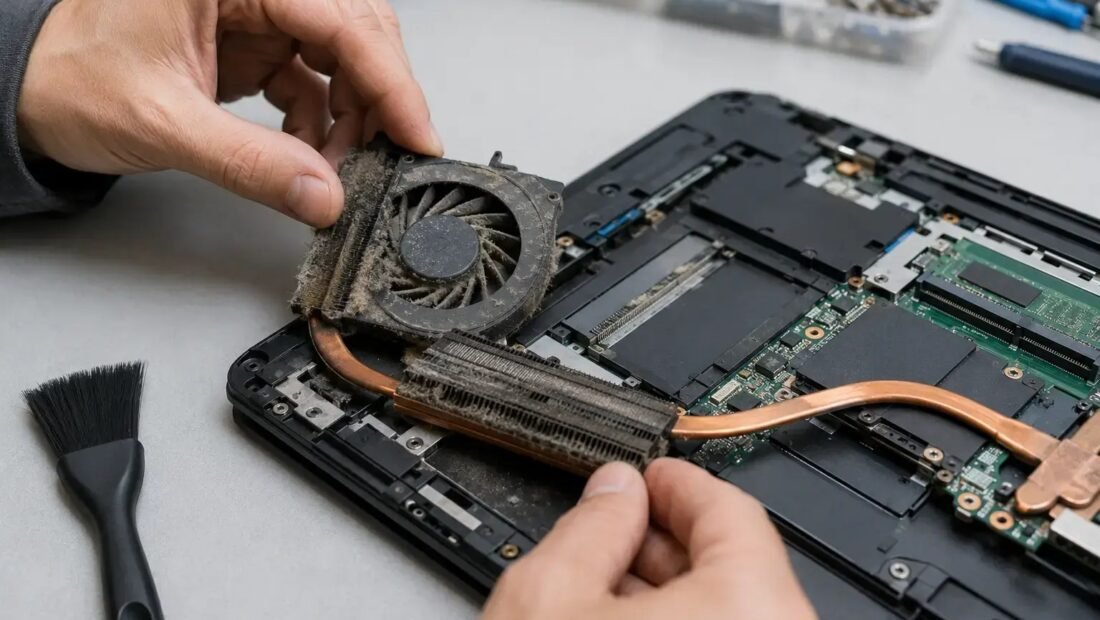
Laptop vents inhale room air and everything floating in it. Over two or three years, the exhaust fins inside collect a felt of dust that air can barely pass — the fan roars because it is blowing against a wall of its own making. The fix costs almost nothing: a can of compressed air, about $5 to $8. With the laptop off, blow short bursts inward through the exhaust vents to dislodge the dust, and watch what comes out; on a neglected machine it can be genuinely startling.
If the machine is old and still runs hot after that, a repair shop will open it and clean it properly for about $40 to $80 — worth it every couple of years on a machine you plan to keep, and far cheaper than the heat damage it prevents. Heat is not just noise; sustained high temperatures age batteries and stress components quietly, all year long.
Mistake 3: Assuming the video is the workload
Sometimes the video is innocent. Open Task Manager (Ctrl+Shift+Esc), sort by CPU, and watch what is actually working while a video plays. If something besides the browser is eating 20 percent or more of the processor — a stuck Windows updater, an antivirus scan, indexing gone rogue, or in the worst case a crypto miner slipped in by a sketchy download — the fan is responding to that, not to your film. End the runaway task, let any legitimate update finish, and if something you do not recognize keeps coming back, run a full security scan before the next movie night. Our guide to keeping an old laptop quick covers several of these background offenders in more depth — but start with the Task Manager evidence; guessing wastes evenings.
Mistake 4: Making the browser do the video the hard way
Modern laptops have dedicated hardware for decoding video, which plays a film while sipping power. When that hardware path is disabled or unsupported, the main processor does the decoding instead — software decoding — and works many times harder for the identical picture. In your browser settings, make sure “use graphics acceleration when available” (or similarly named hardware acceleration) is turned on. If one browser makes the fan scream and another does not, that setting, or codec support, is usually why — switching browsers for video is a legitimate, free experiment.
Resolution counts too. A laptop struggling with a 4K stream on a 1080p screen is decoding four times the picture it can show. Dropping the stream to 1080p loses nothing you can see and gives the machine a quarter of the work.
Prove it in five minutes: the two-browser test
When the cause is not obvious, this experiment splits the suspects cleanly. Play the same video, at the same resolution, for five minutes in your usual browser — then play it in a different browser, or in your usual one with extensions disabled in a private window, and listen. If the fan calms down in the second run, your problem lives in the first browser: an extension misbehaving, hardware acceleration off, a codec path the machine dislikes. If both runs roar identically, the problem is below the software — dust, surface, paste, or a background task — and the other mistakes in this article are your list. Diagnostics people pay shops for often amounts to exactly this kind of split-the-world-in-half test, and it costs you ten minutes and no money. Write down what you find; the next time the fan starts up during a film, future you will skip straight to the answer.
A safety note belongs with any compressed-air advice, because the tool is misused in one specific way constantly: hold the fan still while you blow. A blast of air can spin a small fan far faster than its bearings were built for, and a spun-backwards fan can even feed a little voltage into the board it is wired to. A finger or a toothpick keeping the blades still while the other hand sprays is the whole technique — the same caution the guides for your model will repeat. It takes one second and converts the cheapest fix in this article from “mostly safe” to simply safe.
Mistake 5: Ignoring the thermal paste on an old machine
Between the processor and its heatsink sits a thin layer of thermal paste that carries heat across. Over the years it dries and cracks, and the bridge fails slowly — the processor gets hotter, the fan gets louder, and no amount of vent cleaning fully cures it, because the problem is inside. Re-pasting is the deep fix: about $10 in materials if you are handy, or $60 to $100 at a shop, and on an older laptop it commonly drops temperatures by 10 to 20 degrees. The guides at iFixit show what opening your specific model involves, which is the right way to decide whether your machine is a DIY candidate or a shop job.
Mistake 6: Leaving it plugged in, maxed out, and cooking on the charger
Video night often happens at the end of a workday, with the laptop on its charger, the power plan set to maximum performance, and the battery charging at the same time — three heat sources holding a meeting. Charging generates heat of its own; a processor allowed to run flat-out generates more; the cooling system fights both at once. If your machine roars mainly while plugged in, test the same video on battery and in the balanced power plan. Many laptops calm down immediately, and the “overheating” was partly a settings pile-up rather than a fault. There is no prize for a performance mode while watching a film — the video does not need the processor’s top gear, and the fan bill arrives in noise.
When it is not a mistake anymore: signs of real failure
Everything above assumes a healthy machine being used badly. A shorter list of symptoms means hardware trouble instead, and no setting will fix them: the laptop shuts down outright mid-video (that is the emergency thermal cutoff protecting the processor — take it seriously the first time), the picture glitches or shows artifacts as it heats, the fan makes a grinding or rattling noise rather than a clean whoosh (a dying bearing), or the case around the vents is too hot to rest a hand on. A grinding fan is a cheap part and a quick shop repair; repeated thermal shutdowns deserve the same visit rather than a cooling pad and optimism. Heat damage is cumulative and quiet — batteries swell, solder joints tire, performance throttles lower each season — so a machine that keeps cooking is spending its own lifespan to finish your film. That trade is never worth it, and it is the one place in this article where “take it to a shop this week” is the advice, not a last resort.
Putting the evening back together
Run the checks in order and most laptops quiet down at step one or two: flat surface, clean vents. The stubborn cases surrender to the Task Manager clue or the thermal paste. What overheating almost never means is “buy a new laptop” — it means the cooling path, which is simple and mechanical, has been neglected. Your fan is not complaining about the movie. It is complaining about the blanket, the dust, and five years of silence from you. Fix those, and the only sound during the film will be the film. If your laptop troubles run to the liquid kind instead, that is a different emergency entirely — see our guide to what to do if you spill water on your laptop, where the first ten minutes decide everything.