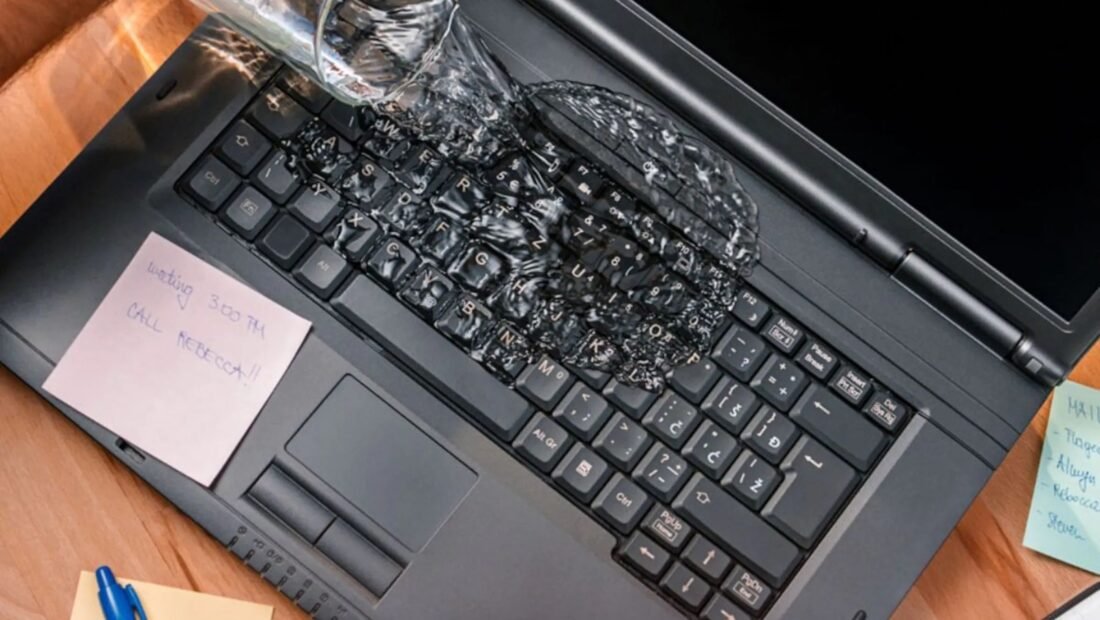
It happens in one stupid second: a sleeve catches the glass, and a full glass of water is suddenly inside your laptop instead of next to it. The screen flickers. Your stomach drops. What you do in the next sixty seconds — and, just as importantly, what you resist doing in the next two days — will decide whether this becomes an embarrassing story you tell for years or a $400 repair. This is the whole incident as a timeline, because with liquid damage, order and timing are everything.
The First 60 Seconds: Kill the Power
Do not finish the paragraph you were writing. Do not save the document. Pull the power cable out, and if the laptop is still on, hold the power button down until it dies completely. Electricity plus liquid is what actually destroys laptops — water alone, on an unpowered board, is surprisingly survivable; water carrying current corrodes and shorts components in real time. Every second the machine runs wet is damage being done. If your laptop has a removable battery (rare now, priceless here), take it out. Unplug everything attached — mouse, drives, chargers, all of it. Speed matters more than grace in this minute. If the machine was asleep rather than off, treat it exactly the same way: wake it only to shut it down properly, and do it fast.
Minutes 2 to 10: Drain It Like You Mean It
Now turn the laptop upside down. Open it partway and rest it in a tent shape — keyboard facing down, screen and base forming an upside-down V on a towel — so gravity pulls the liquid out the way it came in rather than deeper toward the motherboard. Blot what you can reach with a lint-free cloth or paper towel. Do not shake it (you spread the water), do not use a hair dryer (you push liquid deeper and can warp keys with heat), and whatever you do, do not press the power button “just to check.” Checking is how survivors become casualties.
The First Hour: Assess the Spill Honestly
What you spilled matters almost as much as how much. Plain water is the best case — it dries clean. Coffee and tea are worse (acids, oils). Soda, juice, and anything sugary or alcoholic are the worst: they dry into a sticky, corrosive residue that keeps eating the board for months, and a sugary spill needs professional cleaning even if the laptop seems fine afterward — budget $75 to $150 for that, and consider it non-optional. Take a photo of the scene for your own memory, note roughly how much liquid and where it landed, and if the laptop was mid-something important, accept the document may be gone; the machine is the patient now.
Hours 2 to 48: The Hardest Step Is Doing Nothing
Leave the laptop in its tent, in a dry room with decent air movement — a fan pointed at it helps — for a minimum of 48 hours, ideally 72, before even thinking about turning it on. No peeking. No “quick test” at hour twenty. Powering on early, while moisture still hides under chips and inside connectors, is the moment most recoverable laptops die. You will read online about burying the laptop in rice. iFixit’s electronics water damage guide is blunt about this: rice does almost nothing for the liquid inside a sealed laptop, and the dust and starch it adds are their own small problem. Time and airflow are the real drying tools; the rice is a way to feel busy, and feeling busy is exactly the danger in this phase.
Hour 48 to 72: The Moment of Truth
After the full wait, plug in the charger first and watch for a charging light. Then power on. Three outcomes are possible. Best case: it boots normally — in which case use it, back everything up immediately, and stay alert for odd behavior over the next few weeks, because corrosion can be a slow actor. Middle case: it boots with problems — a dead key row, a flickering trackpad, a fan at full scream — which usually means residue or partial damage; a professional cleaning can still rescue it, and diagnosis and cleaning typically run $75 to $150. Worst case: nothing at all. That is not necessarily the end — a shop can often pull your drive (or the storage from the board) and rescue your files, and if the motherboard is damaged, repairs run $200 to $400 and up, which you weigh against the machine’s age and value.
A special word for anyone whose spill happened days ago and who found this article late: the timeline still helps you. If the laptop has been off and dry since the spill, you are most of the way through the waiting phase already — finish it, then run the hour-48 test exactly as described. If it has been powered on and off repeatedly while wet, stop now, unplug it, and go straight to the professional cleaning step; every wet power-on since the spill was borrowed time, and the residue problem described next is now your main risk, not the water itself. Late and honest beats early and hopeful in every version of this story.
What a Professional Actually Does (and Why It Works)
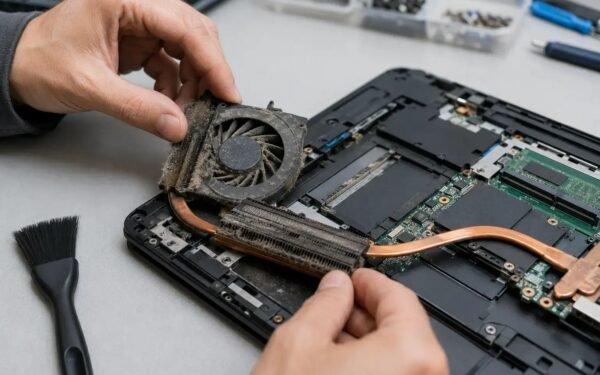
The $75–$150 cleaning is not a wipe with a cloth. A good shop opens the machine, removes the motherboard, and cleans it in an ultrasonic bath with proper solutions, dissolving exactly the sugary or mineral residue that causes the mysterious three-months-later deaths. They inspect under magnification for corrosion on connectors and replace what is already eaten. The reason this matters: the laptops that “survived” a spill and then died in a season almost never died of the water. They died of the residue. If your spill was sugary, or if the laptop matters to you, this appointment is the difference between an incident and an obituary.
MacBooks and Sealed Laptops: What Changes
Modern thin laptops — MacBooks above all — rewrite two steps of the timeline. There is no removable battery, so “hold the power button until it dies” is not just step one, it is the only power move you have; do it without hesitation, even mid-save. And because the machines are sealed tight, liquid that gets in also gets out more slowly: evaporation through a MacBook’s vents is a slower business than through a chunky older laptop, which pushes you firmly to the 72-hour end of the waiting window rather than the 48-hour end. Apple also places liquid contact indicators inside its machines, tiny dots that change color when wet — which means the service desk will know about the spill even if the laptop recovers fully, and accidental-damage coverage (AppleCare+ includes it; standard warranties do not) suddenly decides whether the repair bill is small or enormous. None of this changes the order of operations. It makes the first one more urgent and the waiting less negotiable.
While You Wait: Protecting Your Work and Your Deadlines
Two or three days without your main machine is a practical problem on top of a technical one, and it has calm solutions that do not involve the forbidden power button. If your files live in any cloud service — most people’s do, at least partially — a borrowed laptop, a library computer, or even your phone can reach the documents, mail, and calendar you actually need today; sign in, do the work, sign out. If the laptop holds the only copy of something urgent, resist the rescue fantasy of opening the machine yourself: on modern laptops the storage is often soldered to the board, and even on models with a removable drive, opening a wet machine mid-drying trades a recoverable problem for a worse one. Tell the people waiting on you the truth early — “laptop is drying for 48 hours, here is what I can do from my phone” solves more deadline panic than silent hoping does. And if the wait ends badly, remember the shop’s data-rescue option from the timeline above: a dead laptop and rescued files is a perfectly good ending, and it is reached by patience, not by pressing power at hour twenty to check.
Keeping It From Ever Happening Again
Three cheap habits close the story. Drinks live on the other side of the desk from the laptop — not beside it, behind it, or on the same tray in a car. A silicone keyboard cover (about the price of a sandwich) turns the next splash into a non-event for the machine’s insides, though not for its dignity. And the backup you make after the scare becomes a routine instead: the whole reason this incident is a story and not a catastrophe is whether your files also live somewhere that water cannot reach. If your laptop survives and runs hot or loud afterward, that is a separate, gentler problem — our guide to why laptops overheat and how to fix it picks up from there.