
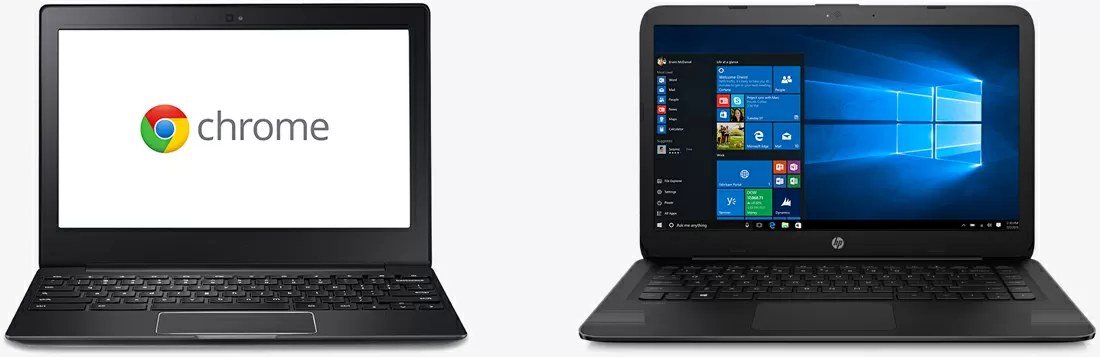
What is the difference between a Chromebook and a Windows laptop — it’s one of those questions that sounds simple until you actually need the answer. I’ve been down this road myself, and what I learned is that the real answer depends on a few details most people overlook. Let me walk you through what actually matters, what it typically costs or involves, and how to avoid the traps that catch everyone else.
The short version: there’s no single magic number or one-size-fits-all fix, but once you understand the moving pieces, the decision gets a lot easier. Below is everything I wish someone had told me upfront — the honest breakdown, the practical steps, and the mistakes worth dodging.
What is the Difference Between a Chromebook and a Windows Laptop: What You Need to Know
Shopping for a laptop and stuck between a $300 Chromebook and a $500 Windows machine? They look similar sitting on the shelf, but under the hood they’re fundamentally different computers built for different people. Picking the wrong one is one of the most common laptop-buying regrets I hear about — so let’s make sure you pick right.
The core difference is the operating system. A Chromebook runs ChromeOS, Google’s lightweight system where nearly everything happens in the Chrome browser or Android apps. A Windows laptop runs full Windows, which installs and runs traditional desktop software — Microsoft Office desktop apps, Adobe programs, games, specialized professional tools. Think of a Chromebook as a super-powered browser and a Windows laptop as a complete computer. For more on this topic, see What is the Best Wifi Router for a Two-story House — it pairs well with what you just read.
Here’s What Really Matters
That difference decides everything about software. On a Chromebook you get Google Docs, web apps, Android apps, and Linux apps if you’re adventurous — but no iTunes desktop, no full Photoshop, no PC games, no QuickBooks Desktop. For students writing papers and browsing, that’s plenty. For an engineering student needing AutoCAD or an accountant needing desktop QuickBooks, it’s a dealbreaker. Check your must-have software first; that’s the whole decision in one step. You can also check Microsoft’s official support documentation for the authoritative details.
Price is where Chromebooks shine. Because ChromeOS is so light, a $250 Chromebook feels fast doing web tasks that would choke a $250 Windows laptop. You get more speed per dollar, plus legendary battery life — 10 to 12 hours is normal — and near-instant boot times. Windows laptops need more expensive hardware to feel equally snappy, which is why decent ones start around $400.
Your Action Plan
- Chromebook = ChromeOS (browser + Android apps); Windows laptop = full desktop software.
- Chromebooks: $200–$400 feels fast; Windows needs ~$400+ for equal snappiness.
- Battery life: Chromebooks routinely hit 10–12 hours; Windows varies widely.
- Security: ChromeOS is nearly virus-proof and self-updating; Windows needs more vigilance.
- Offline: Windows works fully offline; Chromebooks are diminished without Wi-Fi.
- Decide by software: list your must-have programs and verify ChromeOS compatibility.
Looking Closer at Your Options
Security and maintenance tilt toward Chromebooks too. ChromeOS updates itself silently, sandboxes everything, and is virtually immune to traditional viruses — there’s a reason schools hand them to millions of kids. Windows is far more capable but demands more from you: antivirus awareness, update management, and occasional troubleshooting. If the user isn’t tech-comfortable, the Chromebook’s simplicity is a genuine feature.
Offline use is the Chromebook’s weak spot, though it’s better than its reputation. Google Docs, Gmail, and many apps now work offline and sync later — but a Chromebook without Wi-Fi is still a diminished machine, while a Windows laptop barely notices. If you’ll regularly work without internet, Windows wins comfortably. Related: our breakdown of Can I Connect Two Bluetooth Speakers to One Phone at the Same Time covers the numbers in detail.
So who should buy which? Get the Chromebook if your life is browser-based: students, writers, casual users, grandparents, and kids. Get Windows if you need specific desktop software, PC gaming, or maximum flexibility. When in doubt, list the three programs you can’t live without and check whether they run on ChromeOS — that 60-second check prevents 90 percent of wrong purchases.
Common Mistakes to Avoid
- Buying a Chromebook for a major that requires Windows-only software like AutoCAD, SPSS, or SolidWorks.
- Assuming a $250 Windows laptop will feel like a $250 Chromebook — at that price, Windows is usually sluggish.
- Overlooking storage: many cheap Chromebooks have just 64GB, fine for cloud users but tight otherwise.
- Paying Chromebook money for a premium model when a mid-range Windows laptop would serve better — expensive Chromebooks make sense only for specific needs.
Questions People Ask
Can a Chromebook run Microsoft Office?
The web and Android versions of Office run fine on Chromebooks, and they’re free for basic use. Only the full desktop Office suite — with macros and advanced features — requires Windows or Mac.
Do Chromebooks work without internet?
Partially. Google Docs, Gmail offline mode, downloaded media, and many Android apps work offline and sync later. But the experience is best with a connection.
How long do Chromebooks get updates?
Google guarantees updates for about 8 years from a model’s release (check the Auto Update Expiration date before buying). After that, security updates stop — an important check on clearance models.
How often should I restart my phone and computer?
A weekly restart is a good habit for both phones and computers. It clears temporary memory glitches, finishes pending updates, and kills runaway background processes that drain battery and slow things down. You don’t need to power off nightly — modern devices handle standby well — but if something starts acting strangely, a restart is always the first troubleshooting step worth trying.
Is it safe to buy refurbished electronics?
Yes, when you buy from reputable sources. Manufacturer-refurbished programs (Apple, Dell, Samsung) include new batteries or thorough testing plus a full one-year warranty — often indistinguishable from new. Third-party refurbishers like Back Market add their own warranties. Avoid no-name sellers with 30-day warranties and no return policy; the seller matters more than the ‘refurbished’ label.
The Bottom Line
Choose by software, not price: if everything you need runs in a browser, a Chromebook gives you more speed, battery, and simplicity per dollar. If you need desktop programs, games, or offline power, Windows is the only choice. Make your must-have software list first and the decision makes itself.
For the official guidance, see Consumer Reports’ buying advice.
Related: our breakdown of How Much Does it Cost to Fix a Cracked Tablet Screen covers the numbers in detail.
Bottom line: a little homework now saves you money and stress later. Use the steps above, skip the common mistakes, and you’ll come out ahead of most people dealing with this.

1 Comment