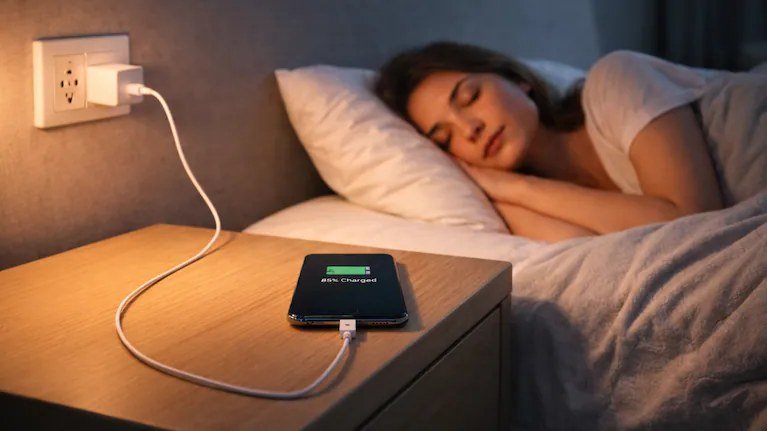
You plug in at 100 percent, you set your alarm, you sleep. Eight hours later the phone wakes you with 64 percent — and you did not touch it all night. That gap, the battery that drains itself on a nightstand, sends people straight to two conclusions: the phone is dying, or some shady app is mining something in the dark. Usually, neither is true. A healthy phone should lose only about 5 to 10 percent over eight hours of standby. Beyond that, something specific is happening — and before we get to the real causes, it is worth clearing out the five wrong turns that make people misdiagnose it for weeks.
Mistake 1: Blaming the Battery Before Reading the Evidence
Your phone already knows exactly what used the power, and it keeps the receipts. On iPhone, open Settings → Battery and look at the last 24 hours graph and the app list beneath it. On Android, Settings → Battery → Battery usage shows the same story. The graph matters most: a steady slope all night points at background activity or weak signal; a cliff at 3 a.m. points at one event — an update, a backup, a sync. Guessing instead of reading this screen is like replacing a car’s engine because it “feels slow.” Read the screen first; it takes twenty seconds and it is nearly always the whole answer.
Mistake 2: Charging to 100 Percent and Frying It There All Night — Supposedly
Let us clear this one in the other direction: leaving the phone plugged in overnight did not do this. Modern phones stop charging at 100 percent and trickle to maintain it, and optimized-charging settings (which delay the final charge until just before your alarm) handle the long-term wear question separately. Years of nightly charging do age a battery slowly, and below 80 percent health — visible on iPhone under Settings → Battery → Battery Health — Apple considers the battery genuinely worn: it holds less charge and drains less predictably. But wear shows up as a shrinking day, not as one dramatic overnight cliff. If last night was suddenly different, it was not your charging habit.
Mistake 3: Force-Closing Every App Before Bed
It feels tidy. It does nothing — or worse than nothing. Both Apple and Google design their systems to freeze background apps automatically; the ones in your recent-apps list are mostly asleep already and using no power. Force-closing them means the phone does the full, expensive work of launching them cold the next time you tap one. The exception is a genuinely misbehaving app — one caught red-handed in the battery stats, stuck syncing or playing silent audio — and for that one app, the cure is updating it, restricting its background activity in settings, or deleting it, not swiping away the whole deck every night.
Mistake 4: Turning Off Wi-Fi “To Save Battery”
This one backfires beautifully. With Wi-Fi off, the phone holds its connection over the mobile network instead — and if your signal at home is weak (one or two bars, a bedroom far from the tower’s good side), the phone’s radio works desperately hard all night, boosting power to hold a bad connection, hunting between towers, retrying. Radio struggle with a weak signal is the single most common cause of serious overnight drain, and switching Wi-Fi off feeds it. The fixes run the other way: keep Wi-Fi on at home, turn on Wi-Fi Calling so the phone can stop shouting at a distant tower, and — for the definitive test — one night in airplane mode with Wi-Fi switched back on. If the drain vanishes, signal was your culprit, and Apple’s own battery guidance makes the same point: poor signal makes phones work harder and die faster.
Mistake 5: Panicking the Morning After an Update
If the bad night was the night after a system update, do nothing for two days. Updates trigger a wave of housekeeping — re-indexing photos and files, re-syncing libraries, re-optimizing apps — that temporarily increases drain for 24 to 48 hours and then stops on its own. Phones get replaced over this. Wait it out, charge normally, and judge the phone on the third night, not the first. Samsung’s Galaxy battery support pages give Galaxy owners the same advice and the same places to check.
What “Normal” Actually Looks Like, Phone by Phone
It helps to know the range before you declare an emergency, because “my phone lost some battery overnight” describes every phone ever made. A modern phone in good health, on a decent signal, idles through the night on 5 to 10 percent — roughly 1 percent an hour, give or take. An older phone with a worn-but-serviceable battery might sit at 10 to 15 percent, and that is a shrug, not a symptom. The pattern to treat seriously is a change: the phone that used to lose 8 percent and now loses 25, or drain that arrives with a cliff in the graph rather than a slope. Changes have causes. A steady, lifelong 12 percent is just your phone’s personality, and chasing it will cost you a weekend for nothing. Judge your phone against its own history, not against a forum post from someone with a different house, a different signal, and a phone still in its first year.
The Right Diagnosis, in Order
With the wrong turns closed, the real hunt takes one evening and one morning. First, note tonight’s starting percentage and open the battery stats before bed. Second, turn on Do Not Disturb, leave Wi-Fi on, and — if your signal at home is weak — use the airplane-mode-with-Wi-Fi test described above. Third, in the morning, compare the percentage against the healthy 5–10 percent benchmark and open the stats again: the app or service at the top of the overnight list, with hours of background time, is your answer nine times out of ten. Common names on that list: a social app stuck syncing, a podcast or music app that kept a session alive, a mail account failing to authenticate and retrying forever, or a backup uploading over a struggling connection.
Fourth, check battery health itself. Under 80 percent on an iPhone, or an Android phone that has started swelling, shutting down at 20 percent, or draining in visible steps, is wear — and wear has a cheap cure. If the phone is otherwise fine and under three or four years old, a battery replacement (typically $69–$99) is far cheaper than a new phone and makes the overnight problem boring again. While you are working on phone power habits, it is worth checking the other half of the equation — whether your charging cable actually supports fast charging, covered in our guide to telling if a USB cable supports fast charging.
The Usual Suspects, Named
Once you read the battery stats a few times, patterns repeat so reliably that the culprits deserve a roll call. Photo and cloud backups are the most common: a library that failed to finish uploading during the day retries on Wi-Fi at night, and if the connection is weak, it retries expensively, for hours. Email accounts with a wrong or expired password are the quietest: the app asks the server, gets refused, asks again — all night, every few minutes, forever, until you re-enter the password or delete the account. Location-heavy widgets and apps — weather that polls constantly, family trackers, shopping apps checking for nearby deals — sip power in thousands of tiny wake-ups that look harmless individually and add up to 15 percent by morning. VPN and security apps that drop and renegotiate their connection in a weak-signal house do the same. None of these are villains; all of them are fixable in the app’s own settings once the stats screen has pointed at them, which is why the reading-the-evidence step outranks everything else in this article.
Two per-app levers finish most cases. On iPhone, Settings → General → Background App Refresh lets you switch off background activity app by app — kill it for anything that has no business working while you sleep. On Android, open the problem app’s battery settings and set it to Restricted; the phone will stop it waking in the background, at the small price of notifications arriving when you open the app instead. Apply either lever to the app the stats accused, give it two nights, and the graph usually flattens to the healthy slope.
One warning to end on: a phone that is warm in the morning, not just drained, deserves faster attention. Heat plus drain means something ran hard for hours — the same fix list applies, but if it persists with the screen off and no app owning up in the stats, get the battery looked at in person, because a battery that generates heat on standby is one to retire, not troubleshoot.
The Bottom Line
Overnight drain beyond 10 percent is a symptom with a name, not a mystery. Read the battery stats, suspect the signal before the battery, give a post-update phone two days to settle, and check the health percentage before you shop for a replacement. Most “haunted” phones turn out to have one loud app or one weak signal — and both of those are free to fix.