
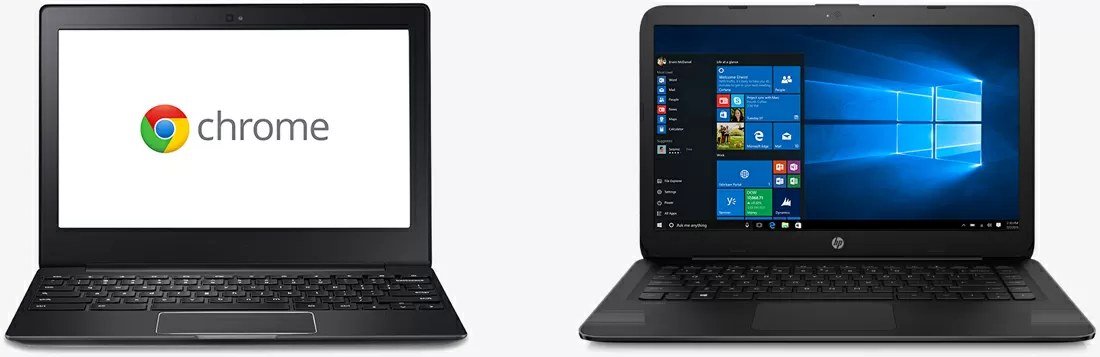
Here is the puzzle that starts most of these purchases: a $250 Chromebook feels quick and lively in the store, while a $250 Windows laptop next to it feels like it is running through syrup — same money, same shelf, completely different experience. So what is the actual difference between a Chromebook and a Windows laptop, and which one deserves your $300 to $500? The short version is that they are not two versions of the same machine. They are two different philosophies about what a computer is, and the right answer depends almost entirely on three or four things you already do every day.
The Core Difference: A Browser With a Keyboard vs a Full Computer
A Chromebook runs ChromeOS, which is — honestly and by design — the Chrome browser with a desktop wrapped around it. Nearly everything happens in browser tabs or lightweight Android-style apps: Google Docs, Gmail, YouTube, web versions of everything. A Windows laptop runs the full Windows operating system, which runs full desktop programs: the complete Microsoft Office, Photoshop, accounting software, PC games, specialized work tools, and about thirty years of accumulated software.
That single difference explains everything else. ChromeOS is light, so it asks very little of the hardware. Windows is heavy and general-purpose, so it needs more power to do the same everyday jobs. Neither is “better” in the abstract — one is a bicycle, the other is a truck, and the question is what you are carrying.
Performance Per Dollar
This is where the store puzzle resolves. Because ChromeOS is so light, a $250 Chromebook feels fast doing web tasks that would choke a $250 Windows laptop. Windows laptops need more expensive hardware to feel equally snappy, which is why decent ones start around $400. Line the budgets up:
- $200–$300: Chromebook territory, unambiguously. A Chromebook here is pleasant; a Windows laptop here is a compromise you will feel every day.
- $300–$400: Chromebooks are at their best (better screens, more storage); Windows laptops become tolerable for light use.
- $400–$500: Genuinely contested ground. Windows machines here are properly capable; Chromebooks here are premium (better builds, touchscreens) but still Chromebooks.
- Above $500: Windows usually wins on capability per dollar, unless you specifically want the Chromebook simplicity and battery.
Software: The Question That Decides Everything
Forget specs for a moment. Sit down and list the three programs you cannot live without — the original advice behind most happy purchases is that this 60-second check prevents 90 percent of wrong ones. If your list is a browser, email, documents, video calls, and streaming, a Chromebook runs your life natively and well; Google’s own Chromebook pages describe the ecosystem honestly, and it really is built for exactly that list.
If your list contains a full desktop program — the installed version of Excel with heavy macros, Photoshop or Premiere, AutoCAD, specific accounting or school software, a work VPN client that only exists for Windows — the conversation is over and Windows wins by default. Microsoft’s Windows overview is the other side of the same coin: everything runs on it, including things written in 2009. Watch two traps in particular: printers and scanners (Chromebooks handle modern Wi-Fi printers fine but can choke on old or exotic ones) and exam software — some schools and certification bodies require Windows or Mac for locked-down test software even when classes themselves are Chromebook-friendly.
Battery, Boot, and Daily Manners
Chromebooks routinely deliver 10 to 12 hours of battery, boot in seconds, and update themselves quietly in the background in about the time it takes to restart. Windows battery life varies wildly — some models match that, many budget ones do not — and Windows updates remain a more visible, more interruptive ritual. Chromebooks also shrug off viruses in a way Windows historically has not: with no traditional programs to infect and verified boot checking the system at startup, the “family tech support” burden drops noticeably. For a grandparent, a young student, or anyone who has ever called you about a pop-up, that manners gap is a real feature, not a footnote.
Storage, Offline Use, and Gaming
Now the honest weaknesses. Many cheap Chromebooks carry just 64GB of storage — fine for cloud users, tight for everyone else, and a real problem if you hoard offline files. Windows laptops at these prices usually offer two to four times that. Offline, a Chromebook does more than its reputation suggests (Google Docs, downloaded Netflix, and Android apps all work without internet), but it is still a machine designed around a connection; Windows does not care whether the internet exists.
Gaming is not close: Windows plays PC games; a Chromebook plays Android games and cloud-streaming services. And one number every Chromebook buyer should check that Windows buyers never think about — the Auto Update Expiration date. Every Chromebook stops receiving ChromeOS updates on a set date years after its manufacture (recent models get a long runway, and Google publishes the date for every model). A cheap Chromebook that was manufactured two years ago has two fewer years of life in it than the shelf talker implies.
The Android App Question
Most modern Chromebooks can also run Android apps from the Google Play Store, and this is where honest reviews split. The good news: apps like Netflix, Spotify, and many games run perfectly well, and offline downloads work the same way they do on a phone. The honest caveat: Android apps on Chromebooks are guests, not natives. Some are stretched phone interfaces, some popular creative and office apps offer reduced features compared with their desktop versions, and performance varies by model. Treat Android support as a bonus that covers light extras — messaging apps, media, casual games — not as a bridge that turns a Chromebook into a Windows machine. If one specific Android app is essential to you, check reports for the exact Chromebook model you are considering; the experience genuinely differs between a $250 and a $450 machine.
Repairs, Lifespan, and Living With Each
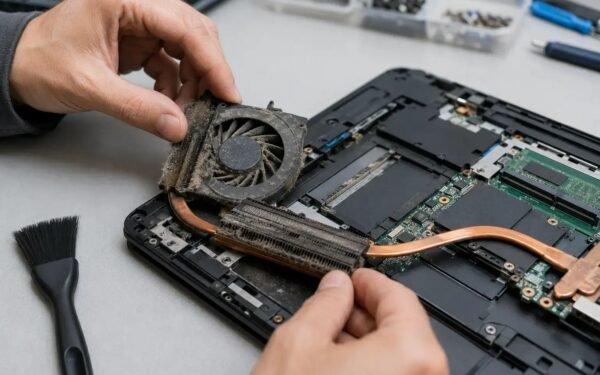
Ownership over four years pulls the two apart in quieter ways. Chromebooks have little to break in software terms — a powerwash (factory reset) takes minutes and the machine rebuilds itself from your Google account — but hardware repairs lean on the manufacturer, and cheap models are rarely worth fixing out of warranty. Windows laptops are the opposite: software needs more tending (updates, antivirus, the occasional cleanup), yet any repair shop in town can replace a screen, battery, or drive, and parts for common models are cheap and plentiful. Resale tells a similar story: a two-year-old Windows laptop retains a meaningful slice of its value, while Chromebooks depreciate toward their update-expiration date. None of this overturns the budget logic above — but if you keep machines a long time and fix rather than replace, Windows’ repairability is a genuine point in its column that spec sheets never mention.
For students specifically, the deciding factor is usually the school, not the spec sheet. Elementary and middle schools overwhelmingly issue Chromebooks, so a matching home machine means zero learning curve and full compatibility with classwork — that is a powerful argument through about eighth grade. By high school and college, the balance shifts with the coursework: engineering, computer science, design, and media programs start naming Windows (or Mac) software outright. Our advice to families every year is the same: buy the Chromebook happily for the younger years, and plan the Windows purchase for the moment the syllabus demands it, rather than buying a compromised Windows laptop “for later” that serves nobody well now.
The Recommendation
A final word on the feeling people describe in the store, because it is real and worth trusting correctly. The Chromebook’s quickness is not a trick of the demo unit — it is what a light operating system on modest hardware genuinely feels like, and it holds up for years because ChromeOS does not accumulate the background weight Windows does. The Windows laptop’s sluggishness at $250 is equally real, but it is a statement about that price, not about Windows: the same operating system at $450 feels like a different species. So the store test is honest if you run it at your actual budget — and misleading if you compare a Chromebook at your budget against a Windows machine below it. Compare like for like, run your three-program list against both, and the decision usually makes itself in about a minute.
Choose the Chromebook if your computing is honestly web-shaped — browsing, documents, email, video, schoolwork — and your budget is under $400: you will get the faster-feeling, longer-lasting, lower-maintenance machine, and it is not close. Choose Windows if any essential program demands it, if you game, if you work offline with large local files, or if you are spending $450 or more and want one machine that can grow into any job. The mistake is buying by spec sheet or by brand loyalty. Buy by your three programs — the list settles it almost every time. If the Windows side wins and the machine is for a student, our tested picks for budget laptops for college students under $500 narrow the field to the ones actually worth the money.


1 Comment