Four minutes. That is how long one reader’s old laptop took to go from power button to a desktop you could actually use — long enough to make coffee and come back to find it still thinking. The machine was not broken. Its processor was fine, its screen was fine, its keyboard was fine. It was simply trying to run modern software from a spinning metal disk designed in another era.
Swapping that hard drive for a solid-state drive is the most recommended upgrade in all of home computing — and also one of the most doubted, because owners reasonably ask whether money spent on an old machine is money wasted. Here is the honest weighing-up.
The case for: it is not a small improvement
Most upgrades make a computer a bit faster. This one changes what the computer feels like. A hard drive finds data by physically moving a needle across a spinning platter; an SSD reads from memory chips with nothing moving at all. In everyday use that works out to roughly five to ten times faster where it counts — starting up, opening programs, waking from sleep, loading files.
The boot-time example is the one everyone can picture: a machine that took about two minutes to start can be ready in around twenty seconds. Programs that used to open in stages open at once. The little freezes — clicking something and watching the pointer spin while the disk light stays solid — mostly disappear, because those freezes were the hard drive all along.
There are side benefits nobody puts on the box. An SSD has no moving parts, so it shrugs off bumps that would wound a hard drive. It uses less power, which means a little more battery life and a little less heat and fan noise. And old hard drives are the single most failure-prone part in an old laptop; replacing one removes the component most likely to die and take your files with it.
The case against: real limits, worth naming
An SSD fixes storage speed and nothing else. If your laptop struggles because its processor is genuinely weak, or it has very little memory, the drive swap will make it start faster and feel snappier — but it will not make heavy software run well or turn a 2012 machine into a 2026 one. Expect a much better old laptop, not a new one.
There is also the sunk-cost question. A laptop with several other problems is a poor candidate: a failing screen, a dead battery that costs around $100 to replace, a cracked hinge, or a processor so old it cannot run a supported version of Windows. Each fault on its own might be tolerable. Stacked together, they mean the SSD money would do more good inside your next laptop fund. A single healthy-but-slow machine is the sweet spot for this upgrade; a machine dying in three places is not.
Finally, the job involves opening the laptop and moving your system across. It is genuinely easy on most models — but “most” is not “all,” and a handful of laptops have glued or buried drives that turn a simple job into a miserable one. Check your exact model before ordering anything.
First, check the drive really is the problem
Before spending anything, spend five minutes confirming the diagnosis, because a slow laptop with a healthy drive needs a different cure. During a slow spell, open Task Manager (Ctrl+Shift+Esc) and look at the Disk column. If it sits pinned at or near 100 percent while the machine stutters — with the hard drive’s little activity light on constantly — you are looking at a storage bottleneck, and an SSD speaks directly to it. If instead the processor is maxed out or the memory is full while the disk idles, the drive is not your main problem, and an SSD will help less than its reputation promises.
Age tells the same story from the other side. A laptop still running its original spinning hard drive after five or more years is a candidate almost by definition: drives slow as they age and fill, and the gap between 2015 storage and a modern SSD is the widest performance gap in the whole machine. Everything else in the laptop has aged gracefully by comparison.
The costs, item by item
The drive itself is the main expense, and prices are friendly. A reliable 500GB SATA SSD from a known maker like Crucial, Samsung, or WD runs about $35 to $55. A 1TB version costs roughly $60 to $90. For size, the simple rule is to match or beat what you have: 500GB suits most people, while 1TB makes sense if your old drive was 1TB and fairly full — cloning a stuffed drive onto a smaller one is a headache you do not need.
Two small extras may join the bill. To copy your existing system onto the new drive before swapping, you connect the SSD with a USB adapter cable, which costs about $10. And if you would rather not open the laptop yourself, a shop will do the swap — but expect $100 or more in labor for what is usually a twenty-minute screwdriver job, which should tell you something about doing it yourself.
Total for the typical DIY route: roughly $45 to $70, all in. For context, that is less than a single month of payments on a replacement laptop.
What the job actually involves
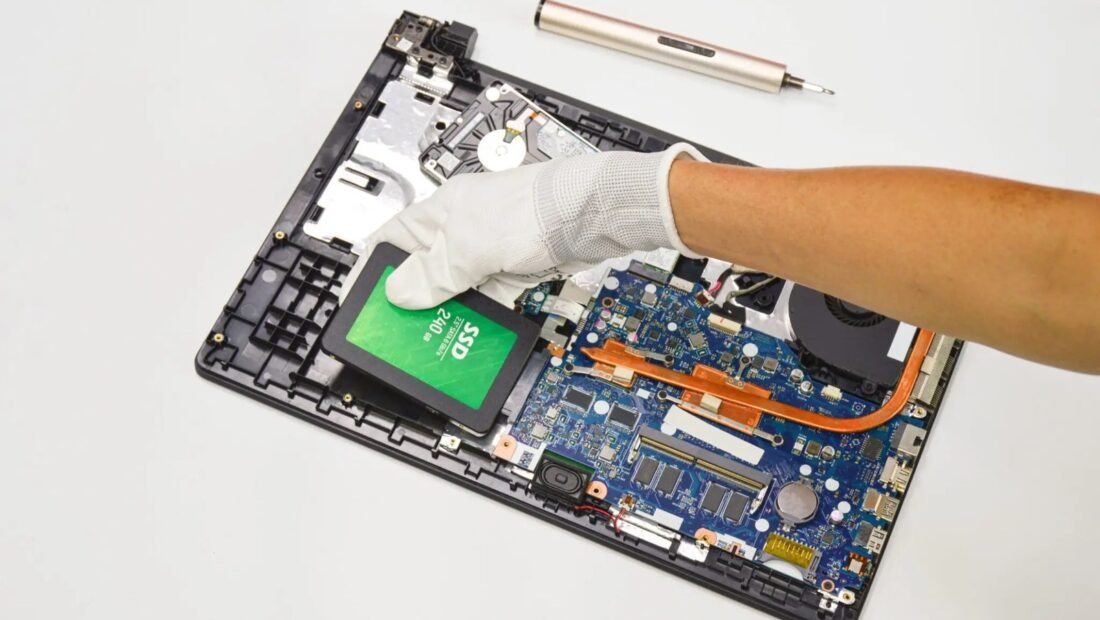
Most laptops from the hard-drive era were built to be serviced. The drive sits under a removable bottom panel, held by a few screws and a small bracket. Free step-by-step guides for nearly every model exist at iFixit, with photos for each screw, and the physical swap itself commonly takes under half an hour, even for a first-timer going slowly.
The software side takes longer than the screws. You have two choices. Cloning copies your system exactly as it is — same files, same settings, same everything — using free software such as Macrium Reflect, with the new drive attached by that USB adapter. Budget one to three hours depending on how much data you have, most of it waiting. A fresh Windows install is the other route: cleaner, quicker to set up on the new drive, but you reinstall your programs and move your files yourself. Cloning is the gentler path for most people; a fresh install suits machines whose Windows setup is already a mess.
Whichever route you pick, make one backup of your important files somewhere else first. The odds of trouble are low, but the files are yours.
One compatibility check before you order
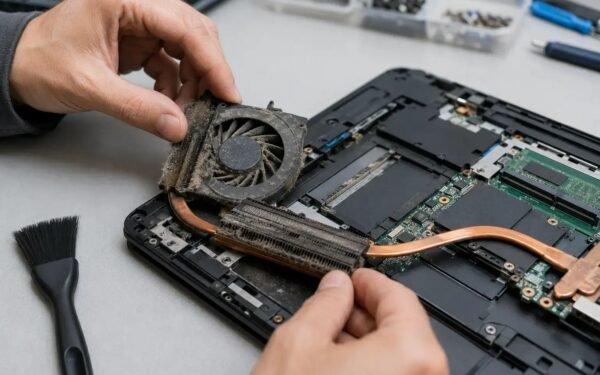
Almost every hard-drive-era laptop takes a standard 2.5-inch SATA SSD — the $35-to-$55 drives priced above — which is why this upgrade is so routine. But glance at your model’s specifications before ordering, because a minority of late hard-drive-era machines also have a slot for a slimmer stick-style drive (an M.2 slot), and a few very slim models use one exclusively. The iFixit guide for your model will say plainly which drive fits, and ordering the right shape the first time is the difference between a Saturday project and a returns process. While the panel is off — on models where it comes off easily — a can of compressed air to the fan and vents is two minutes well spent; the SSD will make the machine faster, and the cleaning will make it quieter, and together they are the full rejuvenation most old laptops are actually asking for.
And the old hard drive gets a second life
One last piece of value hides in this upgrade: the drive you remove is not rubbish. Put it in a USB enclosure — the same kind of adapter used for cloning, or a simple enclosure for around $10 — and the old hard drive becomes a perfectly good external backup drive. It is slow, yes, but backups do not need to be fast; they need to exist. The upgrade that sped up your laptop can simultaneously become the backup the laptop never had, which is a rare double win for a $50 project. Just remember it is an old drive with an old drive’s life expectancy — a backup for your files, not a vault for the only copy of them.
The verdict
For a laptop that is healthy apart from being slow, this is as close to a sure thing as upgrades get: about $40 to $70, an afternoon at most, and a machine that feels years younger. It is also a kind first step before spending bigger money — plenty of people do this swap, discover the old laptop now does everything they need, and postpone a replacement by two or three years.
Skip it only when the laptop fails the health check: multiple dying parts, or hardware too old to run supported software safely. And if the drive is not your only complaint — a machine that is slow in every way, not just at loading — pair this job with the free cleanups in our guide to speeding up an old Windows laptop without new hardware. Drive first, though. It is the one that changes the machine.