
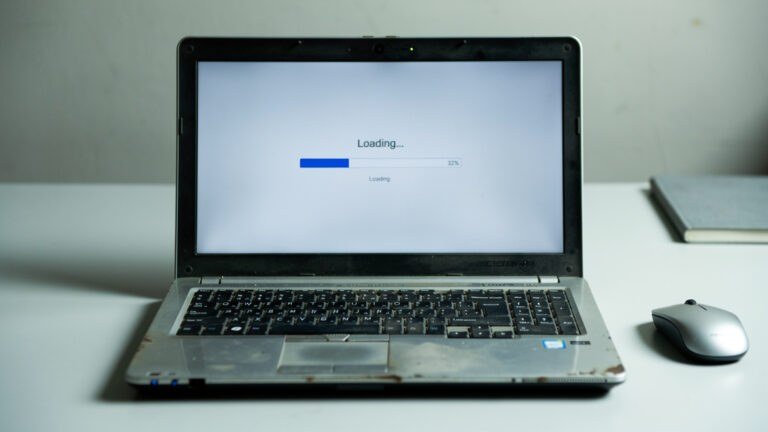
You press the power button, walk to the kitchen, make coffee, come back — and the laptop is still thinking about it. The fan is going. The little spinning circle is going. Nothing about the machine is broken, exactly; it is just buried. Years of startup programs, a nearly full drive, a browser carrying forty extensions, and updates half-finished in the background can make a perfectly decent laptop feel like it is running through mud. The good news: most of that weight can be removed in under an hour, for free, without buying a single part.
What You Need Before You Start
- About 45 minutes, and the laptop plugged into power
- An administrator account on the machine (the one you normally use is usually fine)
- A phone or notebook to write down any password you reset along the way
- Optional but wise: an external drive or cloud folder with a backup of your important files — you will not be deleting personal files, but a backup is cheap insurance before any cleanup
Step 1: Restart It Properly
Not sleep, not closing the lid — an actual restart from the Start menu. Many “slow laptop” problems are really “this laptop has not truly restarted in six weeks” problems. A restart clears stuck processes, finishes pending updates, and gives you a clean baseline. If the machine feels noticeably better after a plain restart, that alone tells you the hardware is fine.
Step 2: Play Detective in Task Manager
Press Ctrl + Shift + Esc. Look at the CPU and Memory columns and sort by each in turn. A single misbehaving browser tab or a stuck updater can pin the CPU at 100 percent and make everything else crawl — and the fix is simply closing or restarting that one thing. Note any program you do not recognize sitting near the top; you will deal with it in the malware scan below. Check the Disk column too: a disk stuck at 100 percent on an old machine usually means the drive is full or failing, and Steps 4 and 9 cover both.
Read the Memory column with some judgment. If the machine sits at 90 percent memory with just a browser and a document open, that is not a software problem you can clean away — the laptop is simply short on RAM for modern software, and closing things when you are done becomes a habit rather than a fix. But if memory looks comfortable while the CPU is pegged, one greedy program is your whole problem, and it is findable. That distinction — “busy” versus “full” — is the most useful diagnosis in this entire guide, because the cures for the two are completely different.
Step 3: Stop the Startup Stampede
In Task Manager, open the Startup tab. Every program listed there launches itself each time you sign in, whether you need it or not. Disable the obvious freeloaders — game launchers, printer helpers, updaters for software you rarely open, chat apps you can start manually. Leave your antivirus alone. This one change is where the biggest wins live: boot times typically drop 30–60 percent once the stampede is gone, simply because the machine is no longer opening fifteen programs before you touch anything. Microsoft’s own tips to improve PC performance in Windows put startup management near the top of the list for the same reason.
Step 4: Free the Drive — It Needs Room to Breathe
Windows uses free disk space as working room (virtual memory), and if your drive is over 85 percent full, it cannot manage that space properly and everything slows down. Open Settings → System → Storage and turn on Storage Sense, then look at what is actually eating the drive. The usual suspects: the Downloads folder (old installers are the worst), the Recycle Bin nobody empties, and “Temporary files,” which Windows will clean for you with one click if you let it. Uninstall games and programs you have not opened in a year. Aim to get below that 85 percent line — on a 256GB drive, that means roughly 40GB free.
Step 5: Put the Browser on a Diet
For many people the “slow laptop” is really a slow browser. Close tabs you are not using — thirty open tabs can hold gigabytes of memory hostage. Then open the browser’s extensions page and remove everything you do not recognize or no longer use; coupon finders and PDF converters are common stowaways. If one browser has become the problem, testing a fresh profile or a different browser for a day is a quick way to confirm it.
Step 6: Finish Your Updates (All of Them)
Half-installed updates are a classic cause of mystery slowness, because Windows keeps retrying them in the background. Run Windows Update, restart, and run it again until it says you are up to date — on an older machine this can take two or three rounds. While you are there, update the big programs too, especially the browser and your antivirus.
Step 7: Turn Down the Visual Effects
Animations, shadows, and transparency look nice and cost real effort on old hardware. Search the Start menu for “Adjust the appearance and performance of Windows,” and choose “Adjust for best performance” — or keep just font smoothing if the result looks too stark. The machine will look slightly plainer and respond noticeably faster.
A Note on the 100 Percent Disk Problem
Older Windows laptops with traditional hard drives have one famous quirk: the disk sits at 100 percent for minutes after every boot even when you open nothing. Two background services are the usual cause. Windows Search re-indexes your files after big updates, and SysMain (older versions call it SuperFetch) tries to predict and pre-load programs — both are helpful on newer hardware and miserable on an aging hard drive. The honest fix is patience first: leave the laptop on and idle for an hour after a major update and let the indexing finish once and for all. If the disk still pegs for long stretches every single day, the drive itself is likely tiring — see Step 9 — rather than any setting being wrong.
Step 8: Run a Real Malware Scan
Open Windows Security → Virus & threat protection → Scan options, and run a Full scan. If anything is found, or the machine still behaves strangely (pop-ups, unknown programs from Step 2), follow with the Microsoft Defender Offline scan, which restarts the machine and scans before anything else loads. Adware and browser hijackers are extremely common on older machines and are built to run constantly in the background — exactly the symptom you are fighting.
Step 9: Check the Drive’s Health and Your Expectations
Search for “Defragment and Optimize Drives.” If your drive is a traditional hard disk (HDD), optimizing it is fine. If it says SSD, leave it — Windows handles those itself. A hard drive that clicks, or a laptop that freezes for thirty seconds at a time even after everything above, may be hardware at the end of its life; no setting fixes a dying disk. If the laptop is a traditional hard-drive machine and you later decide one small upgrade is acceptable, that is a separate question — our breakdown of whether an HDD-to-SSD upgrade is worth it on an old laptop covers the honest math.
If It Is Still Slow: The Two Honest Endgames
Sometimes you do everything right and the machine is still sluggish, because a Windows installation can accumulate deeper damage — corrupted system files, a decade of layered software — that no setting reaches. Windows has a built-in answer: “Reset this PC” with the “Keep my files” option reinstalls Windows fresh while leaving your documents and photos in place. You will need to reinstall your programs afterward, so list them (and their license keys or accounts) before you start, and back up first. On a truly burdened machine, the reset is the single most dramatic free speed-up there is — it is the cleanup in this guide, taken to its logical end.
The second endgame is accepting the diagnosis. If the drive is failing (clicking, freezing, errors in the health check), or the laptop has very little memory that cannot be expanded, software has done all it can. Even then, you have lost nothing: an hour of cleanup tells you exactly which part is the wall, and a machine that is too slow for daily work often lives a second life as a dedicated typing, browsing, or kids’ homework computer where its limits do not matter.
The Bottom Line
Work the steps in order: restart, find the hog, cut the startup list, free the drive below 85 percent, tame the browser, finish updates, trim effects, scan for malware. Most old laptops are not slow because they are old — they are slow because they are carrying years of accumulated software weight. Remove the weight, and the machine underneath is usually good for years more of everyday work.


1 Comment