How do I connect a wireless printer to a new wifi network — it’s one of those questions that sounds simple until you actually need the answer. I’ve been down this road myself, and what I learned is that the real answer depends on a few details most people overlook. Let me walk you through what actually matters, what it typically costs or involves, and how to avoid the traps that catch everyone else.
The short version: there’s no single magic number or one-size-fits-all fix, but once you understand the moving pieces, the decision gets a lot easier. Below is everything I wish someone had told me upfront — the honest breakdown, the practical steps, and the mistakes worth dodging.
How do I Connect a Wireless Printer to a New Wifi Network: What You Need to Know
New router, moved apartments, changed your Wi-Fi password — whatever the reason, your wireless printer is now staring at a network it doesn’t know, blinking unhappily. Reconnecting it takes five to ten minutes once you know the method. Here are all of them, easiest first.
The fastest method is WPS — Wi-Fi Protected Setup — if your router has a WPS button (most do; look for the circular-arrow icon). On the printer, find the wireless setup in its menu and choose WPS push-button mode; then press the WPS button on your router within two minutes. They handshake automatically, no password typing needed. It feels like magic and works on HP, Canon, Brother, and Epson models alike. (Security purists note WPS has theoretical vulnerabilities — for home use, the convenience wins.) If that sounds familiar, you may also want our guide to How Much Does it Cost to Fix a Cracked Tablet Screen.
Here’s What Really Matters
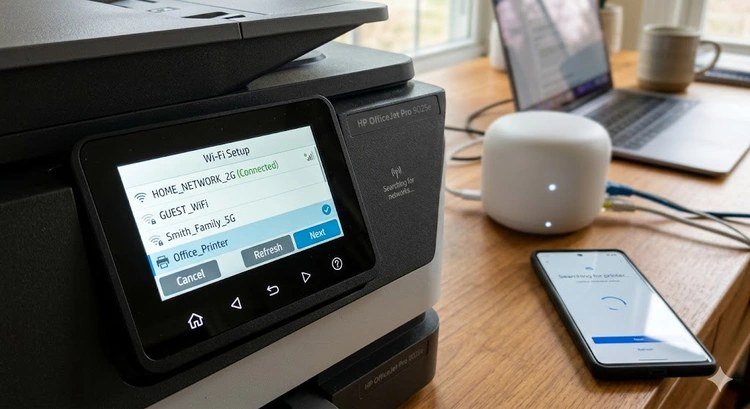
No WPS button? Use the printer’s own display panel — the most reliable universal method. On the printer’s touchscreen or menu, go to Settings, then Network or Wireless Settings, then Wireless Setup Wizard. The printer scans for networks, you pick yours from the list, and type the Wi-Fi password using the on-screen keyboard. Tedious on a tiny screen, but it works every time. Pro tip: if your router broadcasts separate 2.4GHz and 5GHz names, connect the printer to the 2.4GHz one — printers strongly prefer its longer range. You can also check the FCC’s consumer guides for the authoritative details.
The third route is the manufacturer’s app: HP Smart, Canon PRINT, Brother iPrint&Scan, or Epson Smart Panel. Install it on your phone (connected to the new Wi-Fi), and the app walks you through adding the printer step by step, often easier than the printer’s own menus. These apps are also genuinely useful afterward for scanning and checking ink levels, so keeping them installed pays off.
Practical Steps That Work
- WPS method: printer’s WPS mode + router’s WPS button within 2 min — fastest, no typing.
- Panel method: Settings > Wireless Setup Wizard > pick network > type password (use 2.4GHz).
- App method: HP Smart / Canon PRINT / Brother iPrint&Scan / Epson Smart Panel walks you through it.
- Reset network defaults first if the printer clings to the old network.
- Print a network config page to verify the new IP; re-add printer on computers.
- Set a reserved IP in the router to prevent future drops.
Looking Closer at Your Options
If the printer was previously on a different network, you may need to reset its network settings first — there’s usually a ‘Restore Network Defaults’ option in the network menu. This clears the old network memory that’s confusing it. After the reset, run any of the methods above fresh. Skipping this step is the most common reason reconnection attempts mysteriously fail.
Once connected, print a network configuration page from the printer’s menu to confirm it has an IP address on the new network. Then re-add the printer on your computers if needed — Windows and Mac usually find it automatically, but removing the old entry and adding fresh avoids the ‘offline’ ghost of the previous network. And consider setting a reserved IP in your new router so this doesn’t recur. For more on this topic, see How Much Should I Charge for Freelance Graphic Design Work — it pairs well with what you just read.
One more scenario: if you changed the Wi-Fi password but kept the same network name and router, some printers just need the new password punched in via the panel — no full reset required. Try the Wireless Setup Wizard first before nuking settings. And write the new Wi-Fi password on a sticky note inside a kitchen cabinet; future-you will thank present-you during the next router change.
Mistakes That Cost People Money
- Typing the Wi-Fi password wrong on the tiny printer keyboard — caps lock and special characters are the usual culprits.
- Connecting the printer to the 5GHz band, which many printers handle poorly; 2.4GHz is the reliable choice.
- Skipping the network reset when moving between routers, then fighting ghost settings.
- Forgetting to re-add the printer on the computer, which still points at the old network’s address.
Questions People Ask
Why won’t my printer find my Wi-Fi network?
It’s likely looking at the wrong band (5GHz vs 2.4GHz), too far from the router, or the network name is hidden. Move it closer temporarily and ensure 2.4GHz is broadcasting.
Do I need to reinstall drivers after changing Wi-Fi?
Usually not — just re-add the printer in Windows/Mac settings so it discovers the new address. Fresh drivers only if it’s still misbehaving.
What if my new router uses the same name and password?
Then the printer may reconnect automatically with zero setup — the easiest ‘new network’ migration there is.
How often should I restart my phone and computer?
A weekly restart is a good habit for both phones and computers. It clears temporary memory glitches, finishes pending updates, and kills runaway background processes that drain battery and slow things down. You don’t need to power off nightly — modern devices handle standby well — but if something starts acting strangely, a restart is always the first troubleshooting step worth trying.
The Bottom Line
Try WPS first for a 2-minute fix; otherwise use the printer’s Wireless Setup Wizard on the 2.4GHz band, or the manufacturer’s phone app. Reset network defaults if it’s stuck on the old network, verify with a config page, and set a reserved IP so you only do this once.
You can also check Consumer Reports’ buying advice for the authoritative details.
If that sounds familiar, you may also want our guide to How Can a Small Business Compete With Big Retailers on Price.
Bottom line: a little homework now saves you money and stress later. Use the steps above, skip the common mistakes, and you’ll come out ahead of most people dealing with this.