
The phone went over the side of the boat in one small, stupid second — and with it, six years of family photos that existed nowhere else. Not the cloud. Not a computer. Just that one phone, at the bottom of a lake. Stories like this are painfully common, and every one of them was preventable for less than the cost of a pizza.
Photo backup has a gold-standard rule, called 3-2-1, and it fits on an index card: keep 3 copies of your photos, on 2 different kinds of storage, with 1 copy kept somewhere outside your home. Here is the whole system as a checklist first, then the detail behind each line.
The 3-2-1 checklist
- Turn on cloud auto-backup on every phone in the family — today, not someday.
- Pick one cloud home: Google Photos or iCloud, and pay for enough space.
- Buy one portable hard drive, 2TB, and keep it in a drawer.
- Once a month, copy the photo library to that drive (free software can do it for you).
- Make sure one copy lives outside the house — the cloud copy already counts.
- Scan the old printed photos once, and fold them into the same system.
- Twice a year, open the backup and check the photos are really there.
That is the entire system. Everything below is just making each line easy.
Copy one: the cloud, doing the daily work
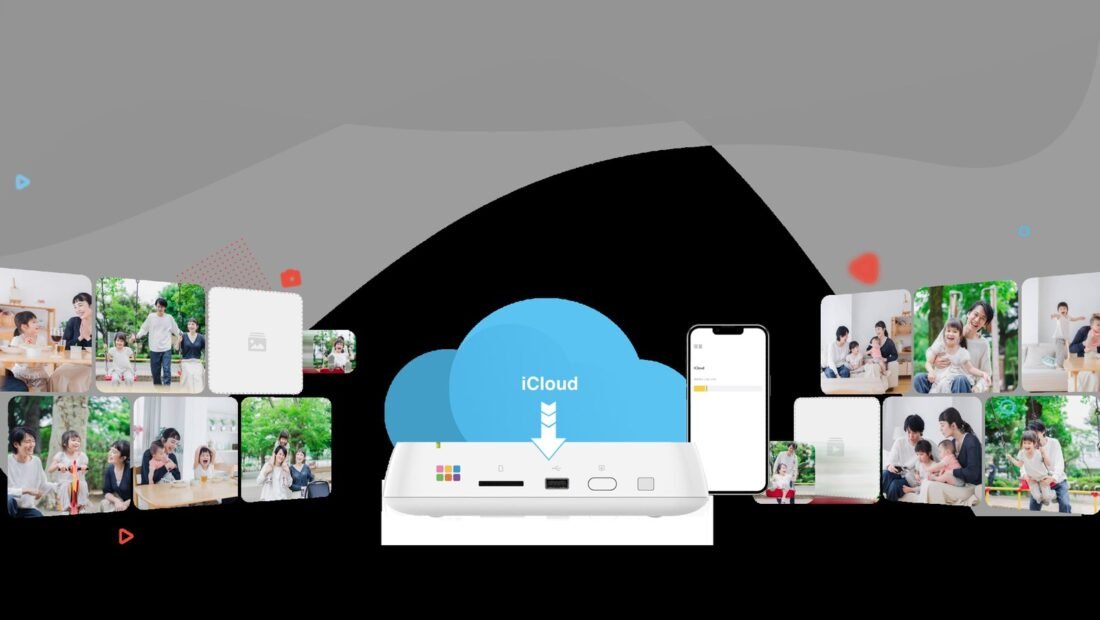
The first copy should need no effort at all, because effort is where backup plans go to die. Both big phone platforms offer automatic photo backup: Google Photos gives you 15GB free, then charges about $2 a month for 100GB or $10 a month for 2TB. Apple’s iCloud gives 50GB for about $1 a month and 200GB for about $3 a month. Turn it on, connect to Wi-Fi, and every photo you take quietly copies itself somewhere safe.
Which size do you need? The average family adds roughly 5 to 15GB of photos a year. At that pace, a 200GB plan comfortably covers most families for years — the $3-a-month iCloud tier or Google One’s yearly equivalent is the sweet spot for most households. The free tiers, by contrast, fill up fast, and a full backup that silently stops is worse than none, because you believe you are protected when you are not. The help pages at Google Photos support walk through checking that backup is on and complete; iPhone users will find the same switch in iCloud settings. Check it once after turning it on — look for the “backup complete” state, not just the switch.
Copy two: the drive in the drawer
The second copy protects you from a different kind of disaster: losing the account itself. People get locked out of accounts, let subscriptions lapse, or delete the wrong album — and if the cloud is your only copy, those mistakes are permanent. A local drive answers all of them.
A 2TB portable drive costs about $60 to $80 and holds hundreds of thousands of photos — more than most families will shoot in a lifetime. The routine is simple: once a month, plug it in and copy the library across. Free software like FreeFileSync can compare the folders and copy only what is new, which turns a monthly chore into a few minutes and a couple of clicks.
Keep the drive somewhere sensible — a drawer is fine; next to the computer is fine too. Its one weakness is that it lives in the same house as everything else, which is exactly what the third copy exists to cover.
Copy three: one copy outside the house
Fire, flood, and burglary do not care how many drives you own if they are all in the same building. The 3-2-1 rule insists one copy lives somewhere else — and if you did step one, you already have it: the cloud copy is offsite by nature. That is the quiet genius of pairing cloud plus local drive. The cloud guards against house disasters; the drive guards against account disasters; each covers the other’s weak spot.
If you prefer not to rely on the cloud for the offsite copy, the alternative is a second drive kept at a relative’s house or in a workplace locker, swapped monthly. It works, but be honest with yourself about whether the swaps will really happen. For most families, the cloud is the offsite copy that maintains itself.
Do not forget the photos that are not on phones
Most families also own a shoebox problem: decades of printed photos, fading quietly. Digitizing them sounds enormous and is not. A dedicated photo scanner runs about $100 to $200, or you can use a free scanning app like Google PhotoScan, which uses the phone camera and removes glare. One rainy weekend, a few hundred prints at a time, and the family archive joins the same 3-2-1 system as everything else — copied to the drive, backed up to the cloud, safe from the next flood in the basement.
Two photographers, one library
In most families the photos live scattered across two or three phones, each backing up to a different account — or, more often, one backing up properly and the others not at all. The 3-2-1 system only works if every source feeds it. Pick the family arrangement deliberately: either one shared cloud account that every phone backs up to, or each person’s own cloud backup plus a monthly moment where both libraries land on the family drive. The second pattern is the common one, and its weak point is the partner whose phone has been “meaning to” back up since spring. Check their backup status with the same kindness you would want yours checked — today, together, in two minutes.
While you are gathering sources, do not forget the quiet ones: the old phone in the drawer holding two years of photos from before the upgrade, the camera’s memory card, the scans and school photos sitting in email attachments. The drive copy is the natural home for all of them — one folder per source, copied once, then maintained with the monthly routine.
One small chore makes the archive worth more every year it exists: name what you scan and save. A photo file called IMG_4021 is data; the same photo filed as “1987 — Grandma’s kitchen, the old house” is a family record. When you digitize prints, spend the extra seconds on filenames and a simple folder per year — future relatives searching the drive will bless your name for it, and the monthly backup copies the meaning along with the pixels.
What 3-2-1 does not protect against — and the patch
Honesty about the system’s one soft spot: deletion. If a photo is deleted on the phone and the deletion syncs to the cloud before your monthly drive copy, the cloud faithfully removes it too — sync is a mirror, not a vault. Two habits patch the hole cheaply. First, both Google Photos and iCloud keep deleted photos in a trash folder for about thirty days; learn where yours is before you need it. Second, the monthly drive copy closes the window further the more often it runs — a deletion discovered within the month still exists on the drive. Families who shoot video heavily should also know that video eats storage at a completely different rate from photos, so check the cloud plan’s headroom twice a year; a backup that silently stopped in March because the plan filled up is the most common real-world failure of this whole system.
The step everyone skips: check that it works
A backup you have never opened is a hope, not a backup. Twice a year — tie it to something memorable, like changing the clocks — open the drive, pick a few photos at random, and confirm they open full-size and sharp. Then open the cloud copy and do the same. Every so often someone discovers their “backup” folder holds thumbnails, or stopped copying in March. Finding that out on check day is annoying. Finding it out on lake day is devastating.
One bonus copy costs almost nothing and protects against a disaster the digital copies share: print. Once a year, choose the twenty or thirty photos that actually carry the family’s story — the new baby, the wedding, the last picture of someone — and print them properly, in an album that lives on a shelf. Prints cannot be hacked, locked out, or silently unsynced. They fade over decades rather than vanish in an afternoon, and they are the only version of your archive a grandchild can find without a password. No one builds a backup system out of paper anymore; but as the fourth, sentimental layer under the digital three, it has outlived every storage technology in this article and will outlive the next two as well.
And a word on choosing where photos live in the first place: this system deliberately uses both cloud and a local drive, because the honest answer to whether cloud storage or an external hard drive is safer is that each fails in ways the other survives. That is the whole point of 3-2-1. Three copies, two kinds of storage, one offsite — set it up once, spend $3 a month and ten minutes a month, and no dropped phone, dead drive, or bad day at the lake can take your family’s photos with it.



1 Comment