New router day should be a small celebration — faster speeds, better coverage. Instead, the internet works on every device in the house except one. The printer sits there with its little warning light, invisible to every laptop and phone, still faithfully connected to a network that no longer exists. Of all the gadgets in a home, printers are the worst at moving house.
The fix is methodical rather than clever. Work through these steps in order, and by the end of them the printer will be on the new network — or you will know exactly which step is failing, which is the next best thing.
What you need beside you
Have three things ready before you start: the new Wi-Fi network name and its exact password (passwords are case-sensitive, and more printer “failures” are password typos than anything else), your phone, and ten unhurried minutes. If your router offers both a 2.4GHz and a 5GHz network, know which is which — most printers can only join the 2.4GHz band, and this single fact causes more failed setups than every other cause combined.
Step 1: Restart the printer properly
Turn the printer off, wait thirty seconds, and turn it back on. Not sleep — off. Printers carry stale network settings in memory, and a full restart clears its attachment to the old network so it can look for the new one with fresh eyes. While it restarts, stand close: for setup, the printer should be in the same room as the router. Walls and distance can come later; a weak signal during setup creates confusing half-failures.
Step 2: Use the printer’s own Wi-Fi setup wizard
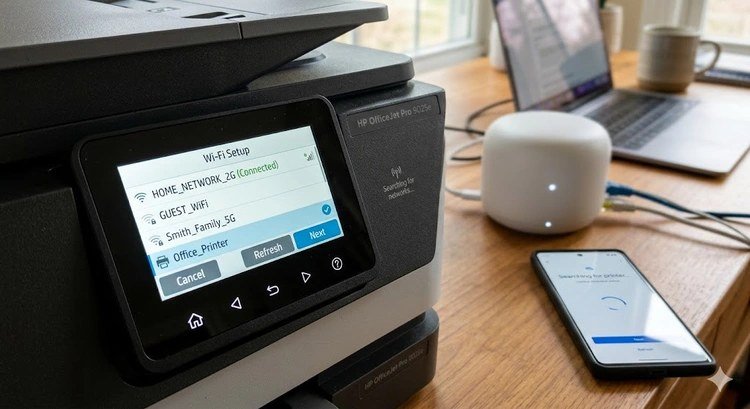
Most printers made in the last decade have a setup wizard in their own menus. On models with a touchscreen, it usually lives under Settings, then Network or Wireless, then Wireless Setup Wizard. The printer scans for networks, you pick your new network name from the list, type the password on the little keyboard — slowly, checking each character — and it connects.
On printers without a screen, the same wizard runs through the maker’s phone app instead (HP Smart, Canon PRINT, Epson iPrint, Brother Mobile Connect). Install the app, choose “set up a new printer,” and the app hands the network details to the printer over a temporary direct connection. The exact menu names differ by brand, and the makers’ own walk-throughs — for example HP’s support pages — cover model-by-model screens if yours does not match the description above.
Step 3: Or use the WPS button, if both devices have one
If your router and printer both support WPS, this is the two-minute shortcut. Press the printer’s WPS or Wi-Fi button (on some models you hold it until the light blinks), then within a couple of minutes press the WPS button on the router. The two devices introduce themselves and swap the password without you typing anything. When the printer’s wireless light turns solid, it is connected.
Two cautions. Some newer routers ship with WPS turned off for security; if the lights never settle, do not fight it — go back to Step 2. And skip WPS entirely if your router is an ISP model with a known-flaky implementation; the wizard is slower but surer.
If the wizard cannot even see your network
Sometimes the setup list comes up empty, or your network is missing from it while the neighbors’ networks show happily. Three causes explain nearly all of these. First, distance and obstruction during setup: move the printer into the router’s room for the joining process, even if it will live elsewhere afterward — a printer that can barely hear the router may fail setup while still printing acceptably once connected at closer range, and you can test its real home afterward.
Second, the band problem in disguise. Some routers broadcast one combined name for both bands and steer devices between them. If the printer cannot join at all, log into the router and temporarily give the 2.4GHz band its own distinct name, join the printer to that, and leave it that way — separate names are simpler for printers forever after. Third, guest networks and isolation settings: a printer joined to a guest network often cannot be reached by computers on the main network, by design. If your household uses the guest network for gadgets, the printer belongs on the main one, or it will connect successfully and still be unprintable — the most confusing outcome of all.
Step 4: Confirm the printer really joined
Do not trust the blinking light — get proof. Most printers can print a network configuration page from the same network menu; it shows the network name the printer joined and the IP address it was given. Check the name matches your new network exactly. A surprising number of “my printer won’t connect” cases turn out to be the printer cheerfully joined to a neighbor’s open network or to your old extender, which still broadcasts the old name.
While you are in the menus, note the IP address. You may want it for Step 6.
Step 5: Re-add the printer on each computer and phone
Here is the step people forget: joining the new network does not update the printer saved on your laptop. The computer still looks for the printer at its old address, finds nothing, and reports it missing — which is why the printer can be happily connected while every device insists it does not exist.
On Windows, go to Settings, Bluetooth & devices, Printers & scanners, remove the old entry for the printer, then choose Add device and let it find the printer fresh. On a Mac, open Printers & Scanners in System Settings, remove the old entry with the minus button, and add it again. On phones, print once from the share menu and let the phone discover it anew. Removing and re-adding feels drastic; it is actually the clean fix, and your documents and settings are untouched.
Step 6: If it connects, then keeps vanishing
A printer that joins happily but drops off the network days later usually has one of two problems. The first is band steering: a router with one combined network name may push the printer toward the 5GHz band it cannot use properly. If your router allows it, give the 2.4GHz band its own network name and join the printer to that.
The second is a wandering IP address. Routers hand out addresses dynamically, and after a restart the printer may receive a new one while your computer looks at the old one. The cure is a fixed address: in the printer’s network settings (or in the router’s admin page), reserve the address it already has. This is also the long-term cure for the related headache where a printer works for weeks and then sulks — many of the fixes in our guide to why a printer keeps saying it is offline start from exactly this address problem.
Step 6½: Update the printer itself
While the printer is cooperating, do the job nobody does until it breaks: update its firmware. Printers receive software updates through the maker’s app or the printer’s own menu, and router changes occasionally expose an old firmware bug — a printer that joined the old network happily and refuses the new one’s security settings is a classic. A printer that was mid-update-prompt for two years may simply need to finish updating before it will join anything. It takes five minutes on a working connection (use the phone app’s temporary connection if the printer is still offline), and it eliminates a whole family of “everything is right but it won’t connect” afternoons. Think of it as the toll this particular fix sometimes charges halfway through: annoying, quick, and final.
Step 7: The last resort — reset network settings
If the wizard fails repeatedly and the password is definitely right, reset just the printer’s network settings to factory defaults (the option lives in the same network menu, and it does not erase anything else), then run Step 2 again on a clean slate. Corrupted stored settings survive a lot of ordinary troubleshooting; a network reset does not.
Two last pieces of housekeeping pay off later. Rename the printer in your computer’s settings to something human — “Hallway Printer” ages better than a model number with a string of digits — so that the next time it misbehaves, everyone in the house is talking about the same device. And if the printer is a few years old, check whether its maker still supports it with driver updates for your computer’s current system version; printers orphaned by their manufacturers are the ones that “mysteriously” fail after a computer update, and knowing yours is supported is worth the two minutes the check takes.
Once it connects, print one test page from every device that uses the printer, and write the network name and band on a sticky note inside a drawer. Next router day — and there is always a next one — you will be the person who fixes it in five minutes while everyone else is still reading the warning light.