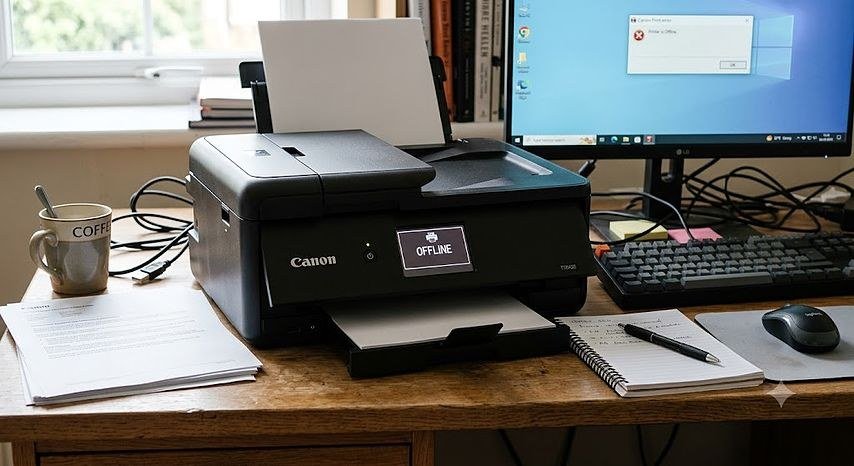
The courier is coming at noon, the shipping label exists only inside your computer, and the printer — three feet away, powered on, visibly healthy — is reported by Windows as “offline.” This is one of the most maddening errors in home technology precisely because the printer is usually fine. Nothing is broken; something has merely lost track of something else. But before we fix it properly, let us walk through the wrong turns, because nearly everyone takes at least two of them first, and two of them actively make the problem harder to solve.
Mistake 1: Shopping for a New Printer
The most expensive wrong turn. “Offline” is a communication status, not a death certificate — it means the computer and printer are not currently talking to each other, for reasons that are usually small, specific, and already sitting in this article, and the list of things that interrupt that conversation is long, mundane, and almost entirely free to fix. A printer that prints a test page from its own control panel, standing there humming with its little green light on, is a working printer with a networking problem, full stop. Put the shopping tab away until the end of this article; the odds are heavy that an $8 cable or a $0 settings change ends the saga, and those odds deserve their ten minutes first.
Mistake 2: Reinstalling the Drivers, Repeatedly, at Random
When in doubt, people uninstall and reinstall the printer software — sometimes three times in an afternoon. Each reinstall tends to create yet another copy of the printer in Windows (“Printer,” “Printer (Copy 1),” “Printer (Copy 2)”), and soon the computer is cheerfully sending your documents to a copy that is not connected to anything, while the real printer sits ready. Driver corruption exists, but it is near the bottom of the likely causes, not the top. Every duplicate you create becomes one more suspect to eliminate later. Resist the ritual; it feels productive and is usually the opposite.
Mistake 3: Restarting Only the Computer
The printer has been asleep — truly asleep, in its deep low-power state — for eleven days, and its Wi-Fi connection quietly died on day three. Restarting the computer asks the computer to look again, but the printer is not awake to be found. The restart that matters is the printer’s: power it fully off, count to thirty, power it on, and give it a full minute to rejoin the network before you ask the computer anything. Printers are small computers with radios, and they need rebooting on the same schedule of suspicion as everything else you own.
Mistake 4: Ignoring the Obvious Because It Is Obvious
USB cable half-out of the back of the printer. Printer connected to the guest Wi-Fi network while the computer sits on the main one — same house, different worlds, invisible to each other. Paper or ink lights quietly demanding attention, because many printers report themselves “offline” to the computer when what they actually mean is “I need something.” And the unglamorous champion: the printer and the router both fine, but the printer’s IP address changed after a router restart, and the computer is still knocking on the old address. Check the printer’s own little screen first — it will usually tell you its true state in plain words while the computer is still theorizing.
The Actual Causes, Ranked by How Often They Are Guilty
- The connection dropped — printer asleep, Wi-Fi hiccup, router restarted. Cured by the printer restart in Mistake 3, plus checking both devices are on the same network.
- “Use Printer Offline” got switched on in Windows — a real toggle, buried and baffling: open Settings → Bluetooth & devices → Printers, choose the printer, open the print queue, and in the queue window’s Printer menu, make sure “Use Printer Offline” is unchecked. Programs and stray clicks enable it more often than anyone admits.
- A stuck print queue — one corrupted job at the front of the line blocks everything behind it and reads as “offline.” Cancel all documents in the queue; if one refuses to die, restart the Print Spooler service (search “Services,” find Print Spooler, Restart) and the queue clears like a drain.
- Windows is printing to the wrong copy — the duplicates from Mistake 2. Print a test page from each listed printer in turn; keep the one that answers, remove the rest, and set the survivor as default. Microsoft’s own walkthrough of fixing printer connection and printing problems in Windows covers this housekeeping in order.
- A genuinely corrupt driver or port — last, not first. Now the reinstall is legitimate: remove the printer completely, restart, and let Windows rediscover it fresh, or install the manufacturer’s current driver.
The Nuclear Option That Is Actually Gentle
If you have a printer that drifts offline every few weeks, the permanent cure is to stop its address from moving: assign it a static IP (or a DHCP reservation) in your router’s settings, so the computer’s directions to it never expire. It is a five-minute router setting, it survives restarts on both ends, and it converts a recurring haunting into a non-event. If the printer has recently changed networks entirely — new router, new Wi-Fi name — none of the above applies until the printer joins the new network, which is its own short procedure covered step by step in our guide to connecting a wireless printer to a new WiFi network.
The Printer’s Own Test Page: Your Truth Serum
When the computer’s story and the printer’s story disagree, believe the printer. Nearly every network printer can print a network configuration page from its own menu (look under Settings, Network, or Reports on its little screen). That page prints the facts: whether the printer believes it is connected, to which network name, and at what IP address. Compare that address with the one your computer is trying to use — on Windows, the printer’s Properties → Ports tab shows the address it knocks on. If the printer says .104 and the computer knocks on .101, you have found a $0 problem with a five-minute cure (re-add the printer at its real address, or set the static address from the section above). This page also quietly answers the same-network question: the network name printed on it either matches your computer’s or it does not, and no amount of driver reinstalling fixes a printer that is a guest on the wrong Wi-Fi.
On a Mac or a Phone, It Is the Same Disease
AirPrint has its own version of the haunting, and the medicine rhymes. An iPhone or Mac that “cannot find” a printer it used yesterday is usually looking at a printer that fell off the network asleep, or at a phone that joined the 5GHz band while the printer lives on 2.4GHz and the router keeps those worlds apart — most printers are 2.4GHz-only devices, a detail that explains a small mountain of home frustration. Wake the printer, confirm the network name on its screen, and toggle the phone’s Wi-Fi off and on to renegotiate. On the Mac, removing the printer from System Settings → Printers and re-adding it is the clean equivalent of the Windows housekeeping above — and the same warning applies: do it once, deliberately, not three times in a panic while the courier’s van turns into your street.
When It Genuinely Is the Printer
Fairness demands the exception. Hardware does fail, and its signature is different from everything above: the printer’s own screen reports no network even beside the router, wired and wireless connections both fail, other computers in the house lose it at the same moment, and a full factory reset of the printer changes nothing. A dead Wi-Fi radio in a six-year-old printer is a real diagnosis — just the rarest one in this article, and the only one that justifies Mistake 1’s shopping tab. When you reach it, replace with clear eyes: your next printer should be the one whose setup you already understand from having rescued this one, and its first configuration should include the static address from the section above, so its biography contains no chapter like this one.
One more wildcard for the truly haunted case: occasionally a Windows or printer firmware update — on either side — changes how the two introduce themselves, and a printer that was fine on Monday is a stranger on Tuesday. If your offline problem began the morning after an update, that timing is the clue: check the printer maker’s site for a matching firmware fix before undoing your whole setup, because the repair for a known update bug is usually a download, not a weekend.
The Bottom Line
Restart the printer (not just the computer), check its little screen, uncheck “Use Printer Offline,” clear the queue, print to the right copy, and only then think about drivers — or hardware. The label prints, the courier is met, the package goes out on time, and the $8 cable in the drawer wins again.