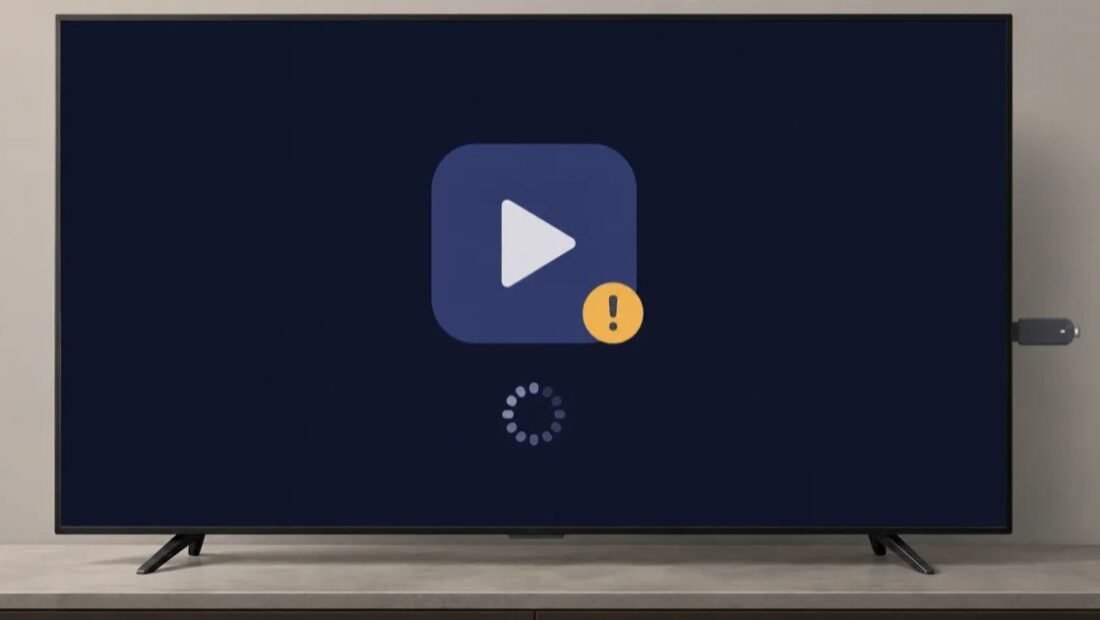
You press the Netflix button. The logo appears. A circle spins. You get up, put the kettle on, come back — and the circle is still spinning. Modern TVs have beautiful screens and the computing power of a pocket calculator, and after a few years of ownership they can take so long to open an app that the show you wanted feels like it needs an appointment.
Before you blame the TV’s age and start pricing replacements, know this: most slow TVs are not dying. They are suffering from a handful of common, fixable problems — and their owners are usually making at least two of the mistakes below without realizing it.
Mistake 1: Never actually restarting the TV
The power button on your remote does not turn the TV off. It puts it to sleep, the way closing a laptop lid does, and the system can run for months without a true restart — all that time accumulating the same slowdowns any computer gathers. Apps half-close, memory fills with leftovers, and opening anything new means shoving through the pile.
Pull the plug. Wait thirty seconds. Plug it back in and let it boot fully. This one act — a real, wall-socket restart — is the single most effective free fix for a sluggish TV, and most owners have never done it once. If your TV perks up afterward, make it a habit: a monthly unplug, or a smart plug on a timer if the socket hides behind furniture.
Mistake 2: Stuffing the tiny storage with every app going
Here is the number that explains so much: many smart TVs have just 4 to 8GB of internal storage. Not per app — total. Every streaming service you installed “just in case,” every game the kids tried once, every app that came preloaded and cannot be removed, all live in that shoebox alongside the system itself and each app’s growing cache of data.
When storage fills, everything crawls, because the system has nowhere left to breathe. Aim to keep at least 500MB to 1GB free at all times. Go through the app list and delete anything you have not opened in a month — you can always reinstall it in a minute. On many TVs you can also clear an individual app’s cache in settings, which frees space without deleting the app or your sign-in.
Mistake 3: Blaming the TV for a network problem
An app that takes forever to load a show is often not slow at all — it is waiting on your internet. Streaming in 4K needs a stable 15 to 25 Mbps at the TV itself, and the speed at the router is not the speed in the corner of the living room behind the chimney breast. Netflix publishes its own recommended internet speeds for streaming, and the gap between those numbers and what a far-corner TV actually receives explains a lot of “broken” televisions.
Test honestly: run a speed test on the TV itself (most app stores have one, or use the Netflix app’s built-in network check) and compare it with a test beside the router. If the TV’s number collapses, your fixes are about signal — move the router, use a wired Ethernet cable if the TV sits near a port, or add a mesh node. No reset will fix physics.
Mistake 4: Skipping every system update
TV software updates are easy to dismiss because they arrive with vague notes about “performance improvements.” Behind that dull phrase often sit exactly what you need: memory fixes, app-launch fixes, and security patches for a device that sits on your home network all day. A TV that has refused updates for two years may be running a version of its system the maker fixed long ago.
Open the settings, find the software update section, and let it check. While you are there, turn on automatic updates if the option exists, scheduled overnight. It is the same lesson phones taught everyone: the updates you ignore are the fixes you needed.
Mistake 5: Running everything through the TV’s own apps forever
This is less a mistake than a slow trap. The streaming system built into a TV was frozen the day the TV was made — the chip does not get faster, while the apps get heavier every year. A five-year-old TV running a brand-new streaming app is an old computer running new software, and it shows.
The honest permanent fix is to stop asking the TV to be a computer. A streaming stick or box — Chromecast with Google TV, Roku Express 4K, or Fire TV Stick 4K, all around $30 to $50 — plugs into an HDMI port and takes over all the smart work with a much newer, faster processor that keeps receiving updates for years. Your TV goes back to the job it is brilliant at: being a screen. This is why so many “I need a new TV” stories end with a $40 stick and a perfectly good old panel.
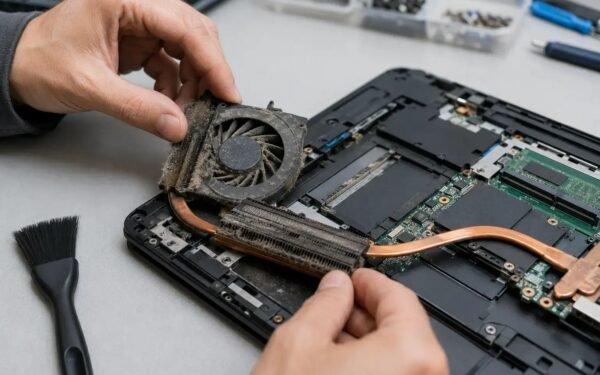
Heat deserves a sentence in this list, too. TVs vent through slots along the back and top, and a panel pushed flush into an alcove, or a soundbar parked against its vents, or three years of dust felted over the slots, makes the processor run hot — and hot processors slow themselves down to survive. Pull the TV a few inches from the wall, vacuum the vents gently, and let it breathe. It is the only item in this article that also makes the TV last longer, which is reason enough to do it while the plug is already in your hand.
Mistake 6: Treating the factory reset as either forbidden or first
Two opposite errors surround the nuclear option in the settings menu. Some owners fear a factory reset as if it might break the TV; others reach for it before trying anything in this article. The truth is boring and useful: a reset is safe, reversible in effect (you sign back into your apps and re-enter settings), and genuinely curative when the system’s clutter has built up over years. It clears every cache, every leftover app, and every strange setting at once.
The order matters, though. Restart properly first (mistake 1), free the storage (mistake 2), check the network (mistake 3), update the software (mistake 4) — because a reset that “fixes” a network problem wastes an hour of signing back into apps. If those four leave the TV slow, then reset without guilt: it is the correct fifth step, and on a five-year-old TV it can feel like a new machine for exactly zero dollars.
You may already own the fix
Before buying the stick, inventory the room. A games console, an Apple TV, a cable box with streaming apps, even a laptop and an HDMI cable — any of these can take over streaming duty from the TV’s own system tonight, at no cost, and each has a processor and update cycle far healthier than the TV’s. Plenty of households “fix” their slow TV by routing everything through the console they already owned and simply never think about the TV’s own menus again. It is the same principle as the stick — let a newer brain do the smart work — with the small discipline of remembering which remote runs the show. Try it for a week before spending anything; if the borrowed brain satisfies you, the $40 stays in your pocket and the TV’s sluggish menus become a corridor you no longer walk down.
A twenty-minute tune-up, start to finish
Everything above compresses into one sitting. Minute one: pull the plug, wait, restart, and watch how it boots. Minutes five to ten: delete the apps nobody opens and check that free storage sits above a gigabyte. Minutes ten to fifteen: run the TV’s software update, then a speed test at the TV itself and write the number down. Final five: open your two most-used apps and time them honestly. You now know your TV’s real condition — and if it is still slow after all that, you buy the $30-to-$50 stick with a clear conscience and evidence, not a new television on a hunch. Keep the speed number somewhere; if the TV slows again in a year, the comparison tells you whether it is the TV aging or the internet fading.
When it really is time to replace the TV
Sometimes the answer is not a fix at all. If the screen itself is failing — lines, dark patches, colors going strange — no stick will save it. If the TV is so old its apps have been discontinued entirely, a stick still rescues it, and only a dead panel or dead backlight truly ends the conversation.
And if your household’s viewing is heading the other way — less streaming, more discs and broadcast TV — it is worth knowing a smart TV still works fine with no internet at all, as our guide to using a smart TV without an internet connection explains. But for the common case — good screen, miserable menus — start with the plug, clear the shoebox of storage, check the real speed at the TV, and let a $40 stick do the thinking. The kettle will still be warm when your show starts.