Is it worth upgrading an old laptop from a hard drive to an SSD — it’s one of those questions that sounds simple until you actually need the answer. I’ve been down this road myself, and what I learned is that the real answer depends on a few details most people overlook. Let me walk you through what actually matters, what it typically costs or involves, and how to avoid the traps that catch everyone else.
The short version: there’s no single magic number or one-size-fits-all fix, but once you understand the moving pieces, the decision gets a lot easier. Below is everything I wish someone had told me upfront — the honest breakdown, the practical steps, and the mistakes worth dodging.
Is it Worth Upgrading an Old Laptop From a Hard Drive to an Ssd: What You Need to Know
If your old laptop still has a spinning hard drive, I have great news: a $30 to $60 SSD is the single most transformative upgrade in all of computing. I’m not exaggerating — swapping HDD for SSD makes a 2015 laptop feel faster than a 2020 laptop that still has a hard drive. It’s the best dollars-to-speed ratio in tech, full stop.
Here’s why the difference is so dramatic. A traditional hard drive reads data at 80 to 160 megabytes per second with noticeable seek delays every time it finds a file. A basic SATA SSD reads at 500+ MB/s with near-instant access — roughly 5 to 10 times faster in real-world feel. Boot times drop from two minutes to 20 seconds. Programs launch instantly instead of bouncing in the dock. The whole machine stops feeling like it’s thinking about everything. For more on this topic, see What Should I Look for When Buying a Used Ipad — it pairs well with what you just read.
The Details Most Guides Skip
The cost is almost comically low now. A reliable 500GB SATA SSD from Crucial or Samsung runs $35 to $55; 1TB is $60 to $90. That’s it — the entire upgrade, parts included, costs less than a tank of gas. Even if the laptop only lasts two more years, that’s the cheapest performance you’ll ever buy. For the official guidance, see Consumer Reports’ buying advice.
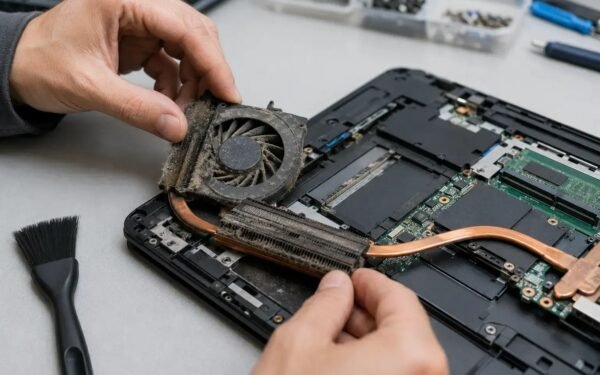
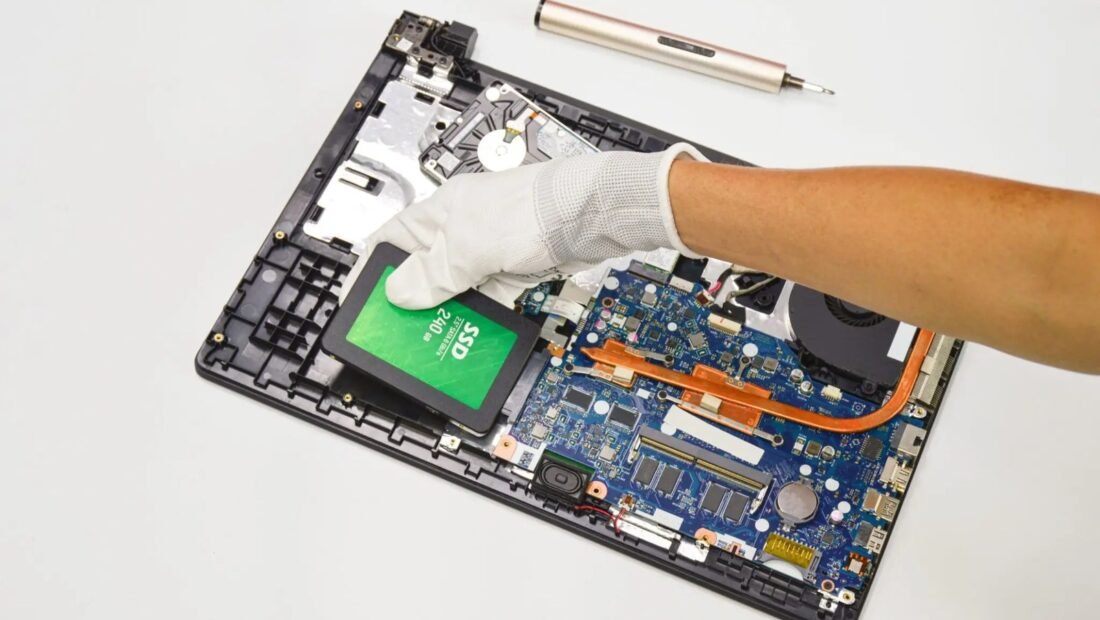
Installation is easier than its reputation. Most laptops from the HDD era have a removable bottom panel with the drive held by a few screws — iFixit has free step-by-step guides for nearly every model, and the physical swap takes 15 to 30 minutes with a single screwdriver. The software side: either clone your existing drive with free software like Macrium Reflect (connect the SSD via a $10 USB adapter first), or do a fresh Windows install for the cleanest result.
Smart Moves to Make Now
- Cost: 500GB SATA SSD $35–$55; 1TB $60–$90 (Crucial, Samsung, WD).
- Speed: 5–10x real-world improvement; boots in ~20 sec vs 2 minutes.
- Install: 15–30 min with one screwdriver; free iFixit guides for most models.
- Clone with Macrium Reflect (free) + $10 USB adapter, or fresh-install Windows.
- Compatibility: most 2012–2019 HDD laptops use standard 2.5-inch SATA — verify first.
- Bonus: silent, drop-proof, cooler, better battery life vs spinning drives.
The Part Most People Miss
Compatibility check before you buy: confirm your laptop uses a 2.5-inch SATA drive (virtually all HDD-era laptops do) rather than something exotic. Also check the drive height — 7mm vs 9.5mm — though most modern SSDs include a spacer. If your laptop is from roughly 2012–2019 with a spinning drive, it’s almost certainly a standard 2.5-inch SATA bay.
When is it NOT worth it? If the laptop has other fatal problems — a failing screen, a dead battery that costs $100 to replace, or a processor so old it can’t run a supported Windows version — then the SSD money is better saved toward a replacement. Also skip it if the machine already has an SSD (check Task Manager’s Performance tab; it tells you the drive type). But a healthy laptop that’s just slow? Always worth it. For more on this topic, see What is the Best Business Bank Account for a Freelancer — it pairs well with what you just read.
One more benefit people underestimate: reliability. SSDs have no moving parts, so they survive drops that would kill a hard drive, run silently, use less battery, and generate less heat. You’re not just buying speed — you’re buying a laptop that stops clicking ominously and starts sipping power. For $40, it’s the rare upgrade with zero downsides.
Common Mistakes to Avoid
- Paying a shop $100+ labor for a 20-minute screwdriver job you can do following a free guide.
- Buying an NVMe SSD for a laptop that only has a SATA bay — check the interface before ordering.
- Cloning a failing hard drive’s corruption onto the new SSD; fresh install is cleaner for sick systems.
- Upgrading a laptop with a dying screen or dead battery — fix the fatal flaw first, or save for replacement.
Questions People Ask
Will an SSD work in a really old laptop (2010–2012)?
Yes — SATA is backward compatible. The laptop won’t reach the SSD’s full speed on old SATA II ports, but it’ll still be dramatically faster than any hard drive.
How long does the swap take including software?
Physical swap: 15–30 min. Cloning: 1–3 hours depending on data size. Fresh Windows install: about an hour plus updates.
Should I get 500GB or 1TB?
Match or exceed your current drive’s used space. 500GB suits most people; 1TB if your old drive was 1TB and fairly full. SSD prices make 1TB an easy choice.
How often should I restart my phone and computer?
A weekly restart is a good habit for both phones and computers. It clears temporary memory glitches, finishes pending updates, and kills runaway background processes that drain battery and slow things down. You don’t need to power off nightly — modern devices handle standby well — but if something starts acting strangely, a restart is always the first troubleshooting step worth trying.
The Bottom Line
Yes — absolutely worth it. A $35–$55 SSD delivers a bigger speed boost than any other upgrade at any price, installs in under half an hour, and adds reliability and battery life as bonuses. Only skip it if the laptop has other fatal problems or already has an SSD.
Worth reading next: Should I Buy or Lease Equipment for my Startup.
If you remember one thing, make it this: don’t rush the decision. The few minutes you spend comparing options here will pay for themselves many times over.