How do I free up storage space on my Android phone? It’s a fair question, and the honest answer is: it depends — but not in the annoying way. It depends on a handful of specific factors, and once you know what they are, you can figure out your situation in about five minutes. That’s what this article is for.
I’ve seen too many people overpay, waste a weekend, or pick the wrong option simply because nobody gave them the full picture. So here it is: the full picture, written like I’d explain it to a friend over coffee.
How do I Free Up Storage Space on my Android Phone: What You Need to Know
That ‘Storage almost full’ notification on Android always arrives at the worst moment — usually when you’re trying to take a photo. The good news: most Android phones are sitting on gigabytes of recoverable space hiding in caches, duplicates, and forgotten downloads. Here’s how to reclaim it, biggest wins first.
Start with Google Photos, the single biggest space hog for most people. Open Google Photos, tap your profile picture, and choose ‘Free up space’ — it deletes local copies of photos already backed up to the cloud. This one tap routinely frees 5 to 20GB. Just confirm your backup is complete first (check photos.google.com on a computer if you’re nervous). After that, your photos stay accessible but live in the cloud. Related: our breakdown of Is it Worth Upgrading an Old Laptop From a Hard Drive to an Ssd covers the numbers in detail.
The Part Most People Miss
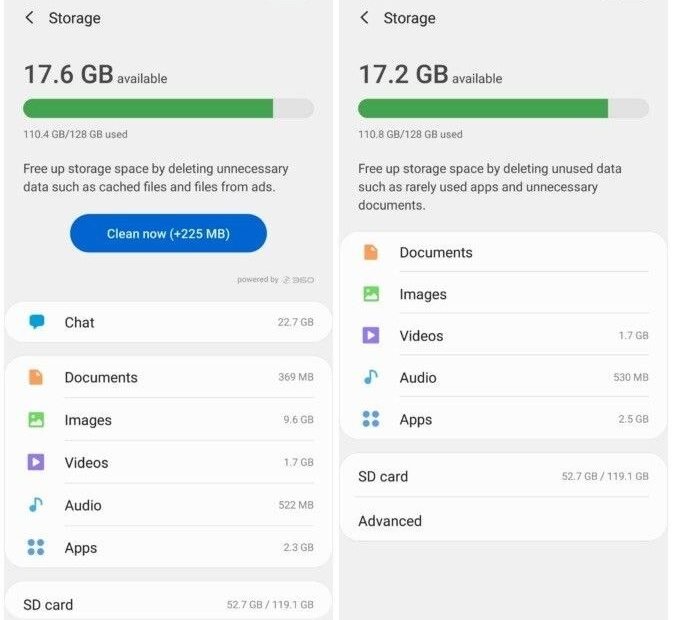
Next, attack the app cache — but do it smartly. Go to Settings, then Storage, and you’ll see a breakdown by category. Tapping into Apps shows each app’s size; social media and streaming apps are notorious for ballooning caches (I’ve seen TikTok and Spotify each holding 5GB+). Clear cache for the worst offenders — this deletes temporary files, not your logins or data. Don’t confuse ‘Clear cache’ with ‘Clear data,’ which wipes the app clean. You can also check Consumer Reports’ buying advice for the authoritative details.
Then hunt the hidden trash folders. Deleted photos sit in Google Photos’ Trash for 60 days still eating space — empty it. Your Files app has its own trash too. Downloads folders accumulate years of forgotten PDFs, APKs, and memes; sort by size and be ruthless. WhatsApp is a secret monster: its media folders hoard every photo and video anyone ever sent you — clear them from within WhatsApp under Settings, then Storage and data, then Manage storage.
Practical Steps That Work
- Google Photos > ‘Free up space’: deletes backed-up local copies; often frees 5–20GB instantly.
- Clear app cache (NOT clear data) for bloated social/streaming apps in Settings > Storage.
- Empty Trash in Google Photos and Files — deleted files linger for weeks eating space.
- Purge WhatsApp media: Settings > Storage and data > Manage storage.
- Uninstall large unused apps; sort by size to find the worst offenders.
- Review offline downloads in Spotify/Netflix/YouTube; lower Spotify download quality.
- Enable auto-backup and scheduled cleanup to prevent refills.
Here’s What Really Matters
Audit your apps honestly. Settings, then Apps shows everything installed — sort by size and look for games you finished, streaming apps you never open, and the three fitness apps from January. Uninstalling a handful of large unused apps can free several gigabytes in minutes. While you’re there, check for preinstalled bloatware you can at least disable.
For downloaded media, be strategic. Spotify, Netflix, YouTube, and podcast apps all let you download for offline use — convenient, but those downloads pile up silently. In each app’s settings, review downloads and remove what you’ve already watched or heard. Switching Spotify’s download quality from Very High to High also halves the space per song with barely audible difference. If that sounds familiar, you may also want our guide to How Much Does it Cost to Fix a Cracked Tablet Screen.
If your phone has a microSD slot — increasingly rare, but some Samsung A-series and Motorola phones still do — moving photos and media to a $15 128GB card is the cheapest storage upgrade in tech. For everyone else, Android’s built-in storage manager (Settings, then Storage, then Free up space) automates much of this cleanup on a schedule.
Common Mistakes to Avoid
- Tapping ‘Clear data’ instead of ‘Clear cache’ — one wipes temporary files, the other logs you out and deletes everything.
- Deleting photos from the phone before confirming Google Photos backup completed.
- Paying for a ‘phone cleaner’ app that duplicates what Android does free — and harvests your data.
- Buying a new phone for storage reasons when 15 minutes of cleanup would free 20GB.
Questions People Ask
Why does my storage fill up again so fast?
Auto-downloaded media (WhatsApp, podcasts, Spotify) and growing app caches. Disable auto-downloads and turn on scheduled storage management to break the cycle.
Is it safe to delete the Downloads folder?
Review it first, but usually yes — it’s mostly forgotten installers, PDFs, and memes. Sort by size and date to spot the big, old, useless files quickly.
Should I use a microSD card?
If your phone supports one, absolutely — $15 for 128GB is unbeatable. Move photos, videos, and offline media there; keep apps on internal storage for speed.
How often should I restart my phone and computer?
A weekly restart is a good habit for both phones and computers. It clears temporary memory glitches, finishes pending updates, and kills runaway background processes that drain battery and slow things down. You don’t need to power off nightly — modern devices handle standby well — but if something starts acting strangely, a restart is always the first troubleshooting step worth trying.
Is it safe to buy refurbished electronics?
Yes, when you buy from reputable sources. Manufacturer-refurbished programs (Apple, Dell, Samsung) include new batteries or thorough testing plus a full one-year warranty — often indistinguishable from new. Third-party refurbishers like Back Market add their own warranties. Avoid no-name sellers with 30-day warranties and no return policy; the seller matters more than the ‘refurbished’ label.
The Bottom Line
The big three — Google Photos ‘Free up space,’ clearing bloated app caches, and emptying hidden trash folders — recover the most space in the least time. Follow with a WhatsApp purge and app audit, then enable auto-backup and scheduled cleanup so it never fills up again.
If that sounds familiar, you may also want our guide to How Much Does it Cost to Build a Website for a Small Business.
If you remember one thing, make it this: don’t rush the decision. The few minutes you spend comparing options here will pay for themselves many times over.