
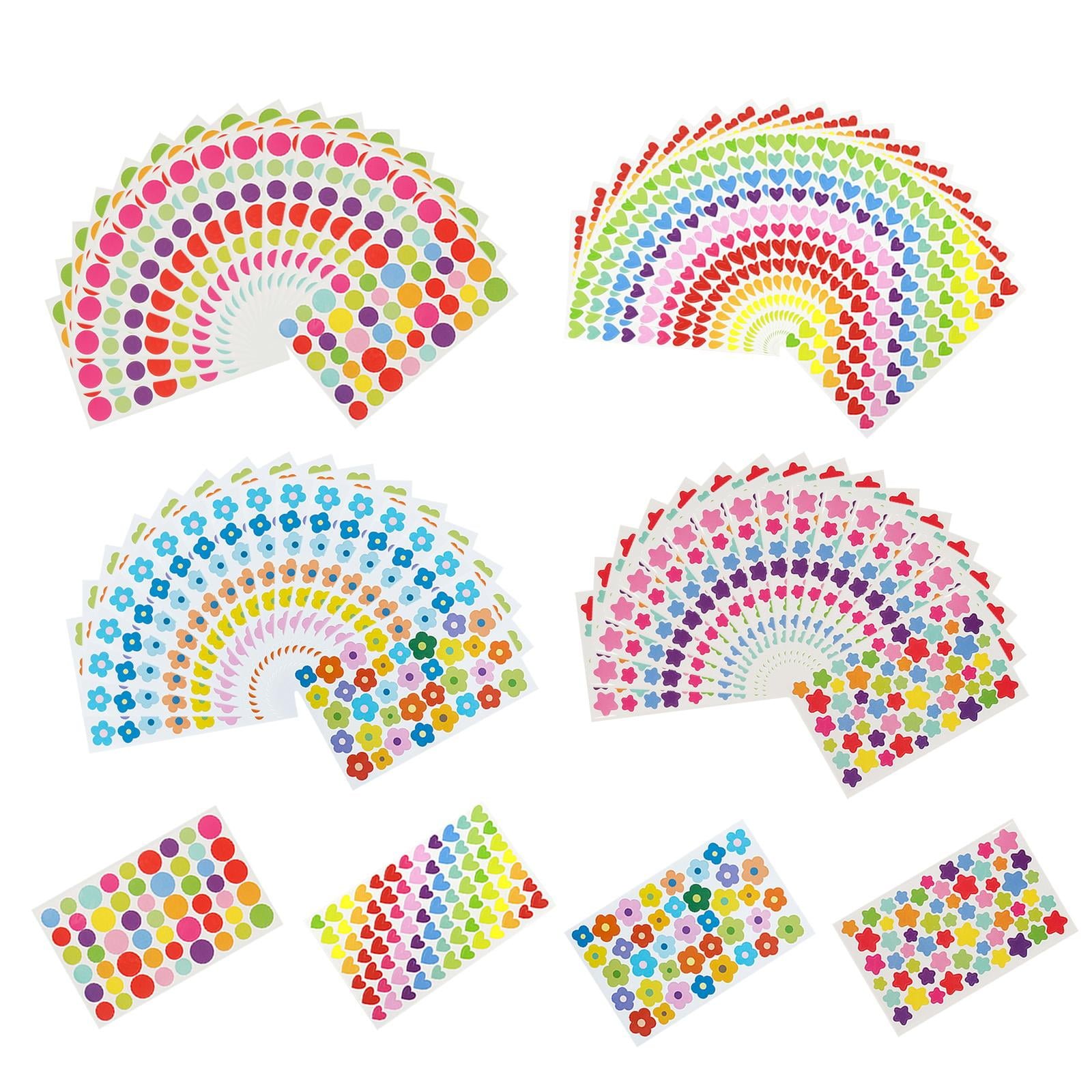
Printing your own stickers at home is one of those projects that sounds simple and goes wrong in about six different ways — faded colors, smeared ink, paper jams, stickers that peel off by Tuesday. The good news: every one of those problems comes from skipping a step, and the steps are easy. With the right paper, the right printer settings, and one test print, you can make stickers that look store-bought.
Here’s the full process, start to finish.
What You Need to Print Stickers
- A printer — inkjet or laser (more on choosing below)
- Sticker paper matched to your printer — this is the #1 mistake; inkjet paper in a laser printer (or vice versa) ruins both the print and potentially the printer
- Design software — Canva (free), GIMP (free), or Illustrator/Photoshop
- Scissors, a craft knife, or a cutting machine (Cricut/Silhouette) for cutting
- Clear sealant spray (optional but recommended for inkjet stickers)
Step 1: Know Your Printer Type
Inkjet printers are the most common choice for home sticker printing — they produce rich, vibrant color and handle photo-quality sticker paper beautifully. The tradeoff: inkjet ink isn’t waterproof on its own, so stickers need sealing for durability.
Laser printers use toner instead of liquid ink, producing sharp lines and naturally water-resistant prints. They’re faster and the stickers last longer unsealed — but color vibrancy on laser is a notch below a good inkjet photo print, and you must use laser-compatible sticker paper (inkjet paper can melt inside a laser printer’s fuser).
Either works. Just match your paper to your printer — the package always says which it’s for.
Step 2: Choose the Right Sticker Paper
- Glossy sticker paper: Vibrant, photo-like finish. Best for colorful designs and decorative stickers.
- Matte sticker paper: Subdued, non-reflective finish. Better for labels, planners, and anything that needs to look professional — and you can write on it.
- Vinyl sticker paper: Thicker, more durable, water-resistant. The right choice for laptop decals, water bottles, and anything that’ll see moisture.
- Clear/transparent: For a “printed directly on the surface” look on glass and light-colored items.
A 20-pack of quality printable sticker paper runs $10–$18. Vinyl costs a bit more. Buy a small pack first — paper quality varies wildly between brands, and you’ll want to test before committing.
Step 3: Design Your Stickers
- Create your design at 300 DPI — the resolution that prints crisp instead of pixelated.
- Size your document to your paper (usually US Letter, 8.5″ × 11″).
- Arrange multiple stickers per sheet, leaving 1/4 inch of space between designs for cutting.
- Leave a margin around the page edges — most home printers can’t print truly edge-to-edge.
- Save as PNG or PDF at full quality.
Designing branded stickers for a side hustle? Pair them with a proper digital presence — our guide to creating a digital business card walks through the other half of looking professional.
Step 4: Set Your Printer Settings
This step separates good stickers from sad ones. In the print dialog:
- Set paper type to match your sticker paper — “Glossy Photo Paper,” “Matte,” or “Labels” as appropriate.
- Set print quality to Best/High — the default “Normal” mode lays down less ink and looks washed out.
- Check paper size is Letter (8.5″ × 11″).
- Turn off any “fit to page” scaling that would shrink your designs.
HP’s official guidance covers the same essentials in their guide to printing custom stickers at home — worth a skim if your printer has brand-specific quirks.
Step 5: Print a Test Page First
Always run one test on plain paper before touching sticker paper. Check: Are the colors right? Is everything aligned? Did anything get cut off at the margins? One wasted sheet of copy paper beats a wasted sheet of $1 sticker paper every time.
Step 6: Print Your Stickers
- Load one sheet of sticker paper at a time — stacks cause jams.
- Load it with the printable side facing the right way (check your printer’s manual; it varies).
- Print, then let inkjet prints dry for 5+ minutes before touching — wet ink smears at a fingerprint’s touch. Laser prints come out warm; let them cool.
Step 7: Seal Inkjet Stickers (Recommended)
Inkjet ink dissolves in water. If your stickers might encounter moisture — water bottles, laptops, outdoor use — spray them with a clear acrylic sealant (Krylon and Rust-Oleum both make suitable ones, ~$8–$12 a can). Two light coats, drying between each. Laser-printed stickers can skip this, though sealing still adds scratch resistance. Vinyl sticker paper is inherently more water-resistant but still benefits.
Step 8: Cut Them Out
- Scissors: Fine for simple shapes and small batches.
- Craft knife + cutting mat: Best for straight edges and precise work. A metal ruler keeps lines clean.
- Cutting machine (Cricut/Silhouette): Worth it if you’re making stickers regularly — precise cuts, any shape, and print-then-cut alignment.
Round your corners slightly — sharp square corners are the first thing to catch and peel.
Step 9: Apply
Clean the surface with rubbing alcohol and let it dry completely — dust and oils are the enemy of adhesion. Peel from a corner, apply from one edge, and smooth outward to push out air bubbles. A credit card wrapped in a soft cloth makes a good squeegee.
Troubleshooting Common Problems
- Colors look faded: You printed in Normal quality mode, or on the wrong paper-type setting. Switch to Best quality and match the paper type.
- Ink smears: You touched it too soon, or the paper isn’t right for your printer. Let inkjet prints dry fully; confirm paper/printer compatibility.
- Paper jams: You’re loading too many sheets, or the paper is too thick for your printer’s path. One sheet at a time, and check your printer’s max paper weight.
- Stickers won’t stick: The surface wasn’t clean, or it’s a textured/porous material stickers can’t grip. Clean with alcohol; stick to smooth, hard surfaces.
- Stickers fade in sunlight: UV breaks down inkjet ink. Seal with a UV-resistant clear coat, or use vinyl paper for anything living outdoors.
- Printer prints on the wrong side: Check your printer’s loading diagram — printable-side-up vs. down varies by model.
Sticker Printing FAQs
Can I print stickers with a regular printer?
Yes — any inkjet or laser printer works, as long as you use sticker paper made for your printer type. No special printer required.
What’s the difference between sticker paper and vinyl sticker paper?
Standard sticker paper is paper-based: fine for indoor use but not water-resistant. Vinyl sticker paper is plastic-based: thicker, water-resistant, and far more durable. Vinyl costs more but lasts dramatically longer.
How do I make waterproof stickers?
Use vinyl sticker paper (or a laser printer, whose toner is naturally water-resistant) and seal with a clear UV-resistant spray. Standard inkjet stickers without sealant will run the moment they get wet.
Is it cheaper to print stickers at home or order them?
For small batches (under 50–100 stickers), home printing wins — a $12 pack of paper makes dozens of stickers. For hundreds of identical stickers, online print shops are cheaper per unit and more durable.
Why are my sticker colors different from my screen?
Screens display in RGB; printers print in CMYK. Some shift is inevitable, but calibrating with a test print and using your printer’s photo/glossy paper profile gets you close.
The Bottom Line
Printing stickers at home comes down to four things: paper matched to your printer, Best quality print settings, one test print, and patience while the ink dries. Get those right and add a clear sealant coat for durability, and your homemade stickers will look every bit as good as ordered ones — at a fraction of the cost for small batches.