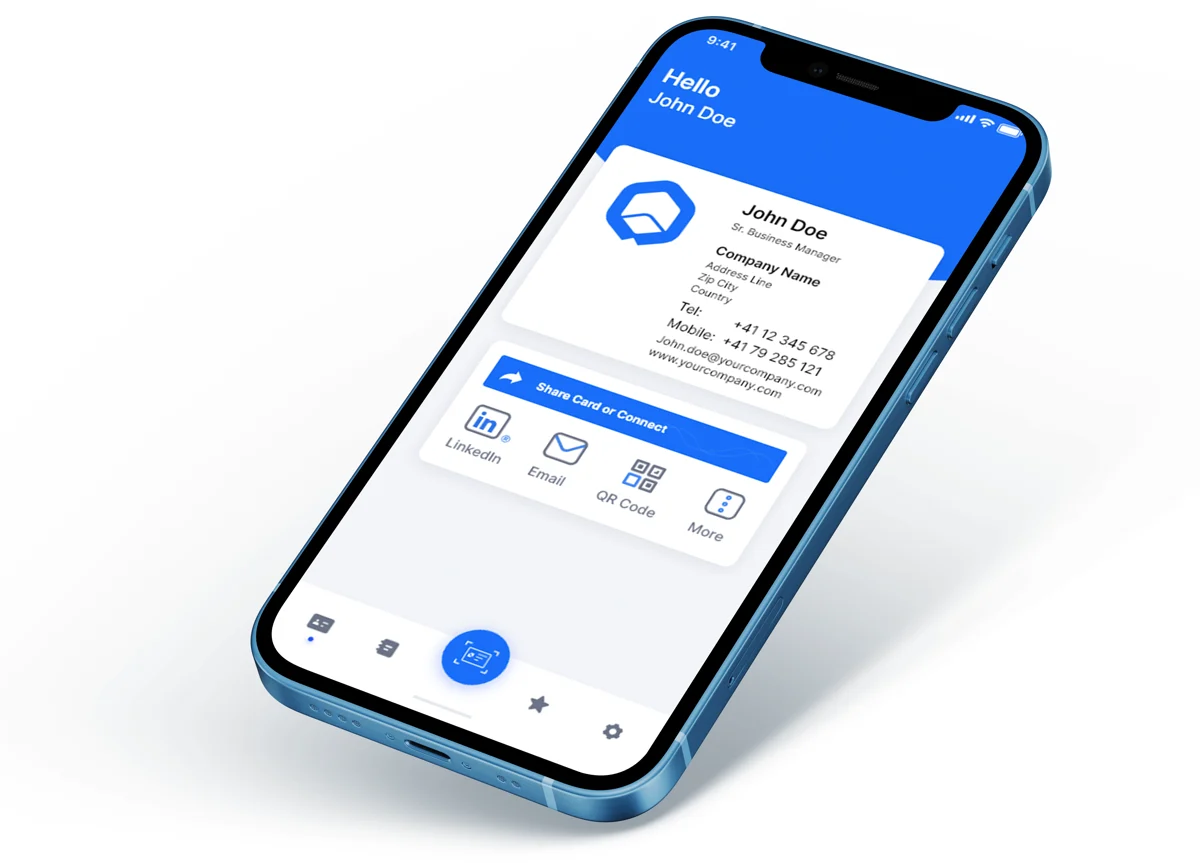
Someone takes a paper business card at a conference, means to keep it, and photographs it just in case. Then the card goes into a folder, a drawer, or a coat pocket, and the photo sits buried among hundreds of other photos. Within a week, the name is gone. A digital card avoids that whole chain. It lands directly in the other person’s phone, saved as a contact with a photo attached, where it can actually be found later. The setup is short, but the details matter. A card with the wrong phone number, twelve links, or no picture fails in a different way. The checklist below puts the whole job up front, and the sections after it explain how to handle each item well.
The Setup Checklist
- A free account with one digital card app, signed up with an email you check often
- Your full name and the job title you actually use when you introduce yourself
- One phone number and one email address, checked digit by digit
- Your company name and website, if you have them
- One short line that says what you do for people, not just what your title is
- A clear, recent headshot and a company logo, if you use one
- Three to five links at most: LinkedIn, a portfolio or website, and a booking page if you take appointments
- Your QR code saved somewhere you can reach in two seconds, such as your phone’s lock screen or photo favorites
- A short shareable link you can type or paste from memory
- A follow-up habit: a brief message within 24 hours of meeting someone new
That is the entire job. Most people finish the first pass in about ten minutes. Plan on another ten minutes to test the card the way a stranger would see it, because that test catches most of the problems that make cards useless.
Pick One App and Stay With It
Three free options cover most needs. HiHello offers a generous free plan with more than one card, sharing by QR code, link, and email, plus a scanner for paper cards you receive. Blinq focuses on the receiving side: on an iPhone, the other person can save your details through a quick on-screen flow without installing anything. Popl is built around tap-to-share, which means a physical card or tag with a chip inside that opens your digital card when it touches a phone. The app itself is free, the physical card costs extra, and paid plans start around $6.49 a month. HiHello’s paid plans start around $8 a month, and the general range for paid tiers is roughly $6 to $8 a month.
For most individuals, the free tier of any of these is enough. Paid plans mainly add team management, deeper view counts, and branding controls for companies. Pick one app, finish the card there, and resist splitting your details across two services. Two half-finished cards help no one. The recipient never needs your app, by the way. Your card opens in their phone’s browser from a QR code or link, and they save you as a normal contact. That zero-friction detail is the whole point.
If you prefer designing the look yourself before choosing a sharing app, Canva’s free digital business card maker lets you lay out a clean design with your photo and colors, which you can then pair with a QR code that points to your contact link.
Fill In the Contact Fields Carefully
Type your name the way you say it out loud. If everyone at work calls you by a shortened name, use that form, because the saved contact should match the person they remember meeting. Add the title that explains your role to an outsider. Some titles are clear on their own. Others, like consultant or manager, need the one-line description to do the real work. A line such as “I help small retailers set up online stores” tells a new contact why they might call you. A title alone rarely does that.
Choose one phone number, the one you answer for work. Two numbers create a small moment of doubt, and doubt leads to no call at all. Do the same with email: one address, spelled exactly right. Then test both. Send yourself a message from the saved contact, and tap your own phone number to confirm it dials the right digits. Transposed numbers are the most common card error, and they are invisible until someone tries to reach you.
Add your company name and website even if you are self-employed. A website gives a cautious person a way to check that you are real before they reply. Leave out anything a stranger cannot act on. A fax number, a home address, and a list of hobbies all add clutter and, in the case of a home address, a real privacy risk. Treat the card as public, because once it is shared, you cannot control where it travels.
Add the Photo and Logo
A headshot is not vanity. At a busy event, a person may meet twenty or thirty new faces. A week later, names blur together, but a face next to a name restores the memory of the conversation. Use a recent photo, taken in good light, with a plain background and no sunglasses or group of friends cropped out at the edges. Dress the way you would for a normal work meeting.
The logo matters less, but it helps when your company name is part of why someone should remember you. Use the current logo file, not a screenshot, so it stays sharp on a small screen. If the photo and logo fight for space, keep the photo and drop the logo. People call people, not logos.
Choose Three to Five Links, in Order
Links are where a digital card beats paper, and also where most cards go wrong. The temptation is to add every account you own. Twelve icons turn a card into a link dump, and the visitor leaves without tapping any of them. Pick the short list that fits how you meet people. LinkedIn belongs on almost every professional card. A portfolio matters for designers, writers, photographers, and developers. A booking link matters for anyone whose next step is a call or appointment. Your main website can cover several of these roles at once.
Order the links by what you want tapped first. Put the booking link on top if your goal is meetings. Put the portfolio on top if your goal is showing work. If your app allows more than one card, make versions for different settings instead of one card that tries to do everything. A conference card can lead with a portfolio, while a sales card leads with a booking page. Each version keeps the same name, photo, and contact details, so nobody ends up with conflicting information.
A card is also only one part of meeting people well. It works best alongside how to build a professional network from scratch in Texas, where the real value comes from staying in touch after the first exchange, not from the exchange itself.
Set Up the QR Code and the Short Link
Every major app creates a QR code for your card automatically. The mistake is leaving it buried five taps deep inside the app, so you stand there scrolling while the other person waits. Save the code as your lock screen image, add it to your photo favorites, or put it in your phone’s wallet if the app supports Apple Wallet or Google Wallet. At a presentation, the same code can sit on your final slide, so the whole room can save your details at once.
Learn your short link too. It will look something like a short web address with your name at the end. Save it in your notes app, and use it in text messages, direct messages, and your email signature. In a signature, the link turns every ordinary email into a quiet chance for the reader to save your full details instead of just an address. Test the QR code and the link on a second phone, ideally a different brand from yours, before you rely on them at an event. Codes that work on your own phone almost always work everywhere, but the test costs two minutes and removes the doubt.
Decide Whether You Need NFC or Paper at All
An NFC card is a physical card with a chip inside. You tap it against a phone and your digital card opens. It feels smooth, it never runs out, and you never reprint it when your title changes. It is also optional. A QR code does the same job for free, just with one extra step for the other person. Buy the NFC card if you meet people in person every week and the small saving in time adds up. Skip it if your contacts mostly arrive by email or video call.
Printed cards still have narrow uses. Some formal settings expect them, some clients are not comfortable with phones, and a few creative fields treat a well-made card as a sample of the work itself. If that is your situation, keep a small stack for those moments and let the digital card handle everything else. What you no longer need is a box of 500 paper cards printed with details that will change within the year.
Share It, Then Follow Up Within a Day
Sharing the card is the easy half. The follow-up is where contacts turn into relationships, and it is the step most people skip. Send a short message within 24 hours, while the conversation is still fresh for both of you. Keep it plain: name the place you met, mention one thing you talked about, and leave a simple next step if there is one. Three sentences are plenty. A message that arrives three weeks later has to rebuild the memory from nothing, and often fails.
Some paid plans show you when someone opens your card. A person who views it two or three times in a week is showing interest, and that is a fair moment for a friendly check-in. On a free plan, you will not see those views, so the 24-hour message matters even more. Finally, keep the card current. The day your title, number, or company changes, update the card before you update anything else. Old contacts who saved the digital version will see the new details, which is the quiet advantage paper never offered. A ten-minute setup, checked once, shared in seconds, and followed up the next day will do more for you than an expensive box of printed cards ever did.