
Picture it: your wireless mouse just died — not low-battery warned you, just died — and you are staring at twenty-three open tabs with a client call in fifteen minutes. The document you need is in one of those tabs. Somewhere. This is the moment keyboard tab shortcuts stop being trivia and become survival skills. Follow one bad afternoon through, and you will learn every shortcut that matters, in the order you would actually need them.
Minute One: Moving Through the Tab Strip Without a Mouse
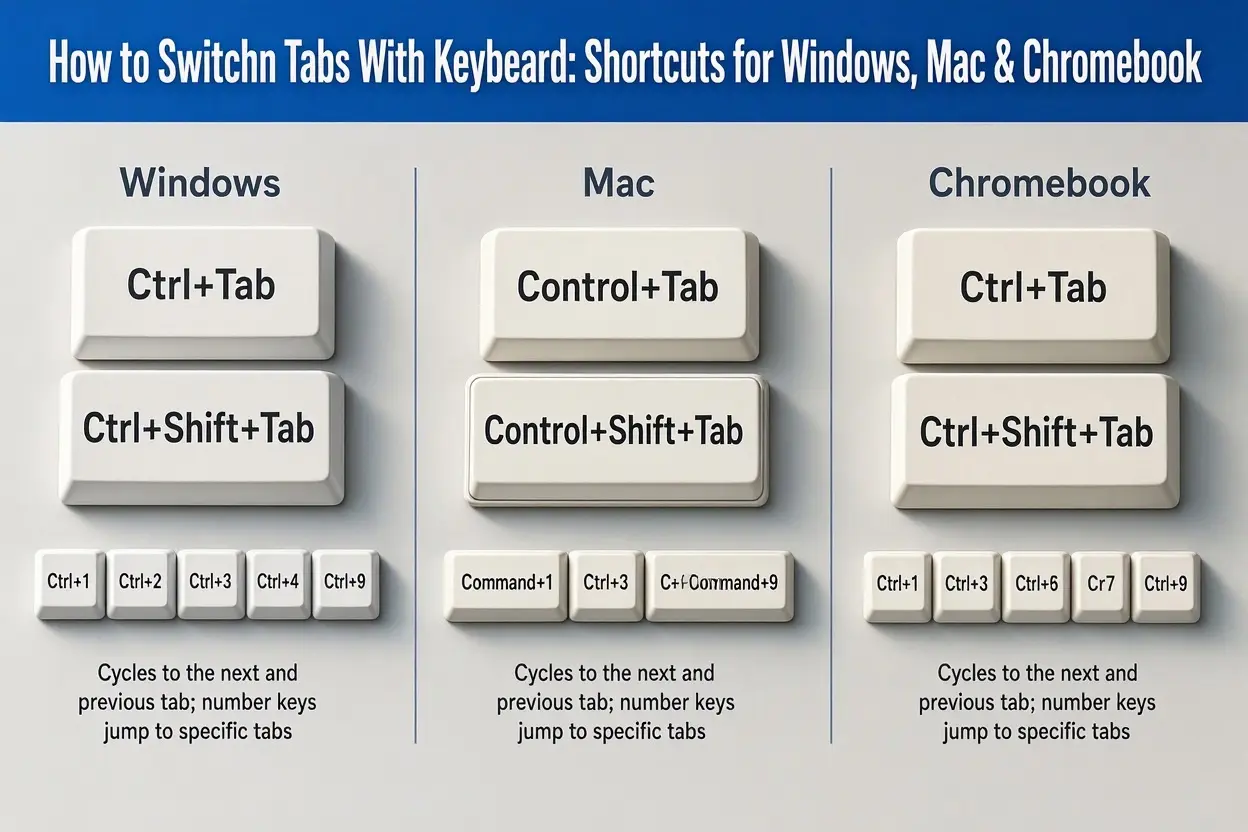
Our stranded worker’s first job is simply finding the right tab. The universal tool is Ctrl + Tab: hold Ctrl and tap Tab to step one tab to the right, and keep tapping to keep walking. Ctrl + Shift + Tab walks left. These two work in Chrome, Edge, and Firefox on Windows, and on a Chromebook too. On a Mac, Ctrl + Tab works the same way in Chrome and Firefox, while Safari prefers Ctrl + Tab as well or Cmd + Shift + Left/Right Arrow in some versions — more on Safari below.
Watch the pattern as you practice: the browser highlights each tab as you land on it, and the page itself loads when you release the keys. Fifteen minutes before her call, our worker Ctrl + Tabs past a recipe, two email threads, and a flight tracker, and lands on the shared document — forty seconds, no mouse, mild triumph.
Minute Three: Jumping Straight to a Tab You Can Count To
Walking is fine for three tabs and miserable for twenty-three. When the tab you want is near the left of the strip, jump instead: Ctrl + 1 through Ctrl + 8 leap directly to the first eight tabs, and Ctrl + 9 jumps to the very last tab, wherever it is. On a Mac, swap Ctrl for Cmd: Cmd + 1 to 8, Cmd + 9 for the last tab. Firefox follows the same scheme (using Alt instead of Ctrl on some Linux setups).
Here is the habit that makes this genuinely fast: keep your first few tabs pinned in a fixed order — email, calendar, the document you live in — so their numbers become muscle memory. Our worker’s calendar is always tab two. Ctrl + 2, and she is checking the call link while her coffee is still warm.
Minute Six: Closing Tabs Like You Mean It
Twenty-three tabs is not a workspace, it is a cry for help, and half of them are duplicates anyway. Ctrl + W closes the current tab (Cmd + W on Mac). Hold the rhythm — tap, tap, tap — and the junk evaporates: the duplicate news articles, the tracking page from Tuesday, the three searches that all asked the same question. On a Chromebook it is the same Ctrl + W.
Two safety nets keep this from ever being scary. First, browsers remember what you closed: Ctrl + Shift + T resurrects the last closed tab, exactly as it was, forms and scroll position included — tap it repeatedly to walk further back through your closing spree (Mac: Cmd + Shift + T). It is the single most forgiving shortcut in computing, and knowing it exists makes you braver about closing things. Second, if you close an entire window by accident, the same shortcut reopens the window with all its tabs when you launch the browser again.
Minute Nine: Opening What You Need, Fresh
The call is in six minutes and the meeting notes live in a tool she has not opened yet. Ctrl + T opens a new tab (Cmd + T on Mac), and because the address bar is automatically focused, she types two letters, arrows down to the suggestion, and hits Enter — a complete workflow without touching the mouse once. Middle-ground skills worth adding here: Ctrl + L (or Cmd + L) selects the address bar in any tab, so you can type a new address or search from wherever you are; Alt + Enter after typing an address opens it in a new tab instead of replacing the current one; and a right-click-free way to open a link in a new tab is Ctrl + Enter after tabbing focus to the link — clunky, but it works when nothing else does.
The Per-Browser Differences That Trip People Up
Most of the shortcuts above are a shared language, but each browser has a few of its own habits. Chrome adds a tab search feature — the little down-arrow at the top-right of the tab strip, reachable by keyboard at Ctrl + Shift + A — which lists every open tab and lets you type to filter; with twenty-three tabs open it is honestly faster than Ctrl + Tab. Google’s official Chrome keyboard shortcuts list is the complete reference and worth bookmarking. Edge mirrors Chrome almost exactly, unsurprising given the shared engine, and adds vertical tabs, where Ctrl + Tab still walks the list in order. Firefox matches the core set and adds Ctrl + Page Down / Ctrl + Page Up as alternates for next and previous tab, which some people find easier on laptop keyboards. Safari on Mac is the outlier: Ctrl + Tab cycles, the Show All Tabs view lives at Cmd + Shift + Backslash, and older versions used Cmd + Shift + Arrow keys — if a shortcut in this guide fails you in Safari, that history is why.
On a Chromebook, and in Other Programs
Chromebooks run Chrome, so the full set applies — Ctrl + Tab, Ctrl + numbers, Ctrl + W, Ctrl + Shift + T — with the Search key standing in for some system duties but not needed here. If a school or work Chromebook seems to ignore a shortcut, an administrator policy is usually the cause rather than your technique. And the pattern generalizes beyond browsers: VS Code, Slack’s desktop app, Windows Terminal, and most tabbed programs honor Ctrl + Tab and Ctrl + W — try them before reaching for the mouse. Device-side shortcuts are their own rabbit hole; if your Chromebook keyboard is giving you trouble generally, our walkthrough on turning off a Chromebook touchscreen covers the related flags and settings.
The Whole System on One Card
Everything above, compressed for the sticky-note treatment:
| Action | Windows / Chromebook | Mac |
|---|---|---|
| Next tab | Ctrl + Tab | Ctrl + Tab |
| Previous tab | Ctrl + Shift + Tab | Ctrl + Shift + Tab |
| Jump to tab 1–8 | Ctrl + 1 to 8 | Cmd + 1 to 8 |
| Jump to last tab | Ctrl + 9 | Cmd + 9 |
| New tab | Ctrl + T | Cmd + T |
| Close tab | Ctrl + W | Cmd + W |
| Reopen closed tab | Ctrl + Shift + T | Cmd + Shift + T |
| Jump to address bar | Ctrl + L | Cmd + L |
| Search open tabs (Chrome) | Ctrl + Shift + A | Cmd + Shift + A |
Moving Tabs, Muting Tabs, and Other Second-Level Moves
Once the basics are reflexes, three more tricks repay learning. Reorder tabs from the keyboard: in Firefox, Ctrl + Shift + Page Up / Page Down slides the current tab left or right along the strip, and Chrome has added the same behavior — handy when your “tab two is always the calendar” system needs rearranging after a pinning spree. Silence one noisy tab: browsers show a speaker icon on any tab playing audio, and while muting is usually a click, Chrome lets you enable a keyboard-friendly route by keeping the tab audible indicator visible and tabbing to it — realistically, most people just Ctrl + Tab to the offender and pause the video with K or the spacebar once the page has focus. Duplicate a tab when you want the same page twice without losing your place: Alt + D to select the address, then Alt + Enter to open that address in a fresh tab (Cmd + L, then Cmd + Shift + Enter does similar work in some Mac browsers). None of these is essential, but each one removes a small daily friction, and small daily frictions are exactly what keyboard fluency is for.
When a Shortcut Refuses to Work
Back to our scenario for its final twist: her Ctrl + Tab works, but a colleague trying the same thing swears nothing happens. The usual suspects, in order. A browser extension has claimed the shortcut — media and tab-manager extensions are frequent thieves, and disabling them one at a time finds the culprit. The website itself has captured the keystroke; some web apps (design tools, remote desktops, online code editors) swallow Ctrl + W or Ctrl + Tab for their own purposes, and browsers let them. The keyboard is the problem: a failing Ctrl key makes every combo in this guide feel randomly broken, so test by pressing the other Ctrl key. On Mac, check that the shortcut has not been reassigned in System Settings under Keyboard Shortcuts. And on any system, simply restarting the browser clears a surprising number of ghosts.
Tabs Are Not Windows (and Why Alt + Tab Confuses Everyone)
One mix-up deserves its own paragraph, because it frustrates nearly everyone at least once: Alt + Tab (Cmd + Tab on Mac) switches between applications — browser to spreadsheet to chat app — while Ctrl + Tab switches between tabs inside one application. They sound like siblings and behave like strangers. If you keep landing in the wrong program when all you wanted was the next tab, you are pressing the Alt version out of habit, and the fix is a day of conscious correction, not a settings change. The distinction matters in the other direction too: two browser windows, each with their own tabs, are separate worlds as far as Ctrl + Tab is concerned. It walks only the strip it can see. To hop between two windows of the same browser, use Alt + Tab until the browser is focused, or on Mac, Cmd + backtick cycles an app’s windows specifically. People who split work and personal browsing into two windows live on that pair of shortcuts — and they are the same people who most often swear Ctrl + Tab is “broken” when it is simply looking at the other window’s tabs.
Making It Stick: the Fifteen-Minute Version of Her Afternoon
Our worker made her call with four minutes to spare and eleven tabs, and the only real lesson is that she learned five shortcuts under pressure: Ctrl + Tab to walk, Ctrl + 1–9 to jump, Ctrl + W to close, Ctrl + Shift + T to undo, Ctrl + T to open. Learn those five — genuinely learn them, fingers not eyes — and you have ninety percent of keyboard tab control. The painless way is one at a time: tape a note to your monitor with just Ctrl + Shift + T on it this week, because rescuing a closed tab is the one you will use daily, then add the others as each becomes a habit. By the time your own mouse dies at the worst possible moment — and it always picks the worst possible moment — you will barely slow down, because your hands will already know the way around.