Quick answer: On most touchscreen Chromebooks, press Search + Shift + T to turn the touchscreen off. If nothing happens, go to chrome://flags/#ash-debug-shortcuts, set Debugging keyboard shortcuts to Enabled, restart, then press Search + Shift + T again. Press the same keys to turn touch back on. (The Search key is the magnifying-glass or Launcher key, where Caps Lock sits on a normal keyboard.)
A touchscreen is handy, until it isn’t. Maybe you use an external mouse, your cat keeps tapping the screen, you are cleaning it, or you are tracing something and keep moving the page by accident. Whatever the reason, this guide shows you how to turn off the touchscreen on a Chromebook, how to turn it back on, and what to do if the shortcut does not work.
Before You Start
- Make sure your Chromebook has a touchscreen. If it does not, there is nothing to turn off.
- Have a keyboard and mouse or touchpad ready. If you turn touch off on a 2-in-1 that you are using as a tablet, you will not be able to control it until you turn touch back on.
- School or work Chromebooks may block this. If an administrator manages your device, some shortcuts and flags may be disabled.
- Methods depend on your model and ChromeOS version. Google changes features over time, so if one method fails, try the next.
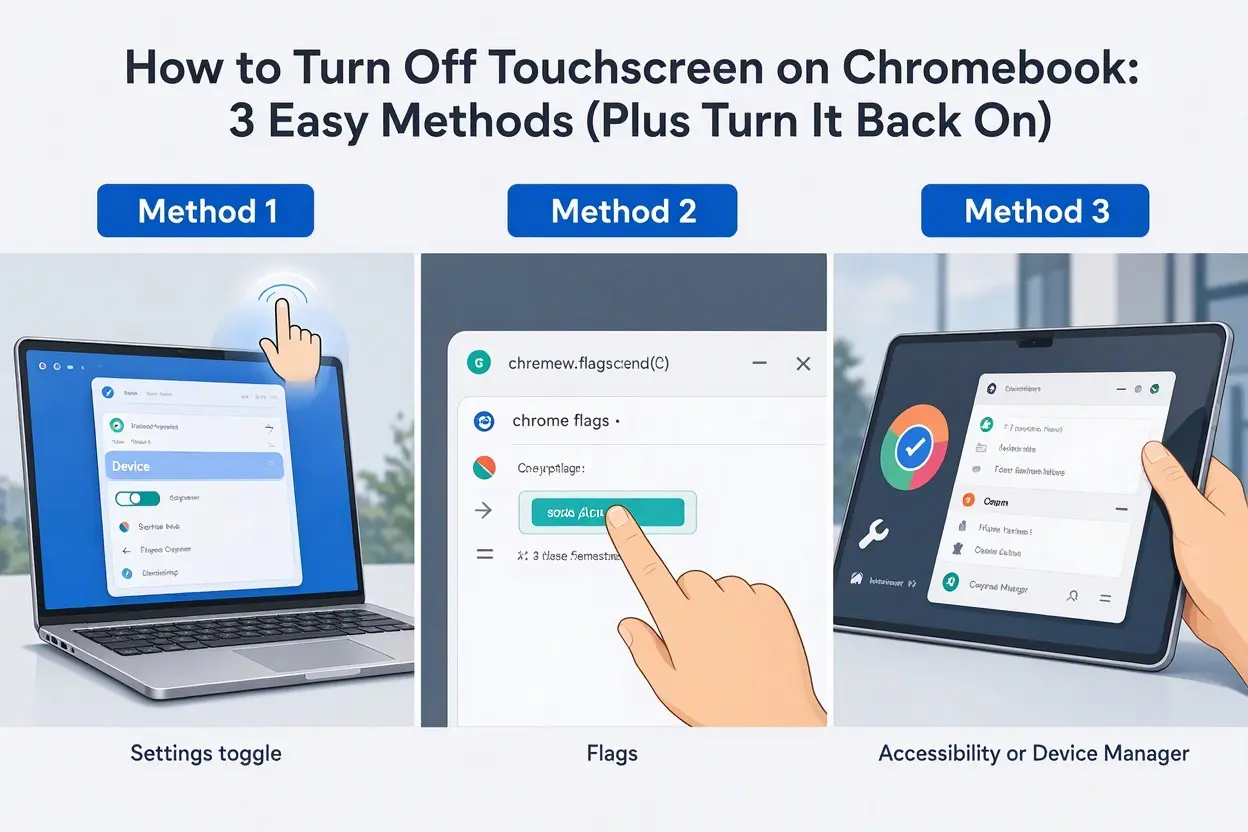
Method 1: Use the Keyboard Shortcut (Fastest)
- Make sure you are signed in and on a normal screen.
- Press Search + Shift + T at the same time.
- Try touching the screen. It should no longer respond.
The same shortcut turns the touchscreen back on. Reports differ by model: on some Chromebooks this shortcut works right away, while on others you first need to enable a debugging shortcut flag (Method 2). It is worth testing this first because it takes just a second.
Method 2: Enable the Debugging Shortcut in Chrome Flags
If Method 1 does nothing, turn on the debugging keyboard shortcuts:
- Open Chrome on your Chromebook.
- Type
chrome://flags/#ash-debug-shortcutsin the address bar and press Enter. - Find Debugging keyboard shortcuts.
- Change the drop-down from Default (or Disabled) to Enabled.
- Click Restart at the bottom of the screen and wait for the Chromebook to reboot.
- Sign in, then press Search + Shift + T.
The touchscreen should now be off. Press the same keys to switch it back on.
A few cautions about flags:
- Flags are experimental, so change only the one mentioned here
- Google sometimes removes or renames flags, so you may not see it on newer versions of ChromeOS
- To undo, open
chrome://flagsand click Reset all. This resets every flag you changed, not just this one
How to Turn Off Touchscreen on Chromebook Without Flags
If you would rather not touch flags:
- Try the shortcut first (Search + Shift + T), since it works directly on some devices.
- Check your Settings. Some models and versions offer a touchscreen option in Settings, for example under Device or Accessibility. Look there and turn it off if you see it.
- Check your manufacturer’s support page for model-specific steps (Acer, HP, Lenovo, ASUS, and Samsung all publish guides).
Method 3: Turn It Off From Settings (If Your Model Has It)
Some Chromebooks include a toggle for touch input in Settings. To look:
- Click the time in the bottom-right corner.
- Click the gear icon to open Settings.
- Search for touch or touchscreen in the Settings search bar, and also check Device and Accessibility.
- If you see a touchscreen toggle, switch it off.
If no toggle appears, your device does not support this option. Use Method 1 or 2.
What If the Shortcut Does Not Work?
- Press the right keys. Search + Shift + T, not Ctrl or Alt
- Enable the debugging shortcuts flag (Method 2) and restart
- Update ChromeOS. Click the time > Settings > About ChromeOS > Check for updates
- Check for a school or work policy. Managed devices can block flags and shortcuts
- Try a different sign-in. A guest or personal account is not managed by your school or workplace
- Check that your model supports it. Some Chromebooks, including certain Acer models, may not support the shortcut, so look for another method
- Look up your model’s support page for device-specific steps
How to Turn the Touchscreen Back On
Use the same method that turned it off:
- Press Search + Shift + T again
- If you used flags and want to undo everything, go to
chrome://flags, click Reset all, and restart - If touch still does not respond, restart your Chromebook and try again
How to Turn On the Touch Screen on a Chromebook That Stopped Responding
Before assuming something is broken, check if you turned it off by accident:
- Press Search + Shift + T once and test the screen.
- Restart the Chromebook.
- Clean the screen with a soft, dry, lint-free cloth.
- Update ChromeOS.
- Try a hard reset (see Google’s Chromebook Help for the steps for your model).
- As a last resort, use Powerwash. This erases local data, so back up your files first.
Chromebook Touchscreen Not Working: Quick Fixes
| Problem | Try this |
|---|---|
| Screen ignores touch | Press Search + Shift + T, then restart |
| Touch is patchy or random | Clean the screen, remove screen protectors, and restart |
| Touch stopped after an update | Check for another update, then hard reset |
| Touch works in some places only | Restart and update ChromeOS |
| Nothing helps | Hard reset, then Powerwash. If it still fails, contact the manufacturer, since it may be a hardware issue |
How to Make Your Chromebook Touchscreen
If you searched for how to make your Chromebook a touchscreen, note that touch is a hardware feature. You cannot add touch to a Chromebook that does not already have a touchscreen with a setting or an app.
What you can do:
- Check whether your model has a touchscreen. Look up the exact model name on the manufacturer’s website, or try touching the screen
- If it has touch but it does not work, use the fixes above
- If it has no touch, you would need a different device, or an external touch-enabled monitor if it works with your Chromebook. Check compatibility before buying
How to Freeze the Screen on a Chromebook (For Tracing)
Chromebooks do not have a dedicated “freeze screen” button, but you can hold an image still, which is handy for tracing:
- Take a screenshot of what you want to trace: press Ctrl + Show all windows (the key above the 5 or 6 on the top row).
- Open the screenshot from the Files app or the notification, and view it full screen.
- Turn off the touchscreen (Search + Shift + T) so your hand does not drag or zoom the image.
- Place your paper on the screen (or use tracing paper) and trace.
- Turn touch back on when you are done.
How to Lock the Screen or Touch on a Chromebook
- Lock the screen: press Search + L. This locks your Chromebook and shows the sign-in screen
- Lock or ignore touch: turn the touchscreen off with Search + Shift + T
How to Turn Off a Chromebook (Power Off)
Some people searching for this phrase mean shutting the whole device down:
- Click the time in the bottom-right corner.
- Click the Power icon (or Shut down).
How to Turn Off a Chromebook With the Keyboard
Press and hold the Power button for a few seconds until the power menu appears, then choose Power off. If the Chromebook is frozen, holding the Power button for longer will force it to shut down.
How to Turn the Screen Back On
If the screen is dark, press any key, tap the touchpad, or press the Power button briefly. If it still stays dark, charge the device and try a hard reset.
Chromebook Touchpad Not Working? (Different From the Touchscreen)
Do not confuse the touchscreen with the touchpad. If the touchpad is the problem:
- Restart the Chromebook.
- Clean the touchpad and make sure your hands are dry.
- Go to Settings > Device > Touchpad and check the settings.
- Update ChromeOS.
- Try a hard reset.
- If it still fails, contact the manufacturer.
Not on a Chromebook? Turn Off a Touchscreen on Windows
If you have a Windows laptop (HP, Lenovo, Dell, and others):
- Right-click Start and open Device Manager.
- Expand Human Interface Devices.
- Right-click HID-compliant touch screen.
- Click Disable device and confirm.
To turn it back on, follow the same steps and choose Enable device.
Common Mistakes
- Turning off touch on a tablet-mode device without a mouse or keyboard nearby
- Changing other flags you do not understand
- Forgetting the shortcut is a toggle (pressing it twice turns touch back on)
- Assuming a broken touchscreen when touch was simply turned off
- Trying to add touch to a Chromebook that does not have it
Conclusion
Now you know how to turn off the touchscreen on a Chromebook: try Search + Shift + T, enable the debugging shortcuts flag if it does not work, and press the same keys to turn touch back on. Keep a mouse or touchpad handy, and if nothing works, check your model’s support page, since methods can vary by device and ChromeOS version.
Disclaimer: Steps may change with ChromeOS updates and can differ by model. If a step does not match your device, check Google’s Chromebook Help or your manufacturer’s support page.
FAQs
1. How do I turn off the touchscreen on a Chromebook?
Press Search + Shift + T. If it does not work, enable “Debugging keyboard shortcuts” at chrome://flags/#ash-debug-shortcuts, restart, and try again.
2. Can you turn off the touchscreen on a Chromebook?
Yes, on most touchscreen models. It depends on your model and ChromeOS version, and managed school or work devices may block it.
3. How do I turn the touchscreen back on?
Press Search + Shift + T again. If you used flags, you can go to chrome://flags, click Reset all, and restart.
4. How do I turn off the Chromebook touchscreen without flags?
Try Search + Shift + T first, since it works directly on some devices. You can also check Settings for a touchscreen option, or your manufacturer’s support page.
5. Where is the Search key on a Chromebook?
It is the magnifying-glass or circle Launcher key on the left side of the keyboard, where the Caps Lock key usually is.
6. Why is my Chromebook touchscreen not working?
It may have been turned off by accident, need a restart or update, have a dirty screen, or have a hardware problem. Try Search + Shift + T, restart, clean the screen, update, and hard reset.
7. Can I make my Chromebook a touchscreen?
No. Touch is a hardware feature. If your Chromebook does not have a touchscreen, you cannot add one with software.
8. Will turning off touch also disable the touchpad?
No. The touchscreen and the touchpad are separate. Turning off touch does not affect the touchpad or keyboard.
9. How do I freeze the screen on my Chromebook to trace something?
Take a screenshot with Ctrl + Show all windows, open it full screen, and turn off the touchscreen so it does not move. There is no dedicated freeze-screen button.
10. How do I lock my Chromebook screen?
Press Search + L to lock the screen. To ignore touch input, turn the touchscreen off instead.
11. How do I turn off a Chromebook?
Click the time in the bottom-right corner and choose the Power icon, or hold the Power button until the menu appears and choose Power off.
12. Is it safe to use Chrome flags?
Flags are experimental, so only change the ones you need. You can undo changes at any time with “Reset all” in chrome://flags.