Sooner or later, most of us end up asking: how do I change my home wifi password? I asked the same thing not long ago, and the answers I found online were either vague or trying to sell me something. This guide is the opposite of that — straight talk, real numbers where they exist, and practical advice you can actually use today.
Whether you’re dealing with this right now or just planning ahead, it helps to know what’s normal, what’s overpriced, and what’s a flat-out bad idea. I’ve broken it all down below in plain English, no jargon and no fluff.
How do I Change my Home Wifi Password: What You Need to Know
Changing your Wi-Fi password is one of those tasks everyone postpones — until the neighbor’s teenager is streaming 4K on your bandwidth or your ex still has the password. The good news: it takes about five minutes, and you only need access to your router. Here’s exactly how, whichever router or provider you have.
Method one — the ISP app — is easiest if you rent your router from Xfinity, Spectrum, AT&T, or Verizon. Open your provider’s app (Xfinity app, My Spectrum, Smart Home Manager, My Verizon), look for Wi-Fi settings, and you’ll find the password change option right there. The app walks you through it, and it handles both the 2.4GHz and 5GHz bands automatically. If you have a provider gateway, start here. If that sounds familiar, you may also want our guide to Why is my Smart Tv so Slow When Opening Apps.
Here’s What Really Matters
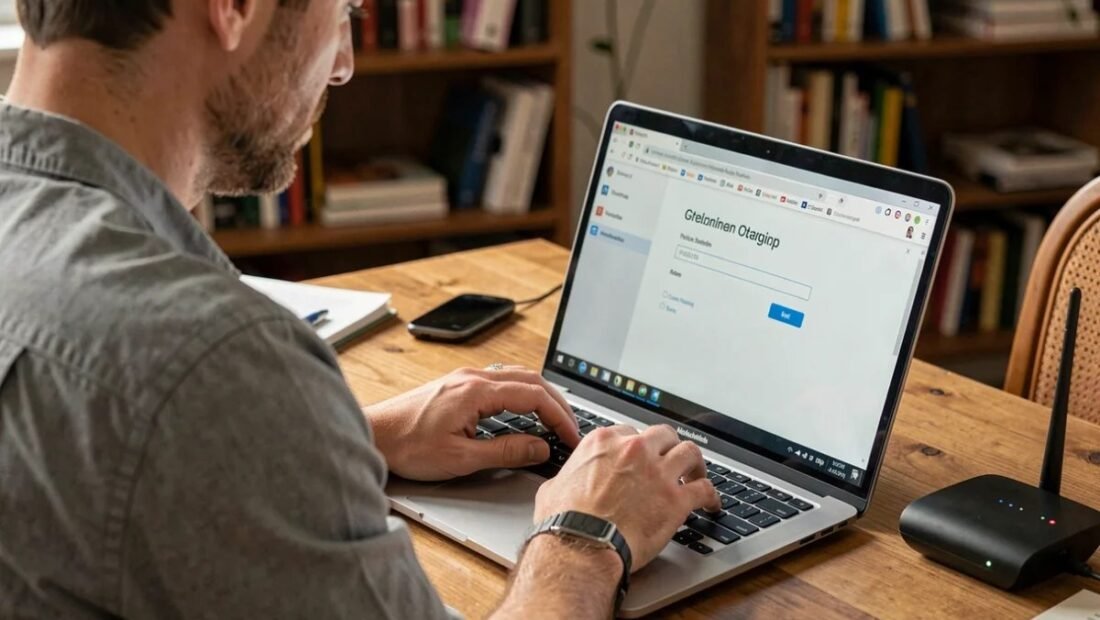
Method two — the router admin page — works for any router you own. On a device connected to your Wi-Fi, open a browser and type your router’s address: usually 192.168.1.1 or 192.168.0.1 (it’s often printed on a sticker on the router itself, along with the default admin username and password). Log in, find Wireless or Wi-Fi Settings, and you’ll see the password field. Change it, save, and the router will reboot — that’s normal. For the official guidance, see the FCC’s consumer guides.
Now the part people forget: every device in your house will disconnect. Phones, laptops, smart TVs, thermostats, doorbells, light bulbs — everything needs the new password. Do this when you have 15 minutes to walk around reconnecting things, not five minutes before a video call. Smart home gadgets are the most annoying: many require their app to re-enter Wi-Fi credentials, and some cheap ones need a full reset first.
Your Action Plan
- ISP app method: Xfinity/Spectrum/AT&T/Verizon apps have Wi-Fi password settings built in.
- Router admin method: browse to 192.168.1.1 or 192.168.0.1; credentials on the router sticker.
- Budget 15 minutes afterward to reconnect every device — especially smart home gadgets.
- New password: 16+ characters, random words, not reused from other accounts.
- While logged in: update firmware and confirm WPA2/WPA3 security (never WEP).
- Check connected devices after the change to confirm freeloaders are gone.
Breaking It Down Further
Choose a strong password while you’re at it. Aim for at least 16 characters — a few random words strung together (like ‘correct-horse-battery-staple’ style) is both strong and memorable. Avoid personal info, and don’t reuse a password from another account. Your Wi-Fi password guards everything on your network, so make it count.
Two related settings worth checking while you’re logged in: make sure your router’s firmware is up to date (there’s usually an update button in admin settings), and confirm you’re using WPA2 or WPA3 security — not the ancient, crackable WEP. If your router only offers WEP, it’s time for a new router, full stop. For more on this topic, see How do I Set Up Two-factor Authentication on my Online Accounts — it pairs well with what you just read.
One last tip: after changing the password, check the router’s connected-devices list for anything you don’t recognize. If a mystery device was squatting on your network, the password change just evicted it — and the device list confirms the eviction worked. Consider it a free security audit.
Common Mistakes to Avoid
- Changing the password right before an important call — everything disconnects and reconnecting takes a while.
- Forgetting smart home devices, then wondering why the thermostat and doorbell went dark.
- Picking a weak new password (‘password123’) and wasting the whole exercise.
- Not writing down the new password somewhere safe — then factory-resetting the router in frustration later.
Questions People Ask
How often should I change my Wi-Fi password?
There’s no magic schedule — change it when someone who shouldn’t have it does (guests who overstayed, ex-roommates), or if you spot unknown devices. Annual changes are plenty for most homes.
Will changing the password kick off my smart TV?
Yes, every Wi-Fi device disconnects and needs the new password, including TVs, streaming sticks, and game consoles. Keep the new password handy on your phone while you reconnect.
What’s the difference between the Wi-Fi password and the router admin password?
The Wi-Fi password connects devices to your network; the admin password logs into the router’s settings page. Change both if the admin one is still the factory default — that’s a real security hole.
How often should I restart my phone and computer?
A weekly restart is a good habit for both phones and computers. It clears temporary memory glitches, finishes pending updates, and kills runaway background processes that drain battery and slow things down. You don’t need to power off nightly — modern devices handle standby well — but if something starts acting strangely, a restart is always the first troubleshooting step worth trying.
Is it safe to buy refurbished electronics?
Yes, when you buy from reputable sources. Manufacturer-refurbished programs (Apple, Dell, Samsung) include new batteries or thorough testing plus a full one-year warranty — often indistinguishable from new. Third-party refurbishers like Back Market add their own warranties. Avoid no-name sellers with 30-day warranties and no return policy; the seller matters more than the ‘refurbished’ label.
The Bottom Line
Use your ISP’s app or the router admin page at 192.168.1.1 — the change itself takes five minutes. The real work is reconnecting your devices afterward, so plan for 15 minutes and do it at a calm moment. Pick a strong 16+ character password and check for freeloaders while you’re in there.
You can also check CISA’s cybersecurity guidance for the authoritative details.
For more on this topic, see How Can I Find my First Clients as a New Consultant — it pairs well with what you just read.
Bottom line: a little homework now saves you money and stress later. Use the steps above, skip the common mistakes, and you’ll come out ahead of most people dealing with this.