Why does my printer keep saying it is offline? It’s a fair question, and the honest answer is: it depends — but not in the annoying way. It depends on a handful of specific factors, and once you know what they are, you can figure out your situation in about five minutes. That’s what this article is for.
I’ve seen too many people overpay, waste a weekend, or pick the wrong option simply because nobody gave them the full picture. So here it is: the full picture, written like I’d explain it to a friend over coffee.
Why Does my Printer Keep Saying it is Offline: What You Need to Know
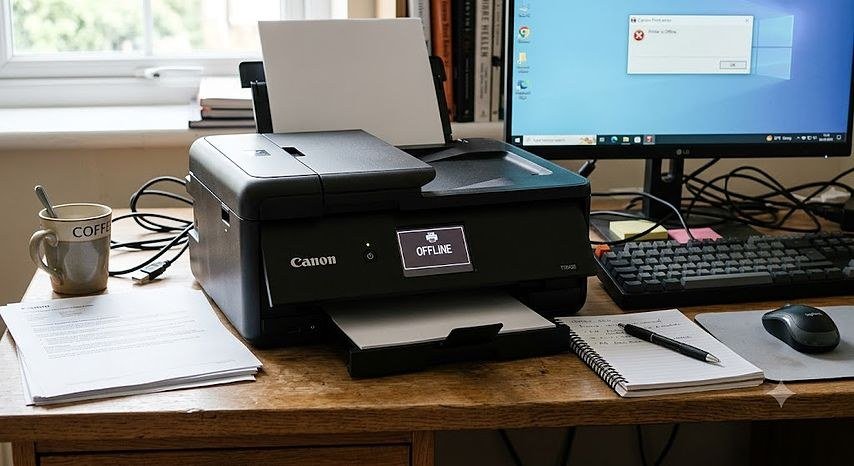
Your printer was working yesterday, nothing changed, and now Windows insists it’s offline. This is one of the most common — and most fixable — tech annoyances in home offices. In the vast majority of cases, the printer is fine; it’s the connection between your computer and the printer that broke, usually for one of a few boring reasons.
Start with the 60-second fix: turn the printer fully off, unplug it for 30 seconds, plug it back in, and power it on. Then restart your computer too. I know it sounds like a joke, but the printer’s network stack genuinely gets wedged, and a full power cycle clears it. This alone resolves probably a third of ‘offline’ cases. If that sounds familiar, you may also want our guide to How Much Does a Basic Home Security Camera System Cost.
Breaking It Down Further
If that didn’t work, check the obvious-but-often-missed setting: in Windows, go to Settings, then Bluetooth & devices, then Printers & scanners, click your printer, and open the print queue. In the queue window’s Printer menu, make sure ‘Use Printer Offline’ is NOT checked. Windows sometimes enables this itself after a failed print job, and then stubbornly refuses to print until you uncheck it. For the official guidance, see Consumer Reports’ buying advice.
Next suspect: the IP address changed. Most home printers get their network address from the router automatically (DHCP), and routers occasionally hand them a new one — but your computer keeps trying the old address. The permanent fix is giving the printer a static IP: log into your router, find the printer in the device list, and reserve its current address. Ten minutes of setup ends this problem forever.
What to Do About It
- Power-cycle both printer (unplug 30 sec) and computer — fixes ~1/3 of cases.
- Uncheck ‘Use Printer Offline’ in the print queue’s Printer menu.
- Assign the printer a static/reserved IP in your router to stop address-change drops.
- Remove and re-add the printer with a fresh driver from the manufacturer.
- Print a network config page from the printer to verify it’s actually on your Wi-Fi.
- For USB printers: try a different port and a new cable before anything exotic.
- Clear stuck jobs: stop Print Spooler service, empty C:\Windows\System32\spool\PRINTERS, restart.
Looking Closer at Your Options
Driver issues are the fourth classic cause. In Device Manager or Settings, remove the printer entirely, then re-add it fresh — download the latest driver from the manufacturer’s website (HP, Canon, Brother, Epson) rather than relying on the ancient one Windows offers. Corrupted drivers after Windows updates are a notorious source of phantom ‘offline’ status.
Also verify the printer is actually on your Wi-Fi network. Printers love to silently drop Wi-Fi and connect to nothing, especially after router restarts or power outages. Print a network configuration page from the printer’s own menu (usually under Settings or Reports) and confirm it shows your network name with a valid IP address. If it doesn’t, run the printer’s wireless setup wizard again. Related: our breakdown of How Much Electricity Does a Gaming Pc Use Per Month covers the numbers in detail.
If it’s a USB printer showing offline, try a different USB port and cable — preferably a rear port on a desktop, not a hub. USB printer cables fail more often than people expect, and Windows gives you the world’s least helpful error message when they do. A $8 replacement cable has ended many multi-hour troubleshooting sagas.
Common Mistakes to Avoid
- Reinstalling drivers five times while ‘Use Printer Offline’ sits checked in the queue menu.
- Assuming the printer is broken and shopping for a new one over a $0 settings issue.
- Letting the printer use DHCP forever instead of the 10-minute static IP fix that ends recurring drops.
- Ignoring the printer’s own display panel, which often states the real problem (no Wi-Fi, paper jam) plainly.
Questions People Ask
Why does my printer go offline every few days?
Almost always DHCP: your router periodically assigns the printer a new IP address while your computer remembers the old one. A reserved/static IP in the router settings fixes it permanently.
Should I use Wi-Fi or USB for my printer?
USB is more reliable for a single computer next to the printer. Wi-Fi is worth the occasional hassle if multiple devices print — just use the static IP trick.
Does turning the printer off at night cause this?
It can contribute — some printers take a while to rejoin Wi-Fi after power loss, and impatient computers mark them offline. Leave the printer on or in sleep mode instead.
How often should I restart my phone and computer?
A weekly restart is a good habit for both phones and computers. It clears temporary memory glitches, finishes pending updates, and kills runaway background processes that drain battery and slow things down. You don’t need to power off nightly — modern devices handle standby well — but if something starts acting strangely, a restart is always the first troubleshooting step worth trying.
Is it safe to buy refurbished electronics?
Yes, when you buy from reputable sources. Manufacturer-refurbished programs (Apple, Dell, Samsung) include new batteries or thorough testing plus a full one-year warranty — often indistinguishable from new. Third-party refurbishers like Back Market add their own warranties. Avoid no-name sellers with 30-day warranties and no return policy; the seller matters more than the ‘refurbished’ label.
The Bottom Line
Work the list in order: power cycle, uncheck ‘Use Printer Offline,’ verify Wi-Fi, then set a static IP for the permanent fix. Nine times out of ten the printer is fine and the connection just needs resetting — save the new-printer money for something else.
For more on this topic, see What is the Difference Between an Llc and a Sole Proprietorship — it pairs well with what you just read.
If you remember one thing, make it this: don’t rush the decision. The few minutes you spend comparing options here will pay for themselves many times over.