
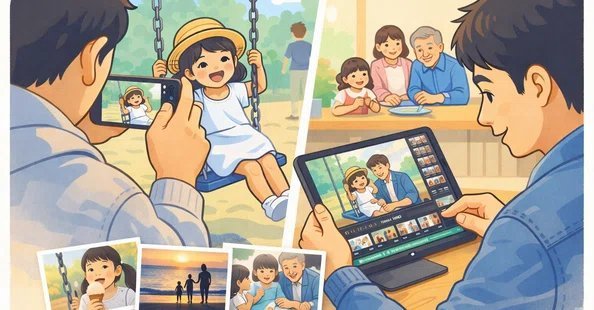
Your phone probably holds several thousand family photos, and if you are honest, only a dozen or so are good enough to frame. The rest suffer from the usual family-photo problems: a beautiful shot of your kid ruined by a cluttered background, a group picture where one person blinked, a scanned print of your grandparents faded to a yellow ghost. AI editing tools have quietly become very good at exactly these problems. The trick in 2026 is not finding a tool — it is matching the right tool to the job, because the category leaders are each brilliant at one thing and mediocre at the rest.
For one-tap cleanup of everyday phone photos: your phone’s own editor
The most-used AI photo editor in most families is the one already installed. Google Photos offers Magic Editor and Magic Eraser on supported phones, which let you circle a photobomber, a trash can, or a stranger’s elbow and have it removed and filled in plausibly. Apple’s Photos app offers its Clean Up tool for the same job. For the commonest family-photo flaws — distractions in the background, a stray object, a photo slightly too dark — these built-in tools are genuinely enough, they cost nothing extra, and because they live where your photos already are, you will actually use them. The official help pages for Google’s Photos help pages and Apple’s Photos support pages walk through what each feature does on your specific device, which matters because availability varies by phone model and subscription.
Where the built-ins fall short: they are cleanup tools, not restoration tools. They will not convincingly rebuild a torn corner, sharpen a badly blurred face, or rescue a photo that is soft everywhere. Push them too far and the fill turns smudgy, especially on patterned backgrounds like grass, brick, or a crowd.
For rescuing old and damaged prints: dedicated restoration tools
Scanned family prints from the seventies, eighties, and nineties fail in specific ways — fading, scratches, water spots, faces too small and grainy to recognize. Dedicated AI restoration services and desktop programs specialize here: they upscale faces, rebuild detail, reduce grain, and can colorize black-and-white images. The results on a decent scan can be startling, particularly on faces, which is what family photos are really about.
The scan itself decides half the result before any AI touches it. A flatbed scanner, even an inexpensive one, beats photographing a print with your phone: no glare, no warped corners, no shadow of your own hand. Wipe the print gently with a soft dry cloth first — dust specks that are invisible to your eye become dramatic white spots at high resolution, and the software will faithfully “restore” around every one of them. If a print is stuck to glass in a frame, do not force it out; photograph it as it is, or ask a photo shop, because tearing a stuck print is the one form of damage no tool can undo.
Two cautions belong with this category.
First, the software is inventing detail it cannot see — an enhanced face is a plausible reconstruction, not a recovered original, so treat restored photos as beautiful interpretations and always keep the untouched scan. Second, feed these tools the best scan you can make: scan prints at high resolution, in color even if the print is black and white, and never edit the master file. Restoration also pairs naturally with good storage habits; if you have not already, read the best way to back up family photos before you start improving on your only copies.
For portraits and people: portrait-focused editors
A third category concentrates on faces and people: skin retouching, teeth and eye brightening, background blur that mimics an expensive lens, even swapping a blinked-shut face in a group shot for an open-eyed version from another frame of the same burst. Phone makers bundle some of this (best-take style face swapping is the famous example), and standalone portrait apps go further. Used lightly, these tools fix the exact things that make families delete otherwise lovely photos. Used heavily, they slide into uncanny territory — skin with no pores, teeth lit like a billboard, a toddler who looks faintly airbrushed for a magazine. The honest rule: if a relative who knows the person would say the photo looks “off,” you have gone two sliders too far.
For batch jobs and creative extras: full editors with AI inside
If your project is bigger — a slideshow for a fiftieth anniversary, a printed book of a parent’s life — a full editor such as Adobe Lightroom or Photoshop, both now layered with AI features like generative remove, denoise, and background replacement, earns its learning curve. Lightroom in particular shines at the unglamorous bulk work: fixing the color and exposure of two hundred scanned prints consistently, rather than one at a time. The subscription cost only makes sense if you genuinely have a large backlog; for ten photos a year it is a sledgehammer.
What no AI editor can fix
It is worth being clear about the ceiling, because the advertising is not. AI cleanup works on the surface of a photo, not on the moment itself. It cannot rescue a face that is both blurred and turned away, because there is no information left to rebuild from. It cannot fix the photo where the birthday kid is hidden behind an uncle — object removal fills background, it does not reveal people who were never visible. Motion blur on the one shot of a first step stays motion blur; sharpening will make it a crisper blur. And colorization of very old prints is an educated guess dressed in nice colors: the software does not know your grandmother’s dress was green, it knows dresses in that era and pose often were. Enjoy the result, but do not mistake it for a recovered fact.
Composition is the other honest limit. A photo taken from too far away, with the subject small in a sea of parking lot, can be cropped — but cropping a phone photo throws away resolution fast, and AI upscaling adds plausible texture rather than true detail. The best AI edit in the world still starts from the photo somebody bothered to walk closer for.
Before you upload your family’s faces: the privacy check
Most of these tools work in the cloud, which means your family photos travel to a company’s servers to be processed. For a picture of a birthday cake, few people care. For a large library of children’s photos, it is worth two minutes of thought. Check three things in whatever app you choose: whether uploaded photos are used to train the company’s models, how long they are kept after editing, and whether you can delete them permanently rather than just removing them from your view. Reputable services answer all three plainly in their privacy pages; vague answers are an answer too.
There is also a family-politics point that tools cannot solve. Editing a photo of yourself is your business; significantly altering a photo of someone else — slimming an aunt, clearing a teenager’s skin beyond recognition, removing a person from a group shot — is theirs. The light-touch fixes in this article (light, clutter, scratches, a blink) rarely bother anyone. The heavier the edit to a person rather than a picture, the more a quick “is this okay?” beforehand saves an awkward holiday.
A simple order of operations for any photo
Whatever tool you pick, the sequence that gets the best results is the same. Start with a copy, never the original. Fix light and color first, because every later step looks better on a correctly exposed photo. Remove distractions second, while the image is still at full size. Do face and portrait touches third, with a light hand, checking at full zoom and at the small size people will actually see. Crop last — cropping first throws away pixels the other tools could have used. Save the edited version alongside the original rather than replacing it, with a name that tells future you which is which. Followed in that order, even a free phone editor produces results that would have taken a skilled retoucher an afternoon not many years ago.
The verdict, by job
Most families need exactly two of these categories, not five. Keep your phone’s built-in editor as the everyday tool for removing distractions and fixing light — it handles the majority of family photos. Add one dedicated restoration tool for the shoebox of old prints, used carefully, on copies, with the originals preserved. Reach for portrait features sparingly and inside whatever app you already use, and save the full desktop editors for a genuine big project. What no tool on this list can do is choose which moments matter — that part of editing family photos is still, happily, a human job. Spend your editing time on the twenty photos your family will actually look at in ten years, rather than spreading it thinly over two thousand, and the tools above will feel less like a chore and more like what they are: a way to hand the next generation pictures worth keeping.