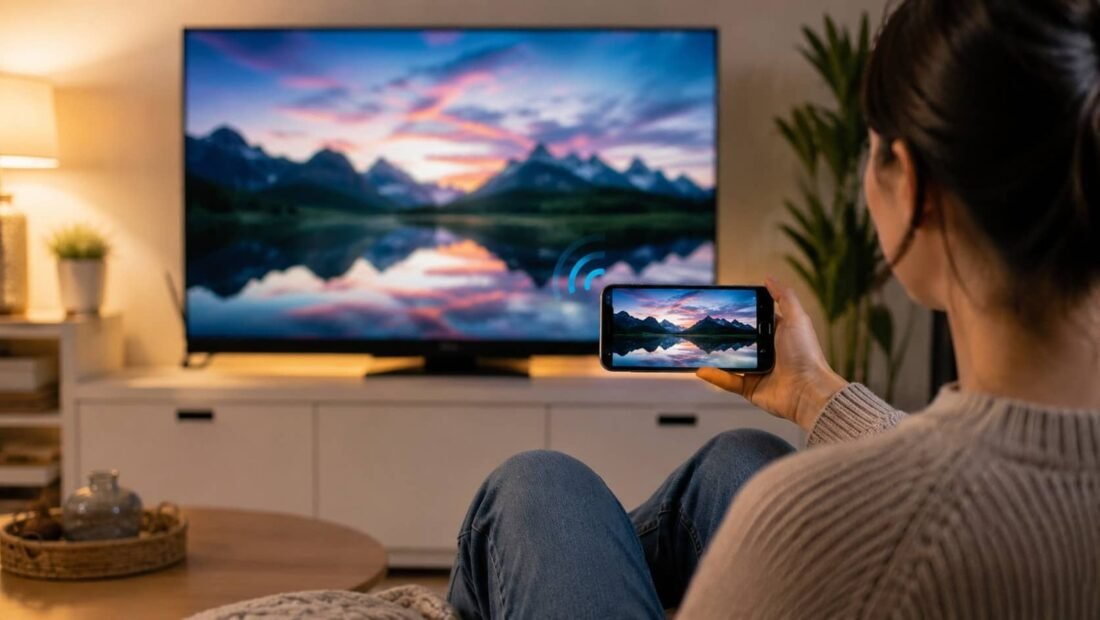
Six people are standing around a phone the size of a playing card, squinting at a video one of them took, when someone asks the obvious question: “Can’t we just put that on the TV?” Yes — in about four different ways, at prices from free to $49, and one of them works with no Wi-Fi at all. Which method is yours depends on two facts: what phone you hold, and what TV you face. Here is everything you need: the phone in your hand, the TV’s remote, and — only for the wired method — the right adapter for your phone’s port.
First, a Distinction That Saves an Hour: Casting Is Not Mirroring
Two different things hide under this topic, and confusing them causes most failures. Casting means an app (YouTube, Netflix, Spotify) hands the stream to the TV, which plays it directly — your phone becomes a remote control, the picture is full quality, and you can use the phone for other things. Mirroring means the TV shows a live copy of your phone screen, whatever is on it — photos, games, presentations, apps with no cast button. Casting is better whenever the app offers it; mirroring is the universal fallback that works for everything else. The methods below cover mirroring, as the title promises, and each notes where its cast route is better.
Method 1: Chromecast or Google TV (Best for Android, Works for iPhone)
If your TV has Google TV or Chromecast built in — many Sony, TCL, and Hisense sets do — or a $30 Chromecast dongle is plugged into any HDMI port, you are equipped. Android phones: open the Google Home app, tap your TV, and choose “Cast my screen” — your screen appears within seconds. Alternatively, swipe down the quick settings and tap the Cast/Screen Cast tile. iPhone users can cast from within Google apps (YouTube, Photos) to the same dongle, though full-screen mirroring from an iPhone needs the next method instead. Sound follows the picture automatically. Google maintains the canonical steps on its Chromecast help pages, worth bookmarking if a step on your model differs.
Method 2: AirPlay (the iPhone Native Route)
iPhones mirror to Apple TV boxes and to the large and growing list of AirPlay 2 televisions (recent Samsung, LG, Sony, and Vizio sets) with no extra hardware at all. Connect the phone and TV to the same Wi-Fi, open Control Center, tap Screen Mirroring, and pick the TV. The phone’s screen appears, in the right orientation, with sound — the smoothest of all these methods, because Apple controls both ends. Apple’s AirPlay guide covers the per-model details. If your TV predates AirPlay and there is no Apple TV, an iPhone falls back to Method 4 below — which, honestly, it does more reliably than any wireless method here.
Method 3: The TV’s Own Built-In Mirror Mode
Samsung phones carry Smart View, most Android brands offer a cast or mirror toggle under names like Wireless Display or Screen Share, and most smart TVs listen for them under a matching input or app (LG’s Screen Share, Samsung’s TV in the SmartThings app, and generic Miracast receivers). When phone brand and TV brand are friends — Samsung phone, Samsung TV above all — this is the fastest route: pull down quick settings, tap Smart View, choose the TV, done. The honest caveat is consistency: these brand systems are the least standardized, and a phone that mirrors beautifully to one TV may refuse another in the next room. Try it first because it costs nothing; abandon it early if it sulks.
Method 4: A Cable (Zero Lag, Zero Wi-Fi, Works Everywhere)
The unglamorous champion. A USB-C to HDMI adapter ($15 to $25) mirrors most modern Android phones and USB-C iPads by the simple act of plugging in; iPhones with Lightning ports need Apple’s Lightning to HDMI adapter — about $49, and on this item the genuine article is worth it, since the knockoffs are famously flaky. No network, no settings menus, no pairing codes, essentially no lag, and it works on hotel TVs, conference-room projectors, grandparents’ sets, and any screen with an HDMI hole in the back of it, and the TV in our guide to using a smart TV with no internet at all. For presentations, gaming, and any situation where “it just has to work in front of people,” the cable is not the low-tech option. It is the professional one.
Hotel TVs and Other People’s Televisions
The methods above meet their final exam in hotel rooms, rentals, and relatives’ houses, where the TV model is a surprise and the Wi-Fi has a login page. Expect two traps. First, hotel networks isolate devices from one another as a security feature, which silently kills every wireless discovery method in this article — the phone and TV are on the “same” Wi-Fi and cannot see each other, by design. Second, the TV may be locked into a hospitality mode that ignores its own smart features. The cable (Method 4) walks through both traps untouched, because it needs no network and no permission beyond an accessible HDMI port and the input button. This is why a USB-C-to-HDMI adapter lives permanently in so many frequent travelers’ bags, next to the charger: it is the difference between watching the game on a 55-inch screen and holding a phone at arm’s length in a strange room. If the HDMI ports are physically blocked or disabled — it happens — the fallback is propping the phone up and accepting the small screen with good grace; not every battle is winnable, but with the cable in your bag, most are.
A Note on Fire TV and Roku Households
Two streaming platforms handle mirroring their own way, and their owners ask about them by name. Amazon’s Fire TV has a built-in Display Mirroring mode (hold the Home button, or find it in Settings under Display & Sounds) that receives Miracast from Android phones and Windows — solid for Android households, unavailable to iPhones. Roku supports casting from inside apps broadly and screen mirroring from Android and Windows devices on most current models; iPhones reach Roku through AirPlay on the models that carry it. The pattern to remember beneath the brand soup: Android mirrors almost everywhere with a toggle and a prayer, iPhones mirror natively to Apple-flavored endpoints and by cable to everything else, and no combination of phone and TV manufactured in the last several years is truly stuck. One of the four methods always answers — the only real variable is whether it answers wirelessly or through a $20 cable.
Sound, Delay, and Picture Quality: Setting Expectations
Mirroring is a copy of a phone screen, and it inherits the phone’s limits in three ways worth knowing before a room full of people learns with you. The picture cannot exceed the phone’s own resolution in most setups, so a mirrored video looks good — but a cast video, streamed by the TV itself in full 4K, looks better, which is Method 1’s distinction returning for its encore. Wireless delay runs from a fraction of a second to about two seconds on a busy network: irrelevant for photos and presentations, noticeable in rhythm games, fatal to competitive ones — competitive anything belongs on the cable. And a mirrored phone screen is a live window into your notifications; the message that pops up mid-presentation is part of the show. Two taps of prevention — Do Not Disturb on, and any app you plan to open rehearsed once in private — spare you the classic conference-room moment. Set those expectations and mirroring stops being the flaky option and becomes what it is: the universal adapter between the screen in your pocket and every bigger screen you will ever meet.
Troubleshooting the Usual Failures
Phone and TV cannot see each other: they must share a Wi-Fi network — check the TV did not join the guest band and the phone is not on mobile data with Wi-Fi off. A router setting called AP or client isolation (common on guest networks) also blocks discovery entirely. Picture but no sound, or sound but a black screen on Netflix-type apps: you have met copy protection — some streaming apps block mirroring by design and require casting from inside the app (Method 1’s distinction, collecting its toll). Use the app’s own cast button for those and mirroring for everything else. Lag on games or video: wireless mirroring always carries a small delay; move the phone nearer the router, switch the TV to the 5GHz band, or go wired. Wrong aspect ratio or borders: normal for mirroring — the TV is showing a phone-shaped screen; rotating the phone to landscape fills the frame for video. Solve in that order — network, then protection, then distance, then orientation — and the crowd around the little screen can go find their seats on the couch — the show, at last, is on the big one now, where it always belonged.