Nobody wakes up excited to figure out why is my smart TV so slow when opening apps, but here we are — and honestly, it’s worth getting right. A little knowledge upfront can save you real money, real time, or a real headache. I learned several of these lessons the expensive way so you don’t have to.
This guide covers the essentials without the filler: what’s normal, what to watch out for, step-by-step actions that work, and a clear bottom line. Skim the headings if you’re in a hurry, or read the whole thing if you want to get it right the first time.
Why is my Smart Tv so Slow When Opening Apps: What You Need to Know
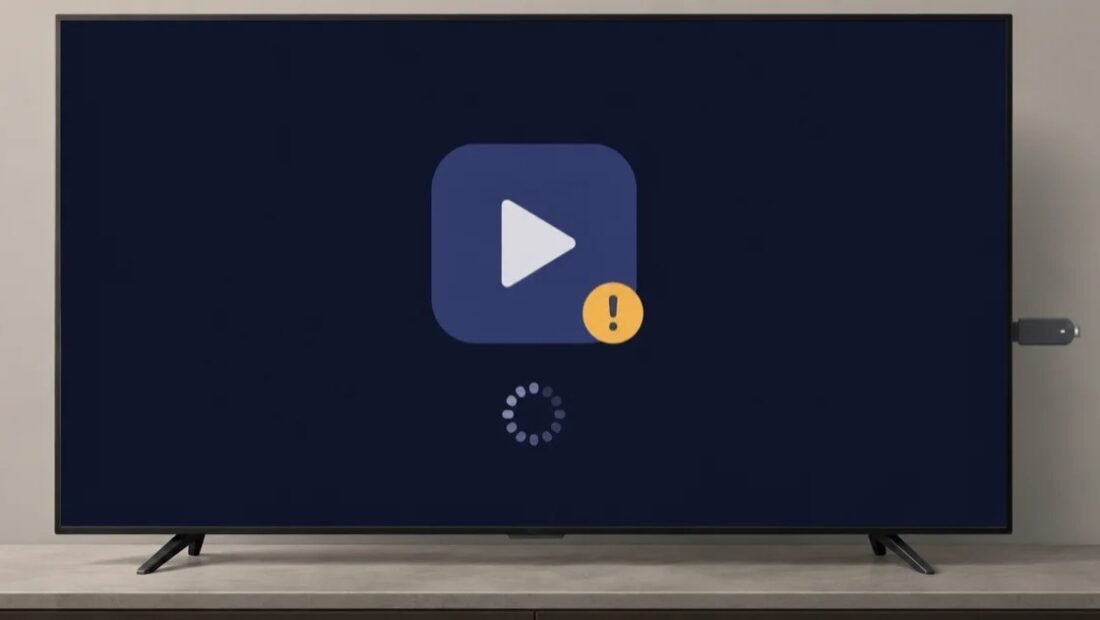
You press Netflix, and… you wait. And wait. Smart TVs are notorious for getting sluggish with age, and it’s not your imagination — the apps keep getting heavier while your TV’s processor stays exactly the same as the day you bought it. The good news: several free fixes help, and there’s a $30–$50 permanent solution if they don’t.
First, the obvious: restart the TV properly. Not standby — a full restart. Unplug it for 60 seconds, or find the Restart option in settings (on many TVs, holding the power button on the remote does a full reboot). This clears temporary memory glitches that accumulate over weeks of standby. If your TV hasn’t been truly restarted in months, this alone can feel like a new machine. For more on this topic, see What is the Best Tablet for Reading and Light Web Browsing — it pairs well with what you just read.
What Actually Affects the Outcome
Next, clear app caches. On Android/Google TV: Settings, then Apps, pick the slow app, then Clear cache (not Clear data, which logs you out). On Samsung: Settings, then Support, then Device Care cleans things up. On Roku: the secret restart sequence (Home 5x, Up, Rewind 2x, Fast Forward 2x) clears cache. Bloated caches are the number one cause of app-by-app slowness, and clearing them is free and safe. You can also check Consumer Reports’ buying advice for the authoritative details.
Then check storage space. Smart TVs have tiny storage — often just 4 to 8GB — and when it fills with app data, everything crawls. Uninstall apps you never open (you can always reinstall), and check for a storage meter in settings. As a rule, keep at least 500MB–1GB free. This is also why installing forty streaming apps ‘just in case’ is a bad idea on a TV.
Smart Moves to Make Now
- Full restart (unplug 60 sec) — clears weeks of accumulated memory glitches.
- Clear app caches: Android TV (Settings > Apps > Clear cache), Samsung (Device Care), Roku (secret button sequence).
- Free up storage: uninstall unused apps; keep 500MB–1GB free on the TV’s tiny drive.
- Install system updates — but know ancient TVs can’t run modern apps well regardless.
- Best permanent fix: $30–$50 streaming stick (Chromecast/Roku/Fire TV) beats any built-in system.
- Rule out network: test speed on the TV; 4K needs stable 15–25 Mbps.
- Last resort: factory reset (have all streaming passwords ready).
The Details Most Guides Skip
Software updates cut both ways. An outdated TV OS runs old, buggy app versions — check for system updates. But also know that on very old TVs (7+ years), the newest app versions are built for newer hardware and run worse. If your TV is ancient and updates made it slower, that’s the hardware telling you it’s done — which brings us to the real fix.
The real fix, honestly: stop using the TV’s built-in apps. A $30–$50 streaming stick — Chromecast with Google TV, Roku Express 4K, or Fire TV Stick 4K — has a faster processor than most built-in TV systems, gets updates for years longer, and instantly makes any TV feel modern. Plug it into HDMI, switch inputs, and never open the TV’s own Netflix app again. This is what I recommend to everyone with a TV over three years old. Related: our breakdown of Is it Worth Hiring a Bookkeeper for a Small Business covers the numbers in detail.
If even the stick feels slow, check your internet: run a speed test on the TV (most have one in network settings). Smart TV apps need a stable 15–25 Mbps for 4K; buffering and slow loads are often network, not hardware. And as a last resort, a factory reset wipes years of cruft — just be prepared to log into everything again, so have your passwords ready.
Where People Go Wrong
- Factory-resetting first — it’s the most disruptive fix; try cache-clearing and restarts first.
- Installing every streaming app ‘just in case’ on 4GB of TV storage.
- Blaming the apps when the Wi-Fi is the actual bottleneck — test the network.
- Buying a whole new TV for slow apps when a $40 stick solves it completely.
Questions People Ask
Why was my TV fast when new and slow now?
Apps get heavier with updates while your TV’s processor never changes. It’s the same reason old phones slow down — software outgrows hardware.
Which streaming stick is best?
Chromecast with Google TV for Google households, Roku for simplicity, Fire TV Stick for Alexa/Prime users. All around $30–$50 and all massively faster than old built-in systems.
Will a factory reset delete my accounts?
Yes — you’ll need to log back into every streaming app. Gather passwords first, or use a password manager to make it painless.
How often should I restart my phone and computer?
A weekly restart is a good habit for both phones and computers. It clears temporary memory glitches, finishes pending updates, and kills runaway background processes that drain battery and slow things down. You don’t need to power off nightly — modern devices handle standby well — but if something starts acting strangely, a restart is always the first troubleshooting step worth trying.
The Bottom Line
Clear caches, free storage, and do a real restart — those free fixes help most slow TVs. But the honest permanent answer for any TV over three years old is a $30–$50 streaming stick, which outperforms built-in apps and stays updated for years. Don’t buy a new TV just for slow Netflix.
For more on this topic, see What is Business Liability Insurance and do I Need it — it pairs well with what you just read.
The takeaway is simple — know your options before you’re forced to pick one under pressure. Bookmark this guide, follow the action plan, and you’ll handle it like a pro.