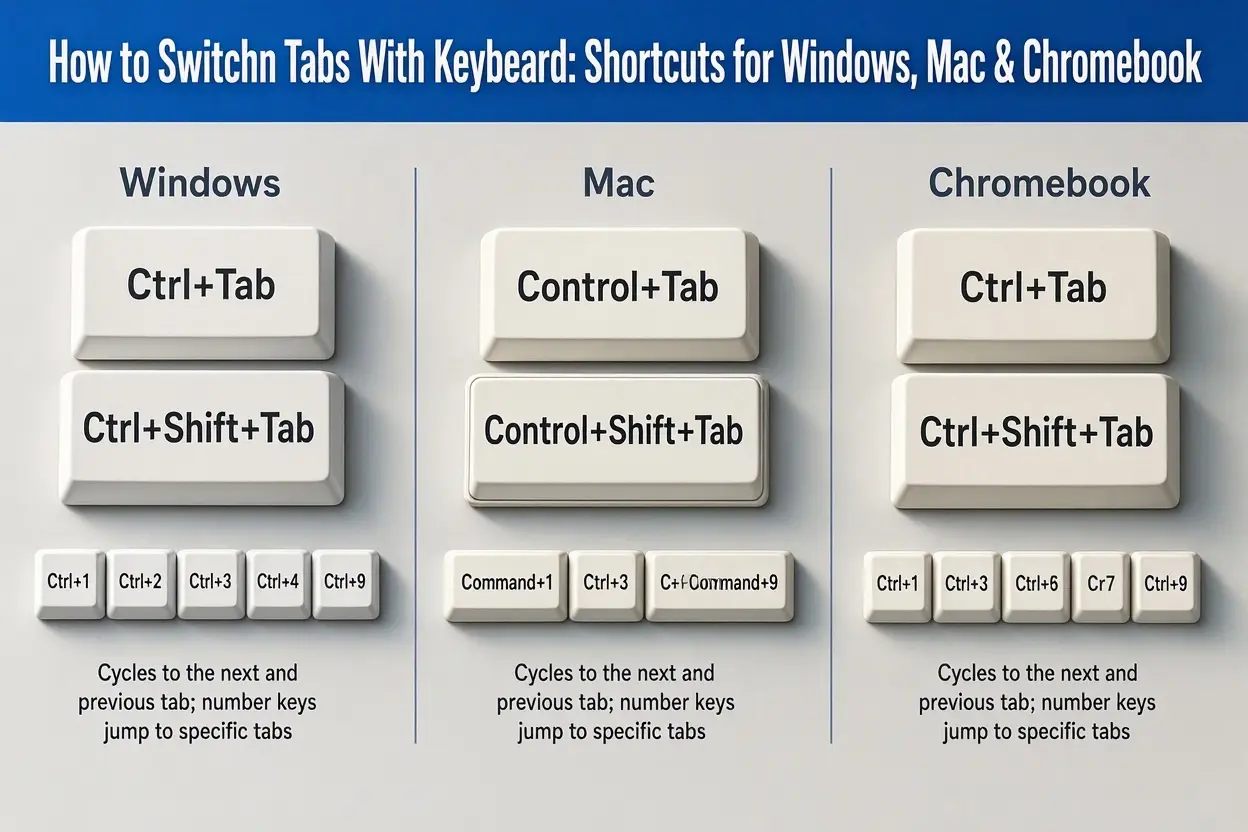
Quick answer: On Windows, Linux, and Chromebook, press Ctrl + Tab to go to the next tab and Ctrl + Shift + Tab to go to the previous tab. On Mac, press Command + Option + Right Arrow for the next tab and Command + Option + Left Arrow for the previous tab. To jump straight to a tab, press Ctrl + 1 to 8 (Windows and Chromebook) or Command + 1 to 8 (Mac).
If you keep dozens of tabs open, reaching for the mouse again and again slows you down. Learning how to switch tabs with the keyboard is one of the easiest ways to browse faster. This guide covers every useful tab shortcut for Chrome, plus Windows, Mac, and Chromebook, in simple steps.
How to Change Tabs With the Keyboard (Main Shortcuts)
Here are the shortcuts you will use most:
| Action | Windows / Linux | Mac | Chromebook |
|---|---|---|---|
| Next tab | Ctrl + Tab (or Ctrl + Page Down) | Command + Option + Right Arrow (or Control + Tab) | Ctrl + Tab |
| Previous tab | Ctrl + Shift + Tab (or Ctrl + Page Up) | Command + Option + Left Arrow (or Control + Shift + Tab) | Ctrl + Shift + Tab |
| Go to tab 1 to 8 | Ctrl + 1 to 8 | Command + 1 to 8 | Ctrl + 1 to 8 |
| Go to the last tab | Ctrl + 9 | Command + 9 | Ctrl + 9 |
Tip: Ctrl + Tab and Ctrl + Shift + Tab work in most browsers, so they are the easiest to remember.
Shortcut for Switching Tabs: Step by Step
On Windows and Linux
- Open your browser with two or more tabs.
- Hold Ctrl and press Tab to move to the next tab.
- Hold Ctrl + Shift and press Tab to go back.
- Keep pressing to cycle through all open tabs. After the last tab, it loops back to the first.
On Mac
- Press Command + Option + Right Arrow for the next tab.
- Press Command + Option + Left Arrow for the previous tab.
- You can also use Control + Tab and Control + Shift + Tab, which work in Chrome and Firefox.
On Chromebook
- Press Ctrl + Tab for the next tab.
- Press Ctrl + Shift + Tab for the previous tab.
- Use Ctrl + 1 to 8 to jump to a specific tab.
Jump to a Specific Tab Fast
Keyboard shortcuts for changing tabs get even faster when you use numbers.
- Ctrl + 1 (or Command + 1 on Mac) opens the first tab
- Ctrl + 2 opens the second tab, and so on up to tab 8
- Ctrl + 9 (or Command + 9) always opens the last tab, no matter how many you have
Pro tip: Pin your most-used tabs (Gmail, calendar, docs) so they stay on the left, then jump to them with Ctrl + 1, 2, or 3.
Hotkey to Switch Tabs in Other Browsers
The main shortcuts work in most browsers:
| Browser | Next tab | Previous tab |
|---|---|---|
| Chrome (Windows) | Ctrl + Tab | Ctrl + Shift + Tab |
| Microsoft Edge (Windows) | Ctrl + Tab | Ctrl + Shift + Tab |
| Firefox (Windows) | Ctrl + Tab or Ctrl + Page Down | Ctrl + Shift + Tab or Ctrl + Page Up |
| Chrome (Mac) | Command + Option + Right Arrow | Command + Option + Left Arrow |
| Safari (Mac) | Command + Shift + ] or Control + Tab | Command + Shift + [ or Control + Shift + Tab |
How to Close a Tab With Keyboard
Closing tabs is just as easy as switching them.
| Action | Windows / Linux / Chromebook | Mac |
|---|---|---|
| Close current tab | Ctrl + W (or Ctrl + F4 on Windows) | Command + W |
| Close the whole window | Ctrl + Shift + W | Command + Shift + W |
Tip: After you close a tab, Chrome moves you to the next tab on the right, so you can keep pressing Ctrl + W to clear several tabs quickly.
How to Close All Tabs
Chrome has no single “close all tabs” key, but these work:
- Windows or Chromebook: press Ctrl + Shift + W to close the window and all its tabs. On Windows you can also press Alt + F4.
- Mac: press Command + Shift + W to close the window, or Command + Q to quit Chrome.
If you only want to close some tabs, right-click a tab and choose “Close other tabs” or “Close tabs to the right.”
New Tab Shortcut and Reopen Closed Tab
| Action | Windows / Linux / Chromebook | Mac |
|---|---|---|
| Open a new tab | Ctrl + T | Command + T |
| Reopen the last closed tab | Ctrl + Shift + T | Command + Shift + T |
| Open a new window | Ctrl + N | Command + N |
| Open an incognito window | Ctrl + Shift + N | Command + Shift + N |
Ctrl + Shift + T: Reopen a Closed Tab
Closed a tab by mistake? Press Ctrl + Shift + T (or Command + Shift + T on Mac). Chrome reopens it. Keep pressing to bring back earlier closed tabs one by one.
Ctrl + Shift + N: Open an Incognito Window
Press Ctrl + Shift + N (or Command + Shift + N on Mac) to open a private incognito window. Your browsing history is not saved on that device.
More Chrome Keyboard Shortcuts Worth Knowing
If you like Chrome shortcut keys, add these to your list:
| Action | Windows / Linux / Chromebook | Mac |
|---|---|---|
| Search open tabs | Ctrl + Shift + A | Command + Shift + A |
| Move the current tab left or right | Ctrl + Shift + Page Up / Page Down | Check Chrome’s help page for your version |
| Go to the address bar | Ctrl + L (or F6) | Command + L |
| Refresh the page | Ctrl + R (or F5) | Command + R |
| Bookmark the page | Ctrl + D | Command + D |
| Find on page | Ctrl + F | Command + F |
| Open Chrome history | Ctrl + H | Command + Y |
| Go back / forward | Alt + Left / Right Arrow | Command + Left / Right Arrow |
Chrome Full Screen Shortcut
- Windows and Linux: press F11
- Mac: press Command + Control + F
- Chromebook: press the Full screen key (top row, often F4)
Press the same shortcut again to exit.
Switch Windows Shortcut
- Windows: Alt + Tab switches between open apps and windows
- Mac: Command + Tab switches between apps, and Command + ` switches between windows of the same app
- Chromebook: Alt + Tab switches windows
Bonus: Scroll to the Bottom of a Page
In Chrome on Windows, press End to jump to the bottom and Home to go back to the top. Space scrolls down one screen.
Chromebook Keyboard Shortcuts
Chromebook shortcuts are very similar to Windows, with a few extras:
| Action | Shortcut |
|---|---|
| Next tab | Ctrl + Tab |
| Previous tab | Ctrl + Shift + Tab |
| Jump to tab 1 to 8 / last tab | Ctrl + 1 to 8 / Ctrl + 9 |
| Close tab | Ctrl + W |
| Reopen closed tab | Ctrl + Shift + T |
| Switch windows | Alt + Tab |
| Full screen | Full screen key |
| Show all keyboard shortcuts | Ctrl + Alt + / |
Press Ctrl + Alt + / on a Chromebook to open the built-in list of shortcuts for your device.
Shortcut Not Working? Try These Fixes
- Click on the page first. If your cursor is inside the address bar or a text box, some shortcuts behave differently.
- Check your keyboard. On some laptops, Page Up and Page Down need the Fn key.
- Disable conflicting extensions. Some Chrome extensions override shortcuts.
- Check for other apps. Screen recorders, remote desktop tools, and games can capture shortcuts.
- Restart Chrome. A quick restart fixes many small glitches.
- Remember the layout. Some international keyboards place keys like [ and ] in different spots.
- Update Chrome. Older versions may not support newer shortcuts.
Tips to Remember Shortcuts Faster
- Learn two or three shortcuts at a time: start with Ctrl + Tab, Ctrl + W, and Ctrl + Shift + T.
- Stop using the mouse for those actions for a full week.
- Stick a small cheat sheet next to your screen.
- Add one new shortcut each week.
Conclusion
Now you know how to switch tabs with the keyboard on Windows, Mac, and Chromebook. Start with Ctrl + Tab and Ctrl + Shift + Tab, then add Ctrl + number to jump to any tab, Ctrl + W to close, and Ctrl + Shift + T to bring back a tab you closed by mistake. A few minutes of practice saves you hours over time.
Shortcuts can change with browser updates. For the latest list, check Google’s official Chrome keyboard shortcuts page.
FAQs
1. How do I switch tabs with the keyboard?
Press Ctrl + Tab for the next tab and Ctrl + Shift + Tab for the previous tab on Windows, Linux, and Chromebook. On Mac, use Command + Option + Right or Left Arrow.
2. What is the shortcut to go to a specific tab?
Press Ctrl + 1 to 8 (Command + 1 to 8 on Mac) to open the first to eighth tab. Press Ctrl + 9 (Command + 9 on Mac) to go to the last tab.
3. How do I close a tab with the keyboard?
Press Ctrl + W on Windows, Linux, and Chromebook, or Command + W on Mac.
4. How do I close all tabs at once?
Press Ctrl + Shift + W (Command + Shift + W on Mac) to close the whole window. On Windows you can also press Alt + F4, and on Mac you can press Command + Q to quit Chrome.
5. How do I reopen a closed tab?
Press Ctrl + Shift + T on Windows, Linux, and Chromebook, or Command + Shift + T on Mac. Repeat to reopen older closed tabs.
6. What does Ctrl + Shift + N do?
It opens a new incognito window in Chrome. On Mac, use Command + Shift + N.
7. What is the new tab shortcut?
Press Ctrl + T on Windows, Linux, and Chromebook, or Command + T on Mac.
8. How do I switch tabs on a Chromebook?
Use Ctrl + Tab for the next tab and Ctrl + Shift + Tab for the previous tab. Ctrl + 1 to 8 jumps to a specific tab.
9. How do I switch windows with the keyboard?
Press Alt + Tab on Windows and Chromebook, or Command + Tab on Mac. On Mac, Command + ` switches between windows of the same app.
10. How do I make Chrome full screen with the keyboard?
Press F11 on Windows, Command + Control + F on Mac, or the Full screen key on a Chromebook.
11. Why are my keyboard shortcuts not working in Chrome?
Click on the page first, check whether you need the Fn key on your laptop, disable extensions that may conflict, close apps that capture shortcuts, and update or restart Chrome.
12. Do these shortcuts work in Edge, Firefox, and Safari?
Ctrl + Tab and Ctrl + Shift + Tab work in most browsers. Safari on Mac also uses Command + Shift + ] and [ to change tabs.