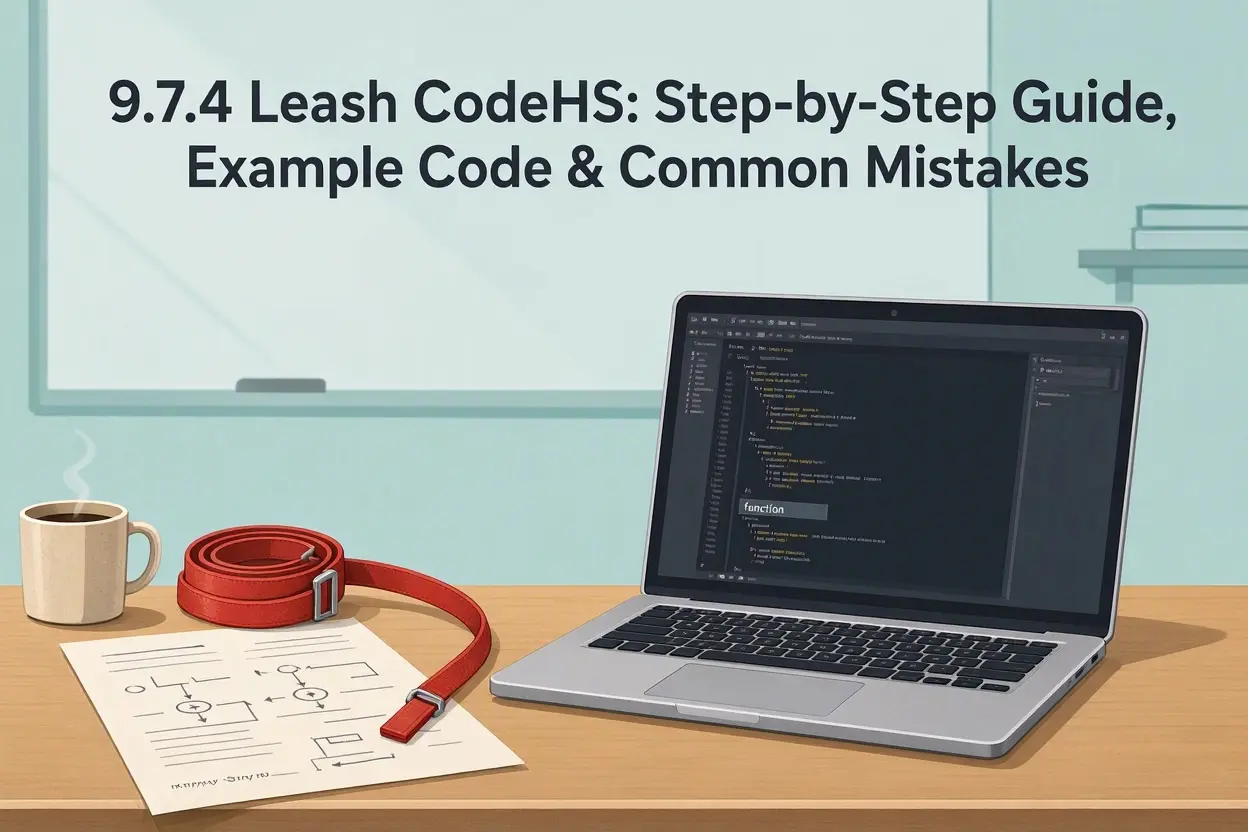
If your leash exercise keeps drawing a spiderweb of lines across the canvas, you are not alone. 9.7.4 Leash looks simple — a ball that follows your mouse on the end of a line — but almost everyone gets the trail problem on their first try. This guide walks through exactly how the exercise works, the code pattern that solves it, and the mistakes that trip people up.
What 9.7.4 Leash Is Actually Asking You to Do
The exercise comes from the graphics unit of CodeHS’s JavaScript course. You are given a blank canvas, and your program has to draw two things: a circle that sits wherever the mouse is, and a straight line — the leash — that connects the circle back to a fixed anchor point in the center of the canvas. When the mouse moves, both objects should move with it, so it looks like the ball is being led around on a lead.
That sounds like a drawing task, but the real lesson is about events. Your code does not run once and finish. It waits, listens for the mouse to move, and redraws every time it does. Once you understand that loop of “mouse moves, program reacts,” the exercise mostly solves itself.
What You Need Before You Start
You only need four ideas from earlier in the course:
- Graphics objects — how to create a
Circleand aLineand useadd()to put them on the canvas. - Global variables — variables declared outside any function, so more than one function can use them.
- Mouse events — specifically
mouseMoveMethod, which tells CodeHS to run one of your functions every time the mouse moves. - The event object — the function you hand to
mouseMoveMethodreceives an event, usually namede, ande.getX()ande.getY()tell you where the mouse is.
If any of those feel shaky, spend five minutes reviewing them first. Every Leash error I have seen comes back to one of these four ideas, not to anything new in the exercise itself.
Step 1: Set Up Your Constants and Global Variables
Start with the pieces that never change, and the two objects you will keep reusing. Declaring the ball and the line as global variables is the single most important decision in this program, because your mouse handler needs to reach them later.
var BALL_RADIUS = 20;
var ball;
var leash;
Notice what is not here: the ball and leash are declared but not created yet. Creating them happens inside start(), and updating them happens inside the mouse handler. Keeping those three jobs in three separate places makes the code much easier to debug.
Step 2: Build the Starting Scene in start()
Your start() function should do three things: draw the ball at its starting position, draw the leash from the center of the canvas to the ball, and register your mouse-move handler so CodeHS knows what to call.
function start() {
    ball = new Circle(BALL_RADIUS);
    ball.setPosition(getWidth() / 2, getHeight() / 2);
    add(ball);

    leash = new Line(getWidth() / 2, getHeight() / 2,
                     ball.getX(), ball.getY());
    add(leash);

    mouseMoveMethod(onMouseMove);
}
Using getWidth() / 2 and getHeight() / 2 instead of hard-coding numbers like 200 means your anchor stays in the true center even if the canvas size changes. Graders notice that kind of detail.
Step 3: Write the Mouse Handler
Here is where the exercise is won or lost. Every time the mouse moves, you need the ball at the new position and the leash redrawn between the center and the ball. The reliable pattern is to remove the old objects and draw fresh ones:
function onMouseMove(e) {
    remove(leash);
    remove(ball);

    ball = new Circle(BALL_RADIUS);
    ball.setPosition(e.getX(), e.getY());
    add(ball);

    leash = new Line(getWidth() / 2, getHeight() / 2,
                     e.getX(), e.getY());
    add(leash);
}
Read it slowly. The old leash and ball come off the canvas first. Then a new ball appears at the mouse position, and a new line connects the center to that same position. Because the old objects are removed, the canvas always shows exactly one ball and one leash — no trails, no spiderweb.
Step 4: Test the Way a Grader Would
Run the program and move your mouse slowly across the canvas, then in fast circles, then into the corners. Watch for three things: the ball should stay centered on your cursor, the leash should always touch the center anchor, and nothing should be left behind as you move. If you are working through several coding assignments this semester, the keyboard shortcuts in our guide to adding error bars in Excel step by step are worth learning too — the same patient, one-step-at-a-time approach applies there.
Common Mistakes and How to Fix Them
Mistake 1: A trail of lines everywhere
This is the famous one. It happens when your handler creates a brand-new line on every mouse move but never removes the old one. The mouse fires dozens of events per second, so you end up with hundreds of lines. The fix is the remove-and-redraw pattern above, or updating the existing objects instead of creating new ones.
Mistake 2: Declaring ball and leash inside the handler
If you write var ball = new Circle(...) inside onMouseMove, that variable is brand new every time the function runs, and your remove() calls can never find the previous ball. Declare them once, globally, at the top of the program.
Mistake 3: Forgetting to register the handler
Writing a perfect handler does nothing if start() never calls mouseMoveMethod(onMouseMove). If your program draws the starting scene and then ignores the mouse completely, this is almost certainly why.
Mistake 4: Passing the function call instead of the function
Write mouseMoveMethod(onMouseMove), not mouseMoveMethod(onMouseMove(e)). CodeHS needs the function itself so it can call it later, with the event, each time the mouse moves.
Mistake 5: Anchoring the leash to the wrong point
The leash runs from the center of the canvas to the ball — not from the corner, and not from wherever the ball started unless that was the center. Double-check both endpoints of your Line.
A Cleaner Alternative: Move the Objects Instead
Once the remove-and-redraw version works, you can make it more elegant. Instead of deleting and recreating, keep the same ball and line and just update them: use ball.setPosition(e.getX(), e.getY()) for the ball, and remove and recreate only the line, since a line’s endpoints are awkward to shift directly. Many students find the redraw version easier to reason about, and for this exercise either approach earns full credit — the concept being tested is event handling, not which drawing trick you pick. The MDN documentation on the mousemove event explains the same event-driven idea in regular web JavaScript, if you want to see how it works outside CodeHS.
Small Changes Students Often Ask About
Once the basic version works, a few variations are safe to try. To move the anchor somewhere other than the center — a corner, say — change both places where the anchor coordinates appear: where the first leash is drawn in start() and where it is redrawn in the handler. If the two disagree, the leash will jump between anchor points as you move, which is a strange bug until you know the cause. To give the ball some personality, call ball.setColor(Color.blue) right after creating it — and remember you will need that same line in the handler, because the handler creates a brand-new ball on every move. That repetition is normal in the redraw approach. What you should not do is change the radius or positions using values typed directly into the handler in one place and named constants in another; pick constants everywhere, so one edit updates the whole program.
Debugging When Nothing Moves (or Everything Breaks)
When your program misbehaves, resist the urge to rewrite it randomly. Test in this order instead. First, comment out the mouseMoveMethod line and run the program: you should see the ball sitting in the center with the short leash drawn. If that starting scene is wrong, the bug is in start() and the handler is innocent. Second, put a println("moved"); inside your handler and run it again. If the console stays silent while you wiggle the mouse, your handler was never registered or is misspelled where you registered it — a mismatch between the name in mouseMoveMethod(...) and the name on your function is the classic cause. Third, print the coordinates with println(e.getX() + ", " + e.getY()); and confirm the numbers actually change as you move. If they change but the ball does not, the problem is in your drawing code — usually a missing add(), or objects being created but positioned off-canvas. Working through the failure one layer at a time like this takes two minutes and beats twenty minutes of guessing.
One more subtle bug worth knowing: if your ball follows the mouse but the leash lags one step behind, you are drawing the line to the ball’s previous position. That happens when you create the line before moving the ball, using stale coordinates. Draw the line after the ball is positioned, using the same e.getX() and e.getY() values for both, and the lag disappears.
Why This Exercise Matters Beyond the Grade
Leash is many students’ first event-driven program, and event-driven thinking is how nearly all interactive software works — games respond to controllers, drawing apps respond to pointers, websites respond to clicks. The pattern you used here, “keep shared objects in global variables, react to events, redraw only what changed,” is the seed of all of that. Get this one genuinely understood rather than copied, and the rest of the graphics unit gets noticeably easier.