
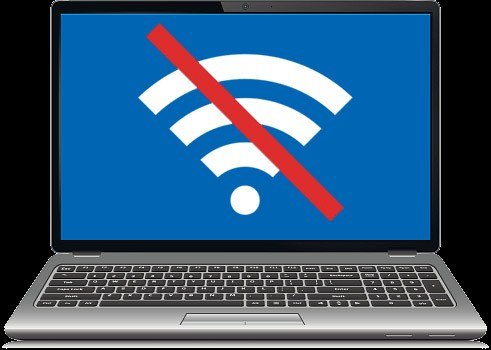
Here is the question that starts every one of these evenings: why does your laptop drop its WiFi mid-call — while your phone, on the same desk and the same network, has not disconnected once in its life? That single clue tells you the problem is probably not the internet. It is the relationship between one particular laptop and one particular router — and relationships have specific, fixable mechanics. Five candidate causes follow, weighed against each other — what each looks like, what it costs to test, what it costs to fix — so you can climb from the free explanations to the real one without replacing parts at random.
Option One: The Signal Itself — Distance, Walls, and Interference
What it looks like: dropouts in one room, stability in another; evenings worse than mornings; a connection that dies when the microwave runs — a classic, since microwaves leak into the same 2.4 GHz band WiFi uses. The physics: WiFi weakens through every wall and floor; the 5 GHz band trades range for speed, while 2.4 GHz travels farther but swims in interference from neighbors, Bluetooth, and baby monitors. Laptops suffer first because their antennas are thin strips in the screen bezel, shielded by your own body and desk. Cost to test: zero — work beside the router for a day. If the drops stop, no other section of this article applies to you. Cost to fix: free (move the router centrally, elevate it, switch bands) up to a mesh system if the house is genuinely large — the territory our guide to choosing a WiFi router for a two-story house maps in detail. Odds: in whole-house complaints, the culprit most often. In one-room-from-the-router complaints, least — test order matters.
Measure before you move furniture. The command netsh wlan show interfaces reports your live signal as a percentage: above 70% is strong, 50–70% workable, under 50% living on the edge where drops are weather, not mystery. If your signal is strong yet drops persist in a crowded building, suspect channel congestion — on 2.4 GHz only channels 1, 6, and 11 are truly separate, and analyzer apps show the emptiest. One exotic documented source deserves a sentence: USB 3.0 hubs and docks radiate noise in the 2.4 GHz band, so if drops happen at your desk setup and never on the couch, unplug the dock for an evening before doubting anything else.
Option Two: The WiFi Driver — Old, Generic, or Broken by an Update
What it looks like: drops that began after a Windows update, or on a laptop whose drivers have simply never been touched since purchase; Device Manager shows no errors, because a driver can be wrong without being broken. The reasoning: the driver is the translator between Windows and your WiFi chip, and the generic translator Windows installs is often years behind the chip maker’s own — missing fixes for exactly these disconnect bugs. Cost to test and fix: zero, fifteen minutes. Install the latest WiFi driver from your laptop maker’s support page for your exact model; or, if your chip is Intel (very common), let the Intel Driver & Support Assistant identify and update it directly. In Device Manager, roll back instead if drops began right after an update — timing is the diagnosis. Odds: high, and rising with laptop age; on machines over three years old this and Option Three together explain most “my WiFi is haunted” stories.
Do the update thoroughly. The lazy version — right-click, “update driver,” Windows announcing you already have the best one — consults the same generic catalog that caused the trouble. The real version: download the new driver package first, uninstall the adapter in Device Manager while ticking the option to delete the driver software, reboot, then install the downloaded package so the maker’s version wins. Note your chip while you are there — Realtek and MediaTek adapters, common in budget laptops, are precisely the ones makers post quiet disconnect fixes for, sometimes under unhelpful names like “WLAN driver improvement.”
Option Three: Windows Is Putting Your WiFi Adapter to Sleep
What it looks like: the signature is uncanny — drops after idle moments or screen-dimming, on battery but rarely on the charger, or a connection always dead when you return to the desk that revives seconds after you start working. The reasoning: Windows power management is allowed, by default on many laptops, to turn off the WiFi adapter to save power — and on some driver combinations it forgets to wake it gracefully. Your phone never does this trick, which is exactly the clue in the opening question. Cost to test and fix: zero, three minutes. In Device Manager, open your WiFi adapter’s properties, find the Power Management tab, and uncheck “Allow the computer to turn off this device to save power.” Then, in your power plan’s advanced settings, set Wireless Adapter Settings to Maximum Performance on battery. Odds: the most under-diagnosed cause on this entire list — techs miss it, forums bury it, and it masquerades as four other problems. Test it before spending anything, anywhere, ever.
The Free Middle Rung: Windows’ Own Reset Ladder
Between the five causes sits a short staircase of Windows-side remedies worth climbing while you diagnose — they cost minutes and cure a real share of cases outright. Forget and rejoin the network (Settings → Wi-Fi → Manage known networks → Forget, then reconnect): this rebuilds the saved profile, and a corrupted profile — stale settings from a router change months ago — produces drops that imitate hardware failure. The built-in troubleshooter is uneven, but its one reliable trick is restarting the adapter and clearing its state, which is sometimes all a wedged driver needed. Your VPN and security software deserve one evening’s test disabled: VPN clients and aggressive firewalls can sever and re-establish connections on their own schedules, and the drops will follow them. And note what does not belong on this ladder — changing DNS. DNS failures look like “connected but pages won’t load,” a different animal from true drops, and telling the two apart is half of this entire diagnosis.
Option Four: The Router — Old Hardware or Old Firmware
What it looks like: several devices complain, not just the laptop (phones roam and reconnect more gracefully, so do not acquit the router on the phone’s testimony alone); drops at busy hours; a router whose design predates your internet plan by a technology generation. The reasoning: routers age on both axes — firmware bugs never patched, and radios that cannot speak modern standards or handle a household of 2026 device density. An ISP-loaned router from many years ago is the usual suspect. Cost to test: zero to small: reboot it (the oldest advice in networking because it genuinely clears memory and congestion), update its firmware from the maker’s app or admin page, and borrow any newer router for one evening if you can. Cost to fix: a modern router is a modest, years-long purchase — and remember that placement buys as much as hardware does. One router setting earns a test along the way: if your router merges both bands under one name (band steering) and your drops smell like mid-call handoffs between bands, split the bands into two names and pin the laptop to one for a day. Odds: real, but lower than the laptop-side causes whenever other devices stay happily connected.
Option Five: It Really Is the Internet — the ISP-Side Drop
What it looks like: “connected, no internet” on every device at the same moments, and the router’s internet light changing its story during episodes. The decisive test: plug the laptop into the router with an Ethernet cable during the next drop — WiFi problems cannot cross a wire. If the wired connection drops too, your laptop is acquitted entirely and the conversation moves to your ISP, and a log of timestamps is the evidence that gets a ticket taken seriously. Cost: a cable and patience. Odds: lowest of the five in single-laptop cases, highest in whole-house ones — the wired test is what sorts you into the right article, this one or a phone call. When you do call, lead with the wired-test result and ask the agent to check your modem’s signal levels and error logs from their side — readings outside spec, from a corroded outdoor connector or a failing splitter, cause weather-sensitive drops no home equipment can fix.
The $20 Test That Ends the Argument: A USB WiFi Adapter
Suppose the drops persist on the laptop alone after every free test: one elegant instrument remains. A USB WiFi adapter costs $15–$25 and gives the laptop a completely different radio and antenna. If the drops vanish, your internal WiFi card — or its buried antenna wire — is dying, and you have both a diagnosis and, for as long as you like, a perfectly good fix; many people run the adapter for years. If the drops continue even on the adapter, the fault is deeper in Windows itself, and the honest remaining steps are a network reset (Settings → Network & Internet → Network reset — effective, though it makes you rejoin networks and re-add VPNs afterwards) and, beyond that, professional hands.
Reading the Pattern: Your Dropouts Are Keeping a Diary
Before running any test, spend a day as a detective, because the timing of drops narrows this list faster than any tool. Note the time, the place, what the laptop was doing, and whether it had just woken or idled. Patterns confess: same clock time daily points outward — ISP evening congestion, a neighbor’s equipment, a scheduled backup saturating the connection. Drops under load — mid-call, mid-download, never while reading — point at the driver or the adapter straining. Drops after sleep or idle are Option Three’s fingerprint and almost nothing else’s. One chair only is Option One’s. Every network, including the coffee shop’s, convicts the laptop itself. Wired drops too acquits the WiFi completely. Ten honest lines in a notebook usually tell you which single section of this article deserved your afternoon — weighing options means reading the evidence until one suspect is left standing.
The Verdict: How to Weigh Your Own Case
Match your pattern to the cause. One place only → signal (Option One). Started with an update, or an untouched old laptop → driver (Option Two). Tied to idle time, sleep, or battery → power management (Option Three), the smart first check for everyone. Every device suffering → router or ISP (Options Four and Five), separated by one Ethernet cable. Only this laptop, everywhere, after all free tests → the $20 adapter verdict. The phone on your desk was never mocking you — it was the control group in an experiment you have now run properly.


1 Comment