You press jump, and your character jumps a beat late. You swing, block, or steer, and the action lands after the moment you needed it. That small delay is input lag, and on a television it can be large enough to make a fast game feel heavy and unfair. The good news is that most of the delay on a TV setup can be cut with settings. Work through the steps below in order, starting with the change that removes the most lag.
First, understand what you are fighting
Input lag is the full chain from your button press to the change you see on screen. The signal passes through the controller, the console or PC as it reads the input and renders the next frame, the cable, the TV’s picture processing, and the panel itself. Every link adds a little time, and those small amounts add up.
Frame rate sets the basic rhythm. At 60 frames per second, one frame lasts about 16.7 milliseconds. If your setup adds two or three frames of delay, you feel it at once in a fighting game, a rhythm game, a shooter, or a racing game. At 120 frames per second, a frame lasts about half as long, which is why higher frame rates feel sharper even before any other setting changes.
A television in a movie mode can add a very large delay on its own, because it holds frames back to clean up and smooth the picture. Games need the opposite trade: show the frame as soon as possible, even if the picture is a little less polished. Every step below pushes your setup toward that faster trade.
Step 1: Turn on Game Mode
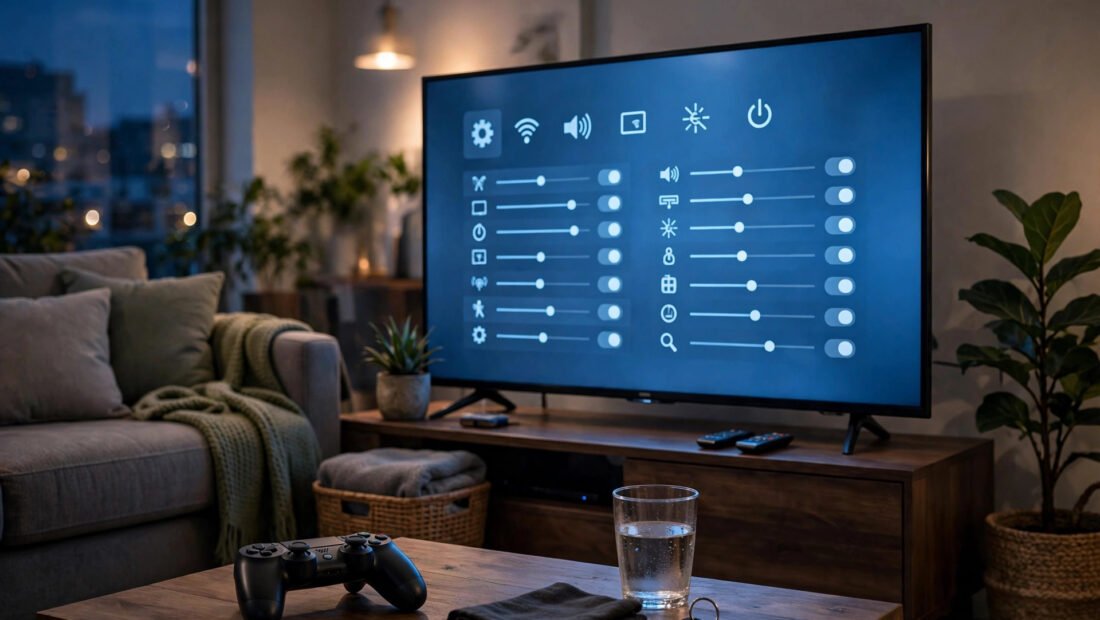
Open your TV’s picture settings and turn on Game Mode for the input your console or PC uses. Every TV from the last decade or so has a version of this setting, though the name and menu location vary. Some sets place it under Picture, some under General or External Devices, and some offer it per input, so make sure you change it for the correct HDMI port.
Game Mode bypasses most of the TV’s extra picture processing. That bypass is the single biggest cut available on most sets, commonly removing the large majority of the delay the TV itself adds. On many televisions, this one change takes gaming from sluggish to playable. Do it first, test a game you know well, and feel the difference before you change anything else.
Note that Game Mode is often set per input and sometimes per picture preset. If you switch consoles to a different HDMI port, or if the TV resets its presets after an update, Game Mode may be off again. When a setup that felt fine suddenly feels heavy, check this setting before you blame the game or the controller.
Step 2: Turn off the picture features that add delay
Game Mode does not always switch off every slow feature. Go through the picture menu for that input and turn off motion smoothing above all. Motion smoothing creates new in-between frames to make movement look fluid for film and sports. To do that, the TV has to wait, compare frames, and build new ones. That waiting is lag, and the smoothing also makes game movement look odd.
Turn off noise reduction, dynamic contrast, dynamic colour or tone processing, edge enhancement, and any eco or ambient processing that changes the picture moment by moment. Each feature costs time. None of them helps you land a jump or a block. If you share the TV for films, use a separate picture preset for movie viewing on a different input or under a different preset name, so you do not have to rebuild your settings every time you switch from a film to a game.
While you are in the menus, it can also help to check whether a slow interface is part of your frustration. A set that hesitates in menus and apps is a separate problem from in-game lag, covered in why your smart TV is so slow when opening apps. Fix game lag in the picture settings for the game input, and treat a slow home screen as its own issue.
Step 3: Check the numbers that tell you if you are done
A good gaming TV in Game Mode lands in the rough range of 5 to 15 milliseconds at 60Hz. That is less than one frame of added delay from the TV, and most players find it comfortable even for fast games. If a review or spec sheet lists a set far above that range in Game Mode, expect to feel it in timing-heavy play.
Players who compete, or who play fighting games and rhythm games seriously, should look for low lag at 120Hz as well. At 120Hz the frame time halves compared with 60Hz, and a set that stays low at that rate gives you both smoother motion and a faster response. Check that your console or PC, the game itself, the cable, and the TV input all support 120Hz at the resolution you use. A chain runs at the speed of its slowest link.
Lag figures are published per model and per mode, so look them up for the exact set and mode rather than trusting a brand-wide claim. A useful overview of how these settings interact is How-To Geek’s explanation of TV picture settings and game mode. When you shop for your next TV, treat the Game Mode lag figure as a core spec, on the same level as size and resolution.
Step 4: Work the rest of the chain
With the TV set correctly, turn to the smaller links. A wired controller shaves a little delay compared with a wireless one and removes dropouts. The gain is small, and many players will not notice it in a slow game, but in a close fighting match or a precise rhythm section, small gains are the ones left to collect. If you use a wireless controller, keep it charged and close to the console, and remove sources of interference where you can.
Audio can lag too, and it matters more than people expect. Bluetooth audio can add a clearly noticeable delay between action and sound. In a rhythm game, late sound breaks your timing even if the picture is fast. In a fighting game, late hit sounds throw off your sense of contact. Use wired headphones, the controller’s headphone jack where it stays in sync, or a low-latency wireless option made for gaming when sound timing matters.
Replace a faulty or ancient HDMI cable, especially if you get flicker, dropouts, or a set that will not hold 120Hz. Be clear about what a cable can and cannot do: a cable does not add processing lag by itself. A damaged or out-of-spec cable causes signal problems, not a steady extra delay. Buy the correct spec for your resolution and frame rate, keep the run reasonably short, and do not pay more in the hope of buying lower lag that a cable cannot provide.
Step 5: Let ALLM and VRR do their jobs if you have them
Many recent TVs and consoles support ALLM, which stands for auto low-latency mode. With ALLM on at both ends, the console tells the TV to switch into its low-lag mode when a game starts and switch back when you return to video apps. It does not make Game Mode faster. It makes sure Game Mode is actually on at the right time, which saves you from the common failure of playing for an hour in a movie preset.
VRR, or variable refresh rate, solves a different problem. It lets the TV match its refresh to the game’s changing frame rate, which reduces stutter and screen tearing when a game cannot hold a steady rate. VRR does not by itself erase input lag, but a smoother, tear-free image is easier to read and react to. If your TV and console both offer VRR, turn it on for the game input and test your main games. A small number of titles or sets pair poorly, so if a game looks worse with it, turn it off for that title and keep it for the rest.
Check the input label as well. Some TVs give one HDMI port fuller gaming features than the others, and some reserve the highest bandwidth port for the console. Plug the console into the port the manual recommends for gaming, then set Game Mode, ALLM, and VRR for that port.
Step 6: Test honestly and find the real culprit
Test with a game you know by feel, in a mode with direct control: move the camera, jump, fire, or play a short timing section. If menus, the dashboard, and every game all feel heavy on this TV, the TV settings are still the likely problem. Recheck Game Mode on the right input, motion smoothing, and any processing you may have missed.
If one title feels floaty on every screen you try, the game itself is the problem. Some games carry heavy built-in delay from their animation systems, their online code, or a low frame rate. A fast TV cannot remove delay that the game adds before the signal ever reaches the cable. Compare the same game on a monitor if you can. Monitors usually add very little delay, so a game that still feels late on a monitor is telling you where the lag lives.
Keep online delay separate in your mind. A slow connection adds its own wait between you and other players, and it stacks on top of display lag. If single-player play feels sharp and only online matches feel late, look at your connection and the game’s servers rather than pulling your picture settings apart again.
Buying your next TV with lag in mind
When you replace the set, shop by the Game Mode number first. Look for measured lag at 60Hz and, if you play fast games, at 120Hz. Confirm support for ALLM and VRR, count the full-bandwidth HDMI ports, and check whether Game Mode can run at the resolution you actually use.
Do not let a bright showroom picture talk you out of those checks. Showrooms run sets in vivid modes with every enhancement on, which is the opposite of the mode you will game in. A set that looks slightly less dramatic in the store but answers your hands at once will feel better every night you play. That quick response, more than most picture specs, is what you will notice long after the new-TV glow fades.