
The screen fills with a red warning, a siren of text: your computer is infected, call this number immediately, do not turn it off. Your heart rate does the rest. Take a breath, because the first thing to know about this moment is that the warning itself is very often the scam — and even when a real infection sits behind it, the next hour has a correct order of operations that handles both.
Work through the phases below in order. Each one makes the next one safer.
Phase 1 — The first ten minutes: disconnect and do nothing they ask
Unplug the network cable or turn off Wi-Fi. This cuts the infection off from whoever may be controlling it and stops it spreading to other devices on your home network. Then the two nevers: never call a phone number shown in a pop-up, and never pay anything or install “support” software a stranger directs you to. Real security software does not recruit by full-screen siren, and Microsoft never asks you to call.
If the browser is locked on the scary page, close it with Task Manager (Ctrl+Shift+Esc, end the browser task) rather than clicking anything inside the page. When you reopen the browser, decline the offer to restore the previous session. In a large share of cases, this is the entire incident — a malicious web page, not an infection — and the phases below become a health check rather than a rescue.
Phase 2 — Work out whether it is real
A genuine infection leaves evidence beyond one dramatic page. Look for the cluster: programs you never installed, a browser homepage or search engine that changed itself, toolbars and extensions you do not remember, constant pop-ups even with the browser closed, the computer crawling while the fan runs hard, or friends telling you your accounts are sending strange messages. One sign may be nothing; three together mean treat this as a real infection and continue.
Write down anything odd before you clean — what changed, when it started, what you downloaded or clicked around that time. If you end up needing professional help, that note is gold.
Phase 3 — Boot into Safe Mode
Restart the computer into Safe Mode with Networking (hold Shift while choosing Restart, then Troubleshoot, Advanced options, Startup Settings, and pick the Safe Mode option). Safe Mode loads only the essentials, which usually stops the malware itself from starting — turning an active fight into a cleanup of something that is asleep. Everything below happens here.
Phase 4 — Scan with what Windows already has
Open Windows Security, go to Virus & threat protection, and choose Scan options. Run the Full scan first and let it finish, however long it takes. Then run the Microsoft Defender Offline scan as well — this one restarts the computer and scans before Windows fully loads, which is where stubborn infections hide. Let it remove or quarantine everything it finds, and note the names of anything it reports.
Free, trustworthy tooling is the theme here — the baseline advice from CISA’s Secure Our World guidance is built on exactly this: use the protections already in the system, keep them updated, and be suspicious of anyone selling rescue.
Practical note on timing: a full scan of a well-filled drive can take hours, and the offline scan takes the machine away entirely for a while. Start the full scan in the evening and let it run overnight; use the waiting time, on your phone, to list the accounts you will change passwords for in Phase 6 and to copy any irreplaceable files still only on that computer onto a spare drive or cloud folder — carefully, documents and photos only, never programs, since you are copying cargo out of a possibly contaminated hold. Cleaning first and backing up after is the wrong order only if the cleaning goes wrong, which is rare — but rare is what this whole day has been about.
Phase 5 — Get a second opinion
No single scanner catches everything, so run one more from a different maker. The free version of Malwarebytes is the standard second opinion for Windows — download it (Safe Mode with Networking lets you), scan, and remove what it finds. Two engines agreeing the machine is clean is far stronger evidence than one engine saying it once.
While the scans run, tidy the obvious doors: uninstall programs you do not recognize from Settings, and open each browser to remove extensions you never added and reset the homepage and search engine if they were changed.
Phase 5½ — Evict the squatters
Scans remove the infection itself; this short phase removes the welcome mats it leaves behind. Check what starts with Windows: open Task Manager’s Startup tab and disable anything you do not recognize or no longer use — persistence often lives there in plain sight. Then open each browser properly this time: remove every extension you did not personally install, reset the browser’s settings to defaults if the homepage or search was hijacked, and sign out of accounts inside the browser so stale sessions die with the cleanup. Finally, look in Settings at the installed apps sorted by date. Whatever arrived on the day the trouble started gets a hard look and, if you cannot name it, an uninstall. This is also the moment to change your relationship with downloads: the infection came from somewhere, and it is usually a “free” version of something paid, an attachment you were not expecting, or an update prompt on a random website. The fix for each is a habit, not a product.
Phase 6 — Secure your accounts from a clean device
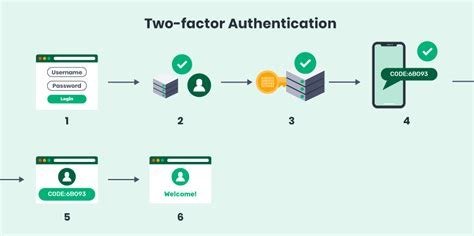
Assume the infection may have seen passwords. From a different, clean device — your phone, not the computer you just cleaned — change the important passwords, starting with email, then banking, then everything else, and turn on two-factor authentication as you go. Email comes first for a reason: it is the reset key to every other account. If the signs point that way, our guide to how to tell if your email has been hacked walks through the specific checks. Watch bank and card statements closely for the next few weeks, and tell your bank promptly if anything odd appears.
A special case: if the files themselves are locked
One infection behaves differently from everything above, and it deserves its own paragraph so you recognize it instantly: ransomware. The signs are unmistakable — files that will not open, filenames scrambled, a ransom note on the desktop demanding payment in cryptocurrency. If this is your situation, the phases change in two ways. First, disconnect the machine immediately and leave it off except to work on it, because encryption can still be spreading to anything attached, including backup drives. Second, do not pay: payment is no guarantee of a working key, it marks you as a payer, and it funds the next victim. Your realistic paths are the ones in Phase 7, sharper-edged: restore from a backup that predates the infection — which is why the backup advice at the end of this article is written the way it is — or accept the loss of what has no copy. This is the scenario where backups stop being a virtue and become the whole story.
Phase 7 — The decision point: is “clean” clean enough?
Reboot normally and live with the machine for a day. If the pop-ups are gone, no new software appears, scans come back empty, and the computer behaves like itself, you are very likely done — finish by installing every Windows and browser update, since infections usually walked in through an unpatched gap.
But be honest about the exceptions. If the infection keeps returning after scans, if banking or identity theft is genuinely in play, or if you simply cannot trust the machine with your life on it, there is one cure with a 100 percent success rate: a full reinstall of Windows from the built-in Reset option or a fresh installation USB, erasing the drive. It is drastic, it means reinstalling your programs and restoring your files from backup, and that is exactly why it works — no malware survives a proper wipe. It is a weekend afternoon. Sleeping soundly afterward is worth it.
Afterward: make the next one somebody else’s problem
A cleaned machine deserves a quieter future, and four habits provide it. Turn on automatic updates for Windows and the browser, because the holes malware walks through are overwhelmingly holes a patch already existed for. Do daily work from a standard user account rather than an administrator one, so anything that does slip in inherits fewer powers. Keep one real backup — an external drive or cloud copy of the files you would actually grieve — because a backup converts even the worst infection from a catastrophe into an inconvenience: wipe, restore, move on. And retire the password you used in six places; a password manager makes unique passwords effortless, and unique passwords are what confine the next breach to one account instead of your whole life. None of this requires expertise. It requires the hour you have just spent, once, and the decision not to need it again.